CG Compositing Series – 4.1 LightGroup / AOV Paradox

In this final installment of the CG Compositing Series, we focus on using LightGroups and Material AOVs together in a single workflow, and solving the paradox that come with it.

Why do these 2 rebuild methods seem to clash?

We cover the following topics in the video and in this blog post:

  • The complications of splitting LightGroups per Material AOV
  • A method for transferring changes between setups using a Difference Map
  • The pitfalls of using Subtraction and the advantages of using Division
  • A comparison of math operations: Add/Subtract vs Multiply/Divide
  • A stress test of the Division-based setup
  • Template layout strategies and rules to keep your rebuilds stable
  • Carrying changes across the template from the 1st rebuild to the passes of the 2nd for the most interactive user experience.
  • Ideas and techniques you can apply in your own CG Templates.

SlideShow PDF Download here:


What is the LightGroup / Material AOV Paradox?

Why do these two rebuild methods seem to clash?

We basically have 2 setups that are incompatible with one another, making it hard to use them at the same time.

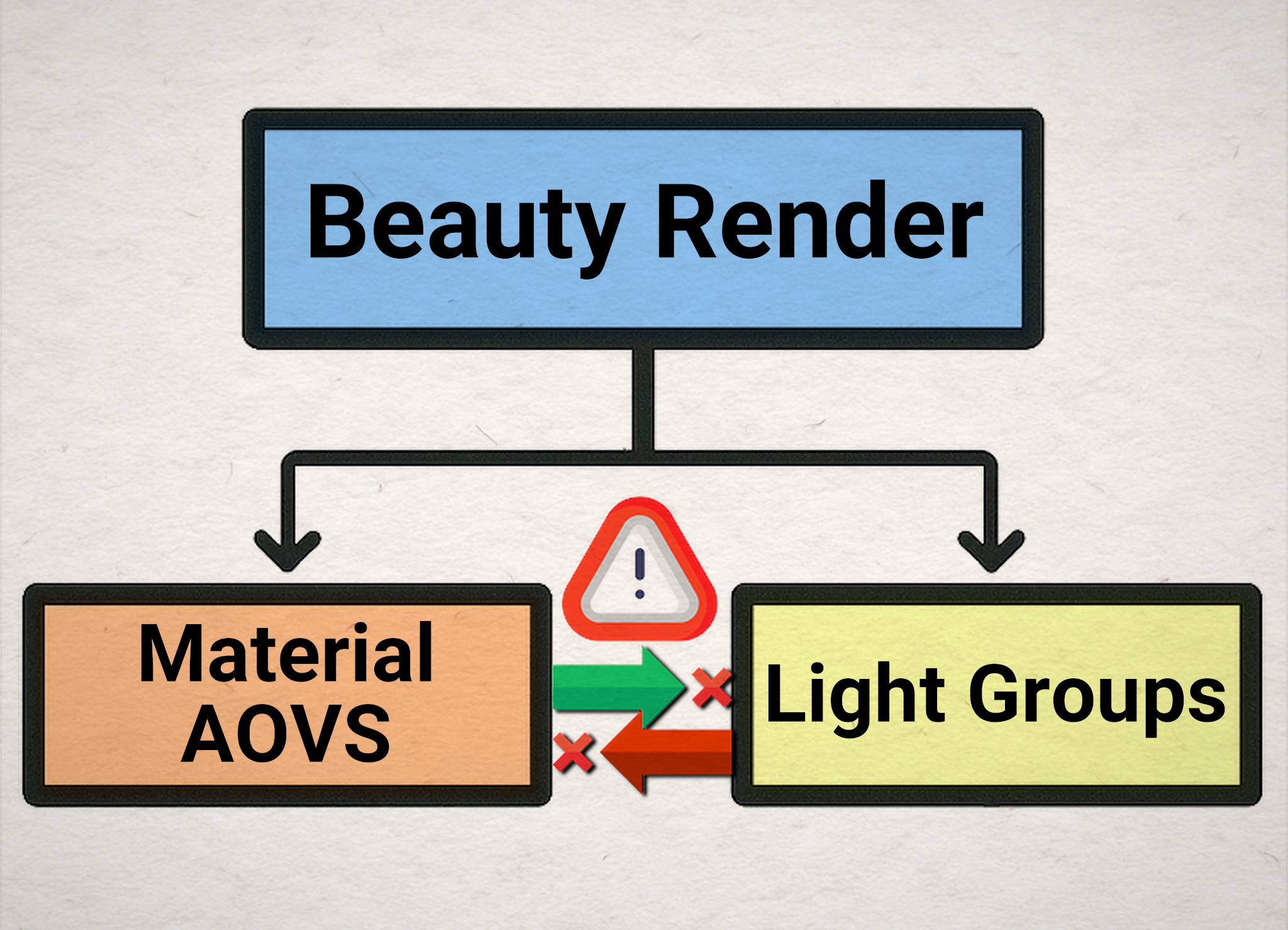
Both the Light Groups and the Material AOV Rebuilds are different ways to Slice the CG Beauty Render

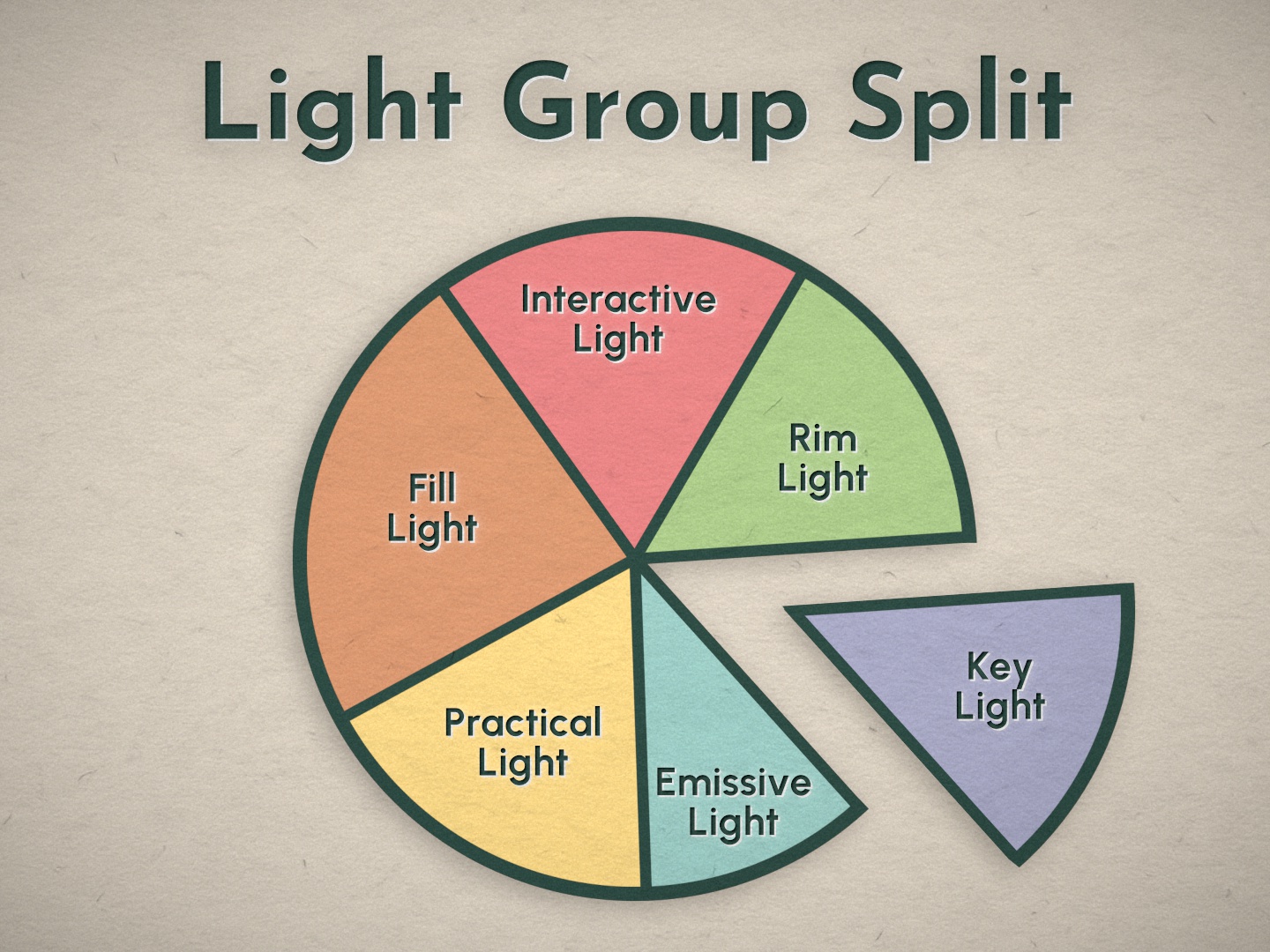
But this is not the full story, for a better overview of the situation, we need to look at the same image from a slightly different angle.

The Passes of the Opposite Rebuild actually exist within each slice of the Current Rebuild
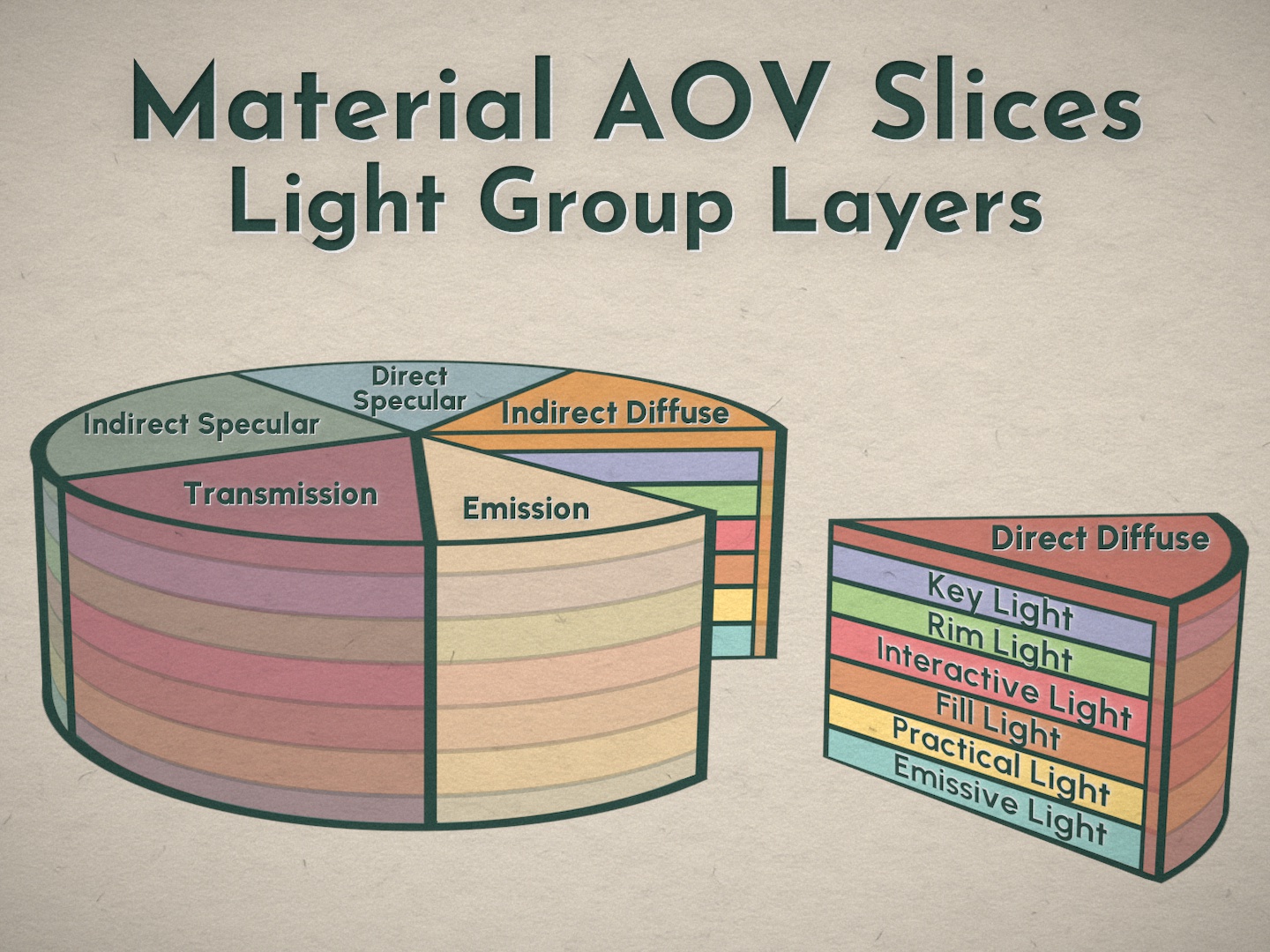
They are fully embedded and intertwined in one another.


The Paradox:
How do you make changes to both Rebuilds if the Passes are already embedded within each other?


Possible Solutions to the Paradox:

Let’s explore some possible solutions to this problem.


Split Pass Workflow: Split out Material AOVs per LightGroup

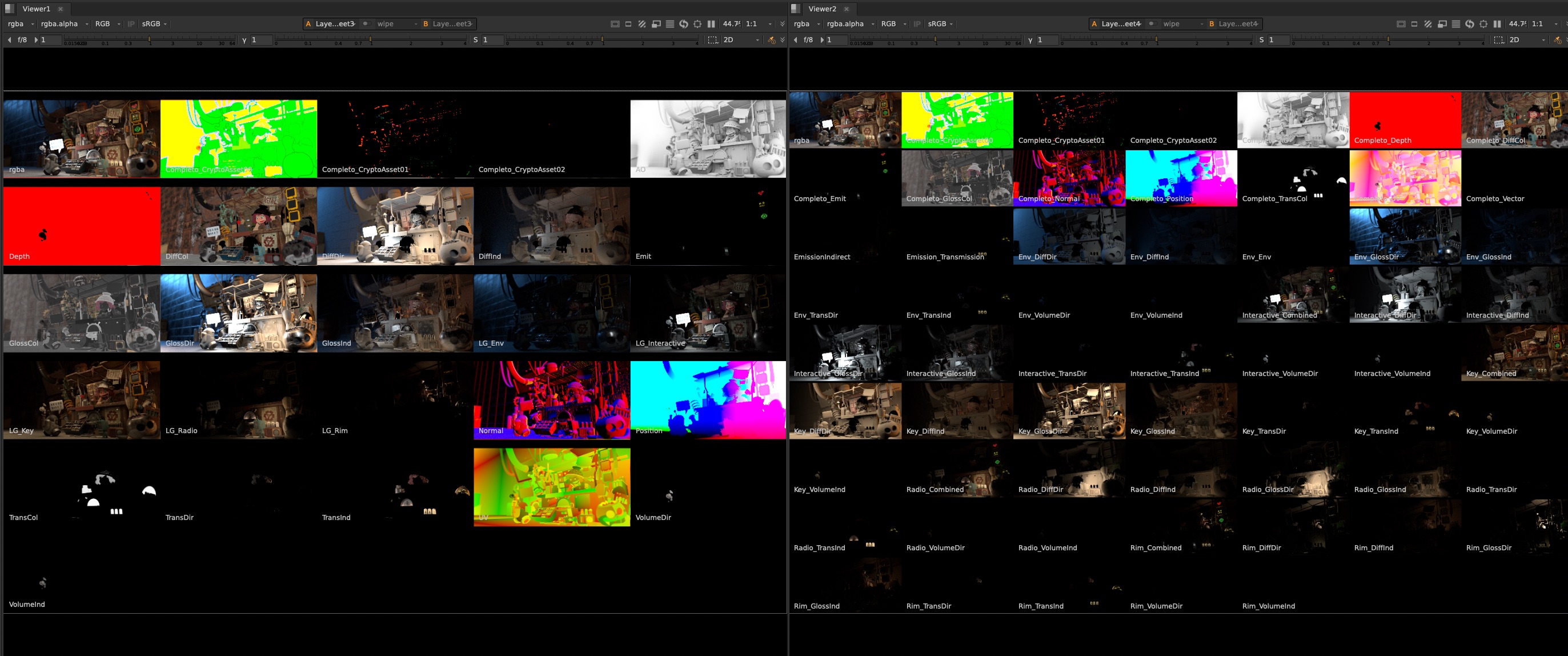
Download the larger LightGroup-per-AOV split Render here or at the bottom of this blog

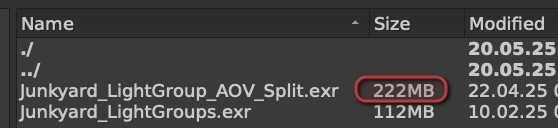
Junkyard_LightGroup_AOV_Split.exr ( 223 mb )

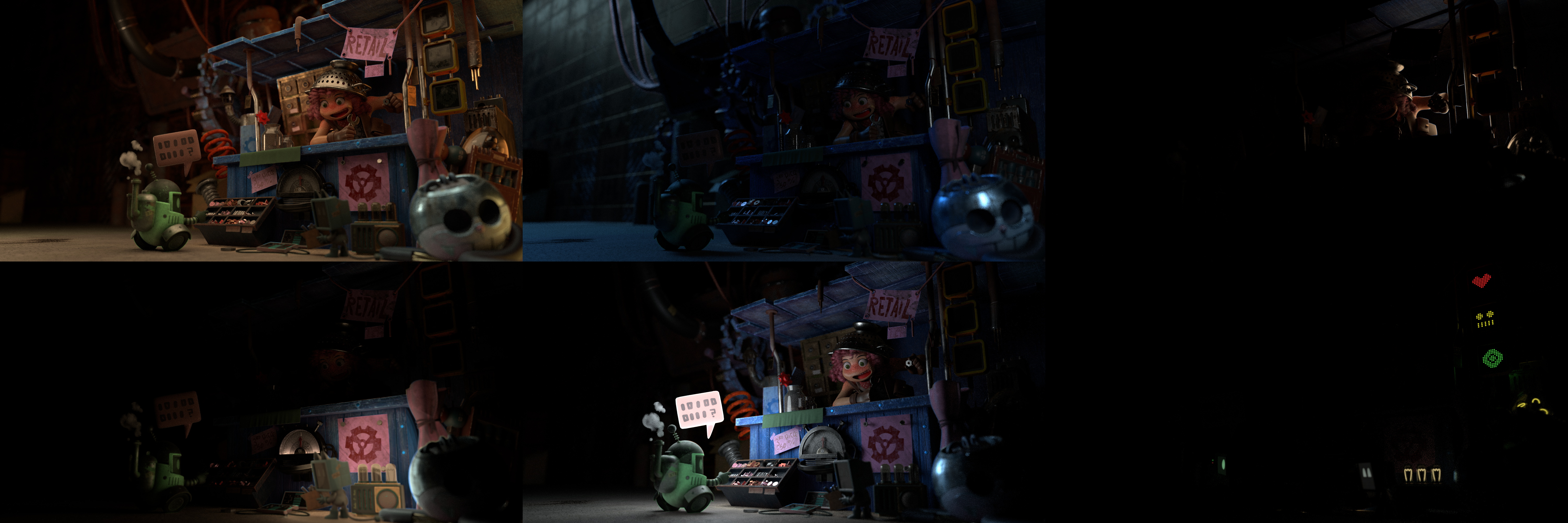
We could decide to brute force split out each pass even further, into Material AOVs per Light Group.

When we rebuild it you could either prioritize it as Larger buckets of Material AOVs, made up of each LightGroup.
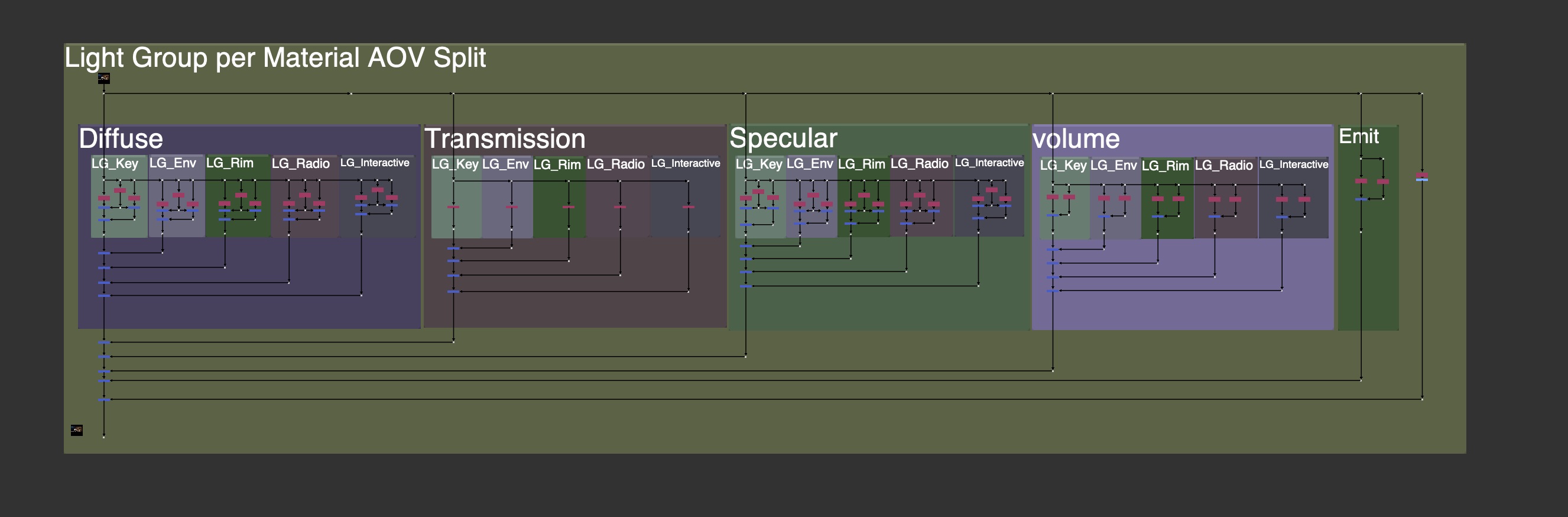
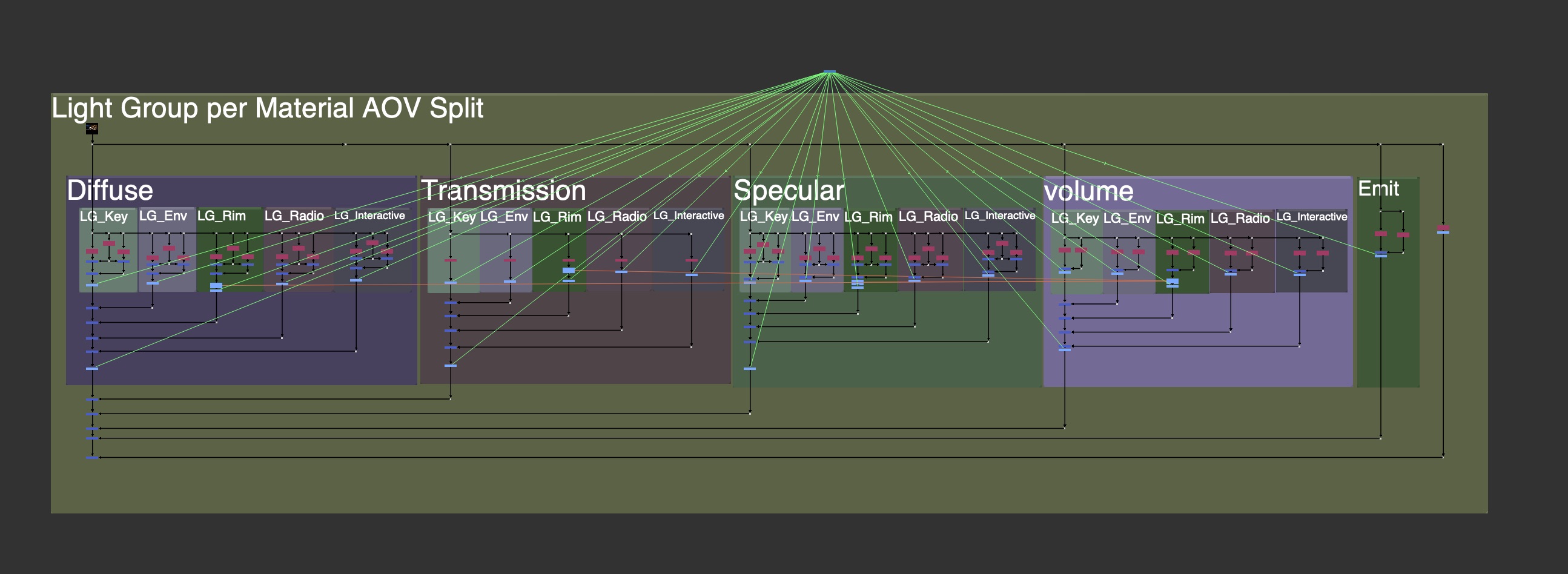
Or prioritize it as larger buckets of LightGroups, made up of each Material AOV, like a mini-Beauty Rebuild per light.
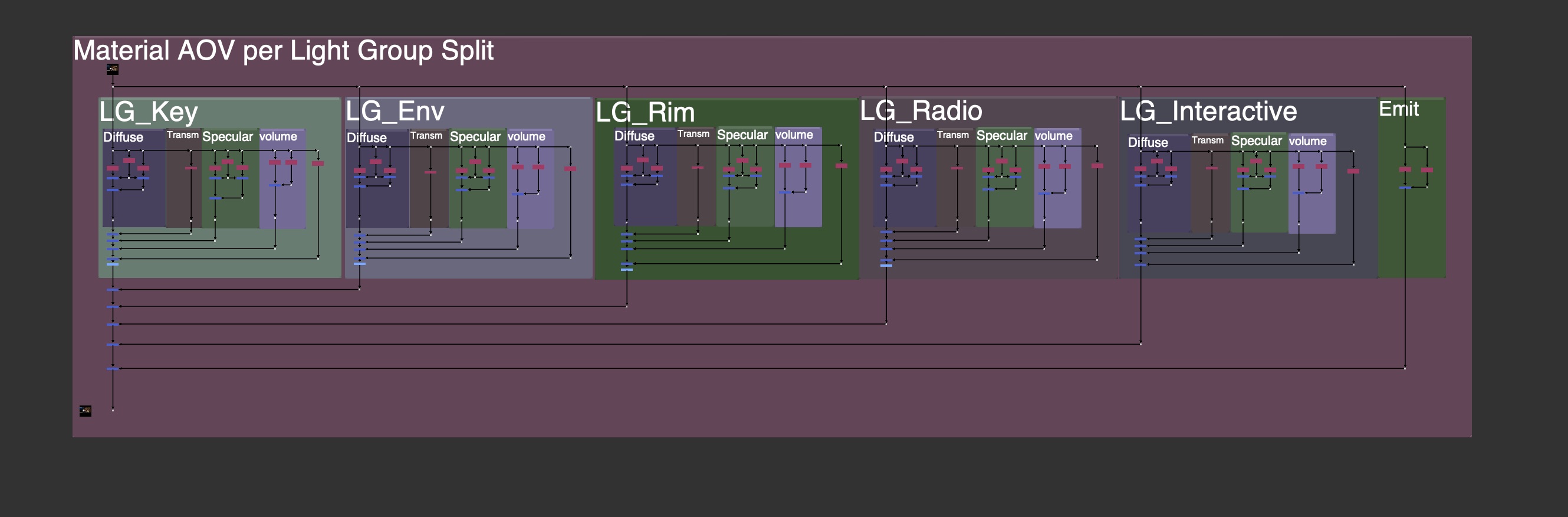
There are many problems with this workflow however:

There are many more layers and channels rendered, making file sizes larger, and nuke slower to process and more difficult to work with.
There is often a need to clone or expression link grades and color correction changes across different parts of the setup in order to affect all the lights at once, or all the material AOVs at once. Creating a clone or expression hellscape.

There are also cases where you will see a master control and expression links, so the user does not get lost in the linked/cloned nodes.
You may also see the entire setup in a Group Node, to hide it and only expose necessary controls.

Compositing is never that straight foward however and we should not be compositing from within a Group node. We often need to pull masks, rotos, elements, etc from other parts of the main node graph, and if everything is in a Group, it becomes difficult to get that information inside of the group to use.

Most Compositing should happen exposed in the main node graph to avoid any headache, and not hidden away in a Group that a user needs to jump in and out of.

This extra split workflow has many cons, let’s look at some other workflows to solve our paradox problem.


Transferring Changes from 1st Setup to the 2nd Setup

Another workflow is trying to capture and transfer the changes from the 1st Rebuild Setup to the 2nd Rebuild Setup. This is the basic idea of the workflow at its core:
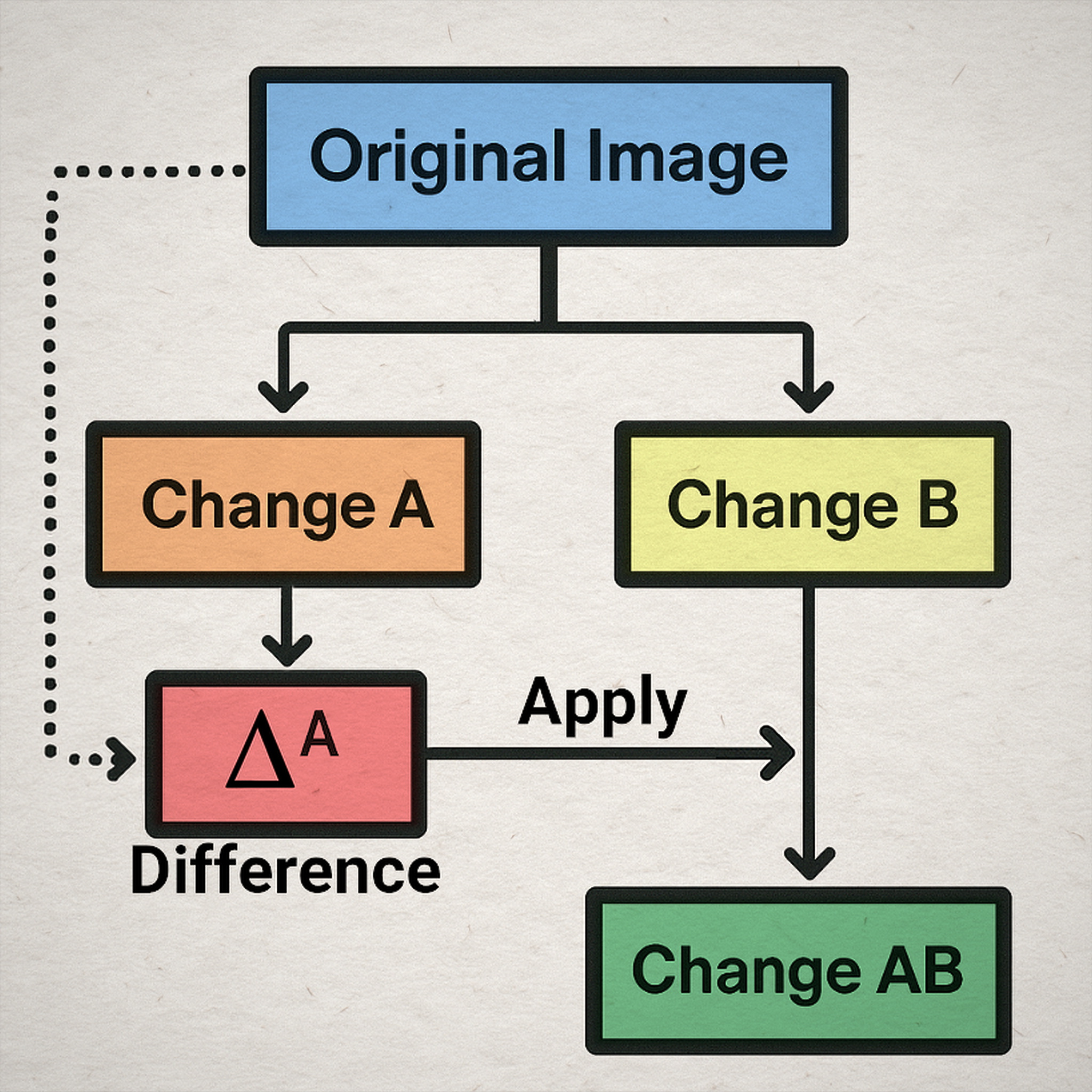
An example of this technique could be illustrated from Machine Learning or Generative AI workflows, and is called Style Transfer.

In the below image, I start with an image of a bearded man. I have 2 separate models that are making changes. The first might be for facial expressions and shaves, and the second is for applying makeup. On the left side, I make a change to make the man beardless, and with an angry expression. On the right side, I’ve told it to apply clown makeup. If we want to combine the 2, I might want to package the “Beardless Angry” Changes, and apply that over to the clown makeup side. My result would be a Beardless Angry Clown.

This is a silly example but illustrates the workflow we want to use in Nuke to capture our first changes and apply them to our second changes for a combined change.

But how can we capture and package those changes from the first setup?


Subtractive (Absolute) Difference Method

  • We can find the difference between the 1st Rebuild and the Beauty Render using Subtraction
  • Temporarily store the changes in a subtractive difference map
  • Apply the 1st changes to the 2nd Rebuild Setup

Taking one of your rebuilds, either Material AOV comp or LightGroup comp, and subtracting the original Beauty Render will give you the Subtractive Difference Map, as seen below:

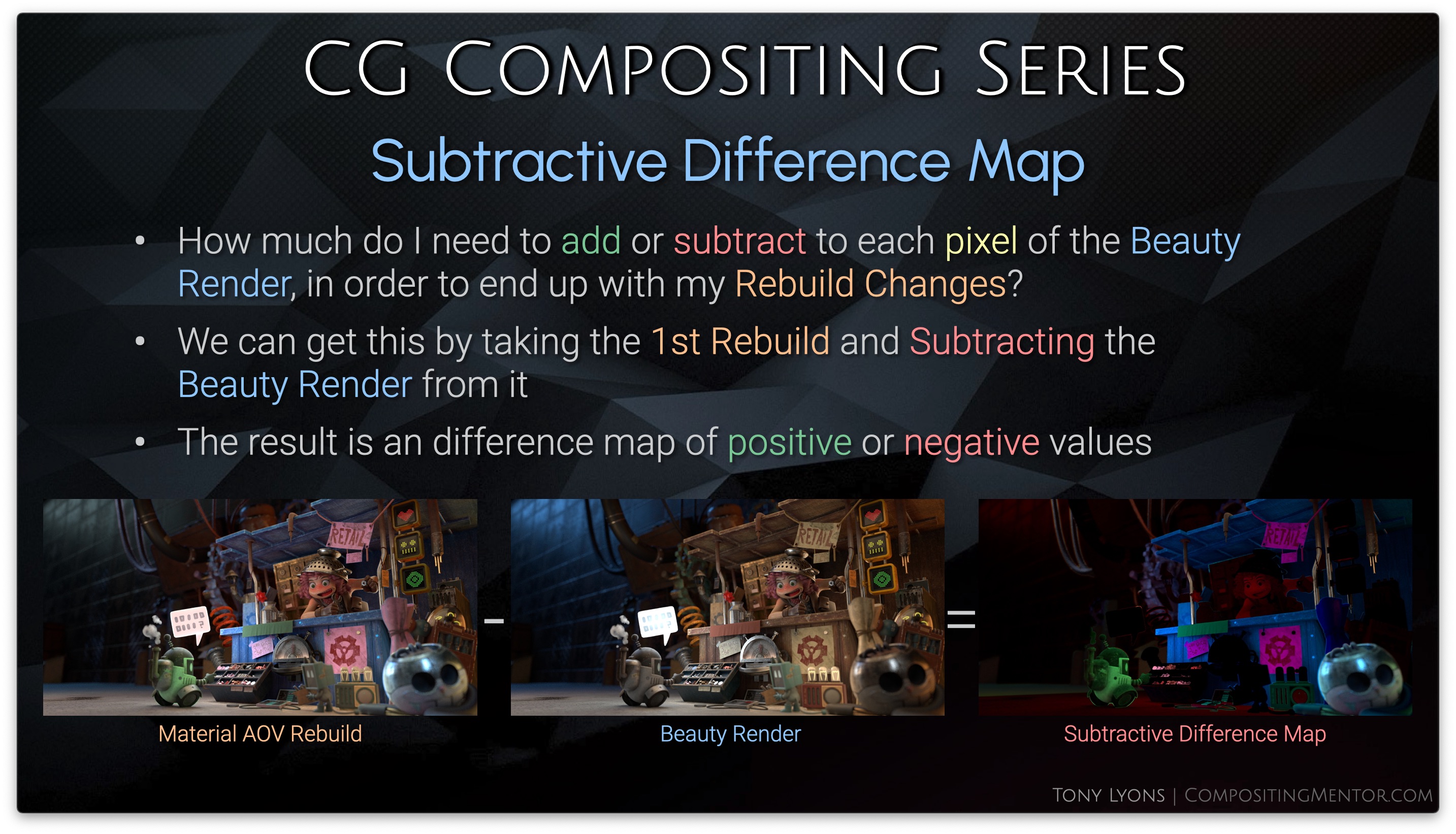
Subtractive Difference Map

The image itself is a map of positive and negative values, telling us how much we would need to add/subtract from the Beauty Render in order to get the result of our changed Rebuild.

  • Values of Zero will have No Change
  • Positive Values will get Brighter
  • Negative Value will get Darker

Let’s get into some equations to help us understand the math behind this workflow.

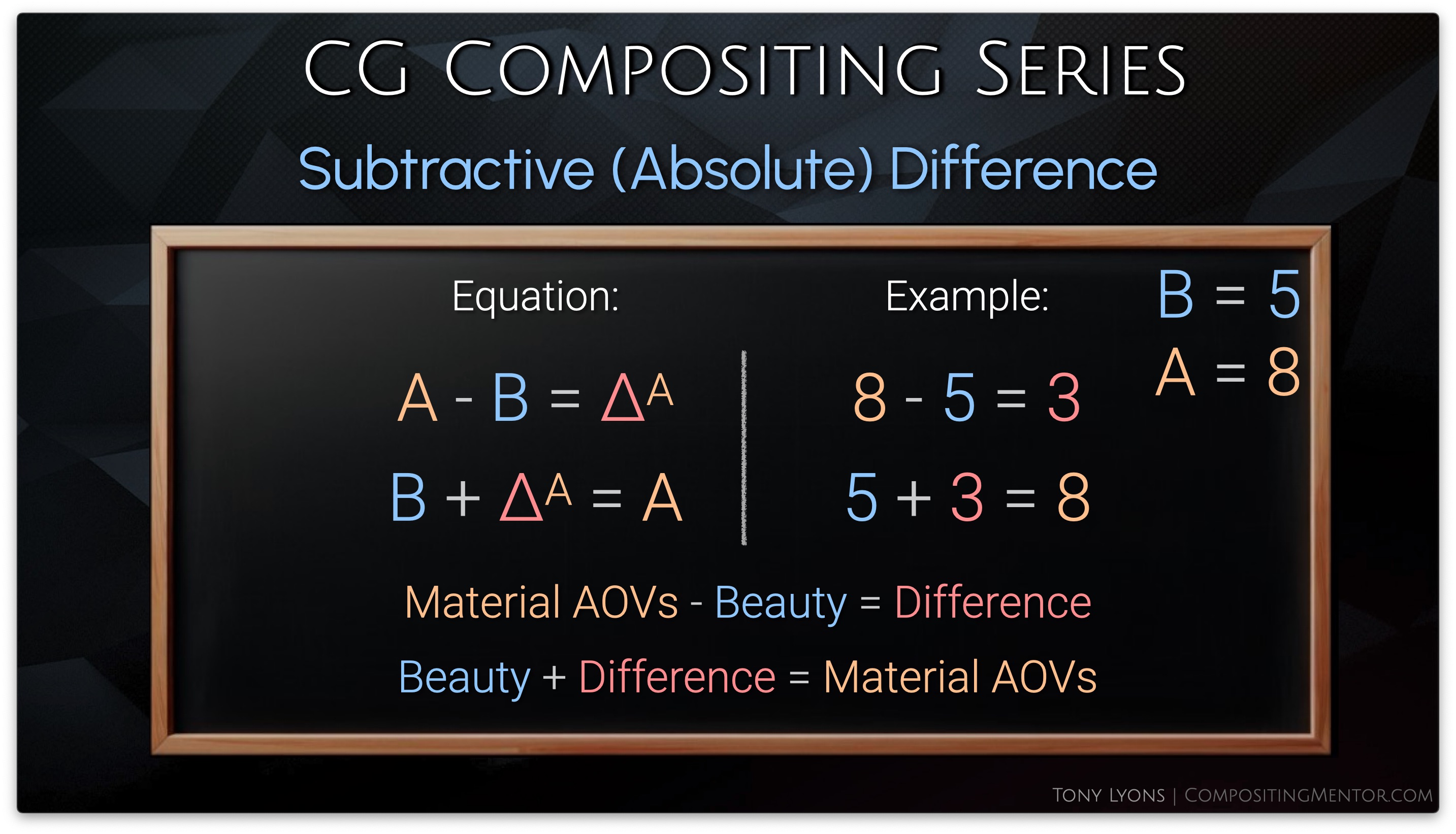
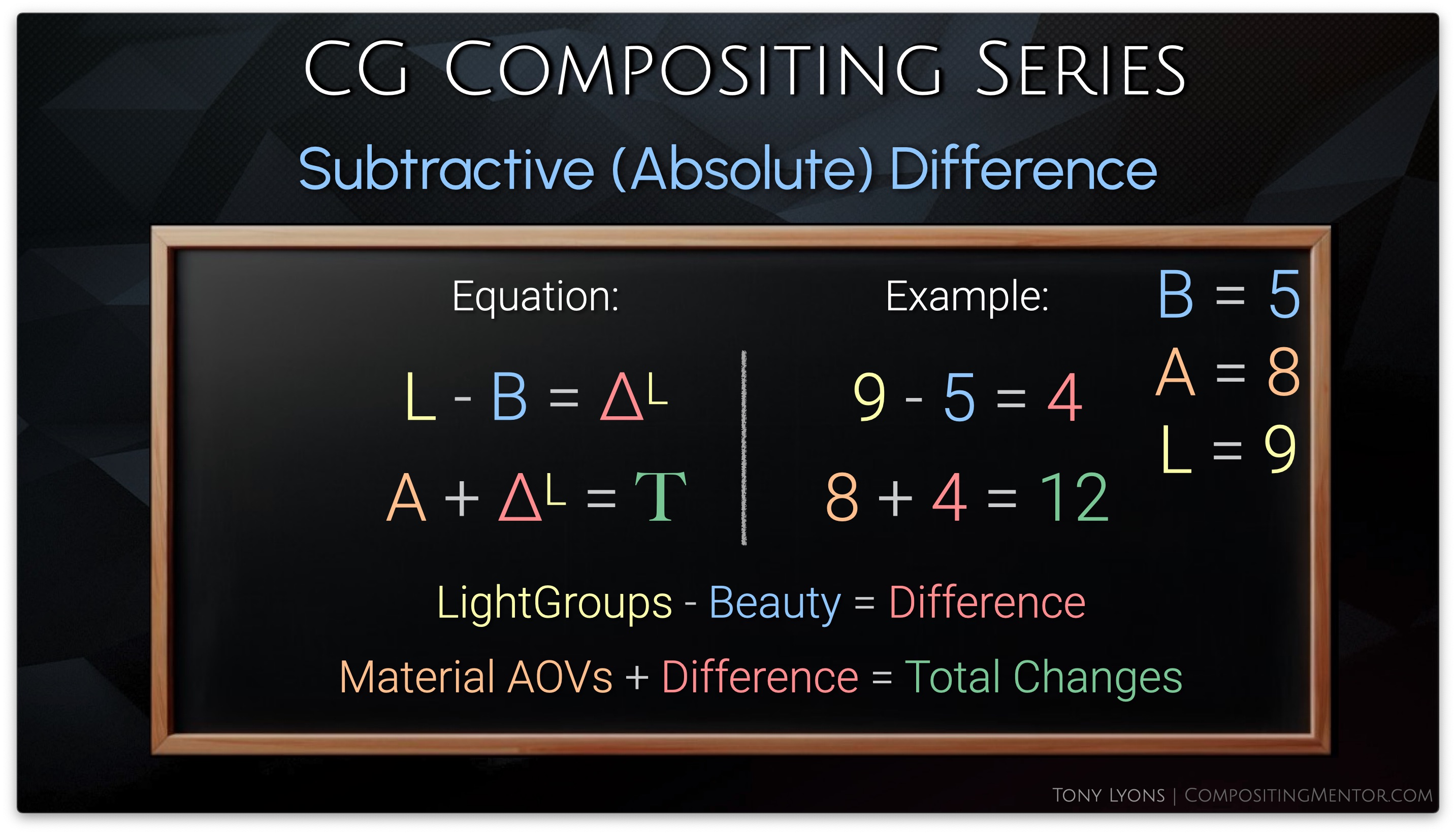
First let’s define a helpful math symbol: Delta, which stands for “The Change” or “The Difference”

First we’ll do a basic inverse operation with subtraction and addition.

Material AOVs – Beauty = Difference

Beauty + Difference = Material AOVs
Instead of adding the difference back to the Beauty, let’s swap the Beauty out for the result of our LightGroups comp. So I am adding the difference of the Material AOVs comp onto the LightGroups comp, to hopefully get the combined changes.
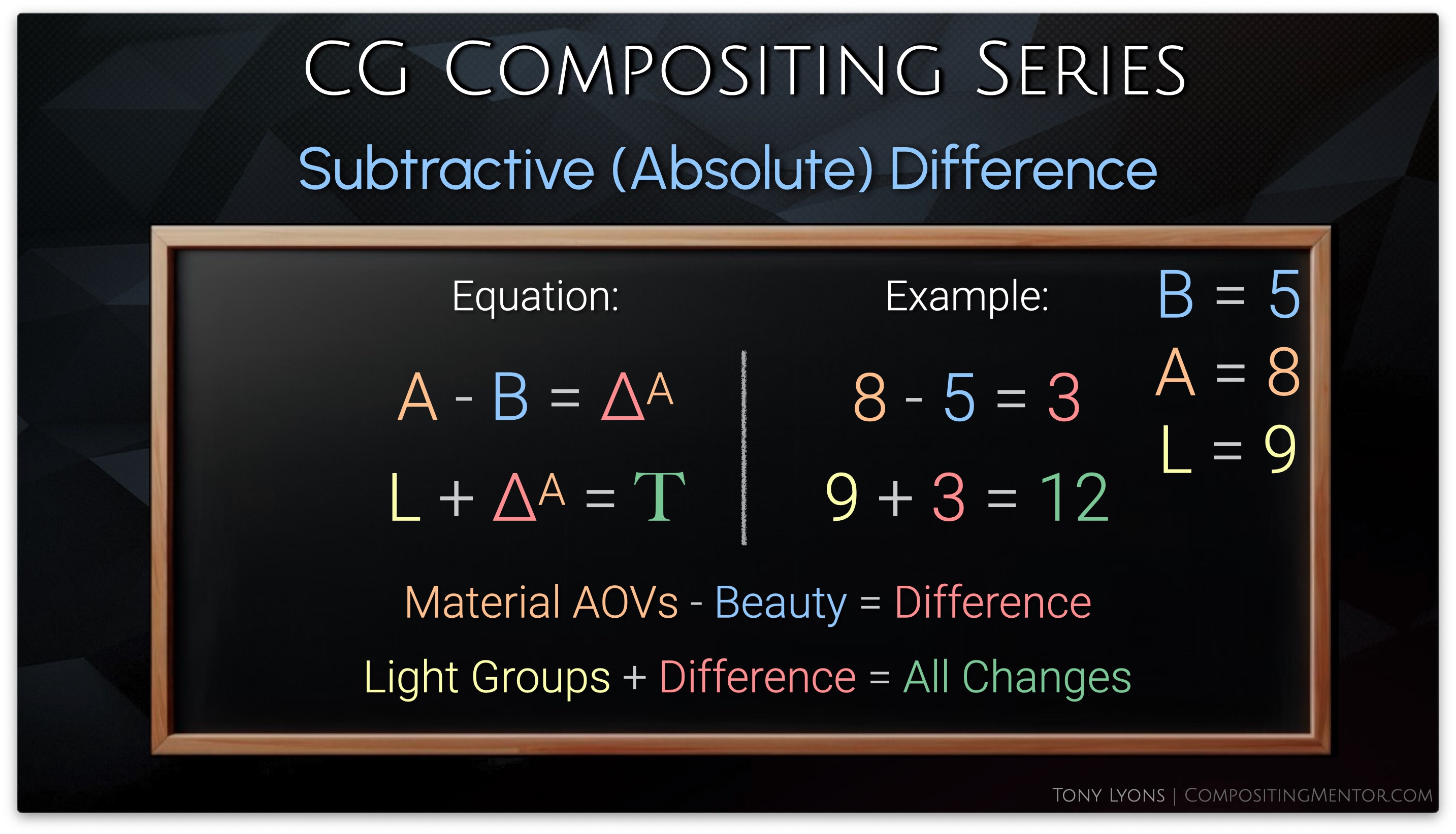
It’s important to realize that we do not need to start with the Material AOVs and transfer to the LightGroups, but we could also just as easily start with the LightGroups and transfer those changes over to the Material AOVs, it’s a matter of preference, but the result will be the same.
Let’s try this in nuke, by taking the Material AOVs output, minusing the Beauty Render, and then applying our subtractive
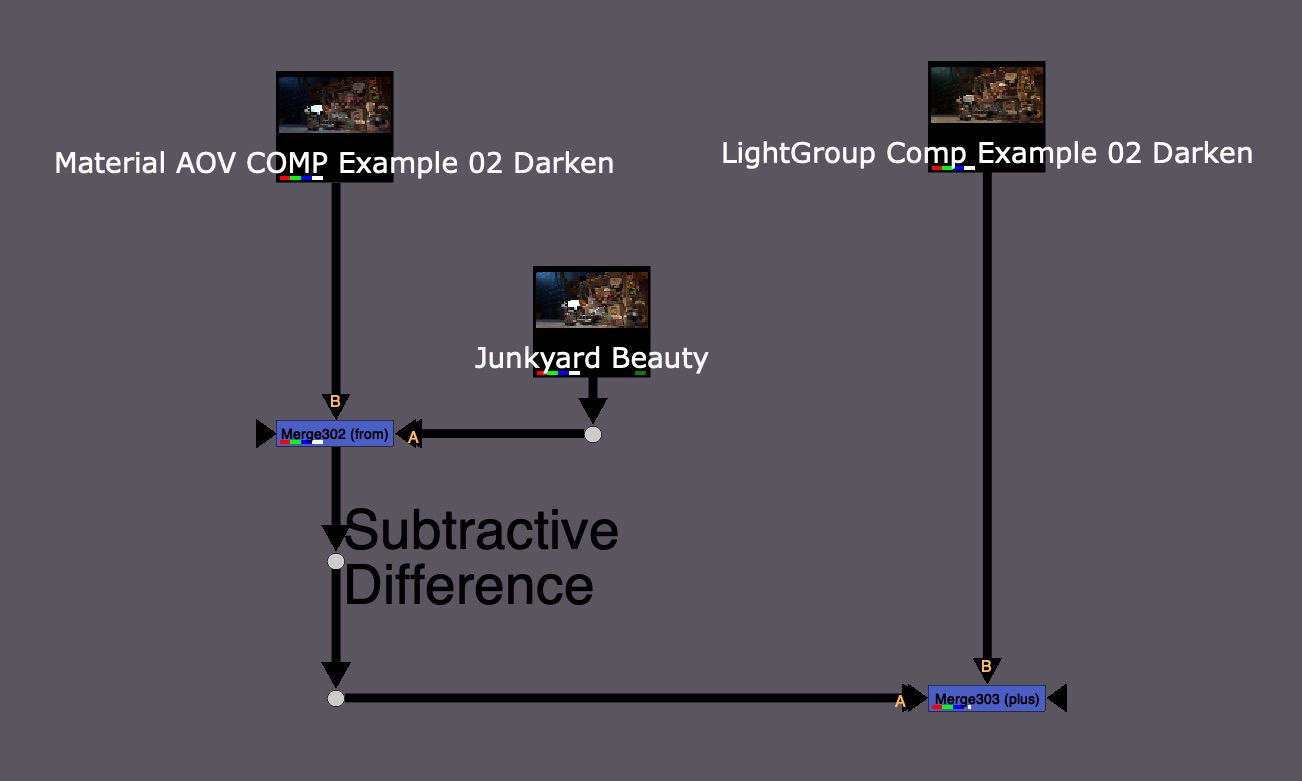
The resulting image kind of works, but is also full of problems with odd colors and seemingly black hole areas

Subtractive Method Failure

Let’s take a look at what is going wrong with the Subtraction Difference Method.


Subtractive (Absolute) Difference Problems

  • The Subtractive Difference Map represents Absolute Values 
  • This tells you the exact values to add/subtract to bring the Beauty Render to the Changed Rebuild
  • The Subtractive Method (Absolute) only works well if you Brighten values in the Rebuilds, or only Darken them slightly

Brightening both setups will be fine, as the results will only increase.

Darkening both setups however, runs the risk of going below zero and into negative values when the change is applied to the 2nd Setup. The darker the changes on both sides, the higher the risk of negative values.

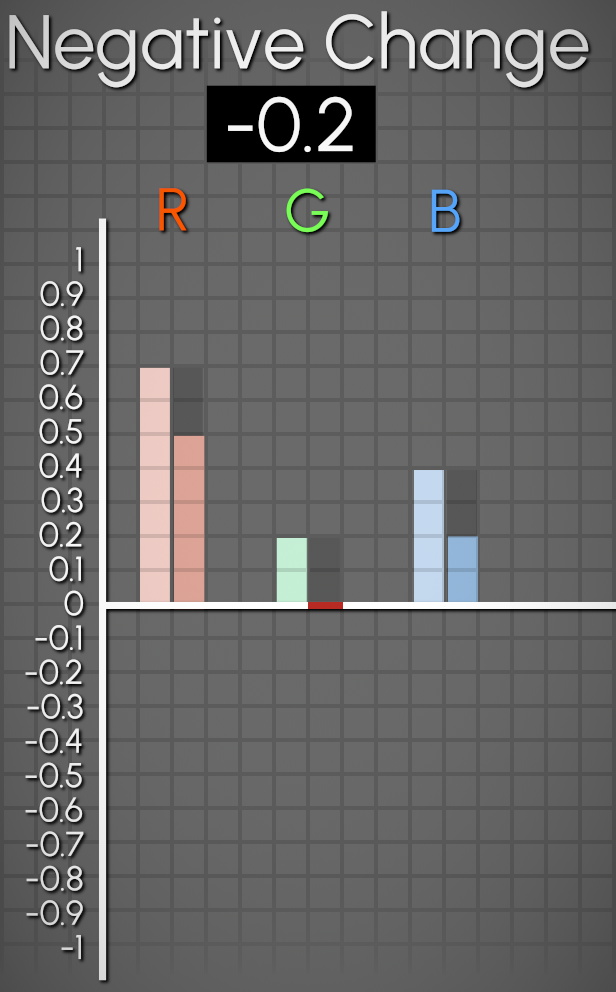
Remember that the Rebuild passes are embedded in each other’s setups. If we darken some lights, and then darken the Specular, since the specular also contains all the lights, we are essentially subtracting those light groups twice and getting negative values.

So if this Subtractive Difference Method is giving us issues, let’s look at any other ways to get the difference map.


Division (Relative) Difference Method

Let’s ask ourselves: How can I go from 8 to 4?

Obviously we could subtract 4, and 8 – 4 = 4

But if we had a new, lower number, such as 2, and we also minused 4, we’d get -2.

We could also divide 8 by 2, therefore halving it, and we’d also arrive at 4.

Then trying to divide 2 by 2 will get us 1, it is also halved.

The number of change from 8 was -4 but from 2 it was only -1. This number of change is Relative to the input number. It is a ratio or a percent of what the start number is, so it adapts to our input.

Of course, this could also be represented as multiplication. divide by 2 is the same as multiply by 0.5

So instead of trying subtraction and addition, let’s now try divide and multiply
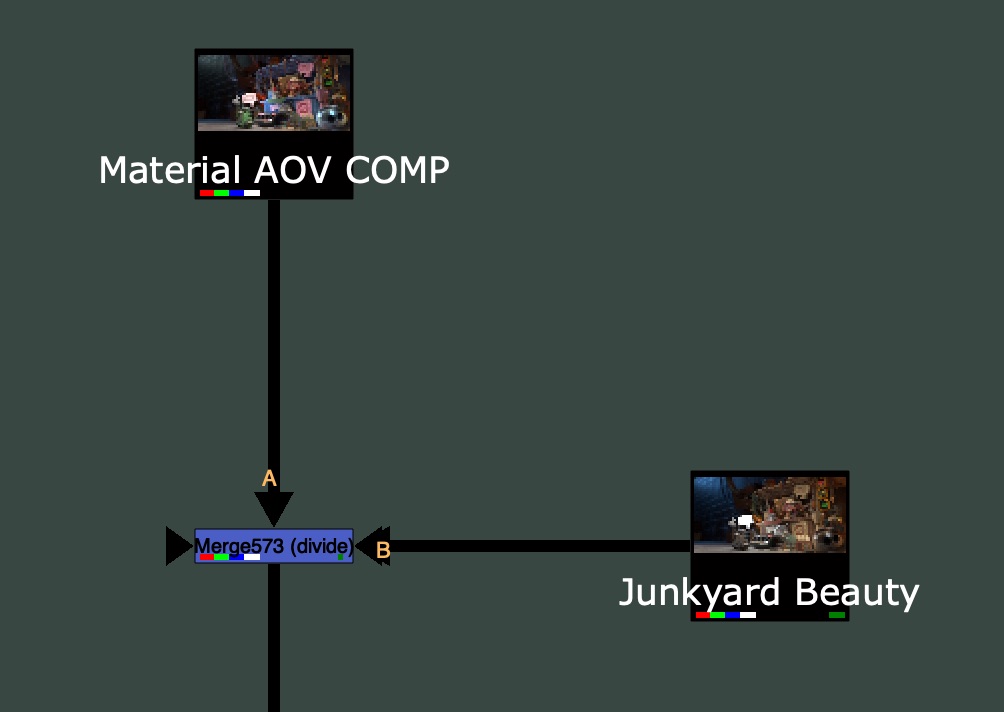
The Result is a Division Difference Map that looks a lot different than our Subtraction Difference Map
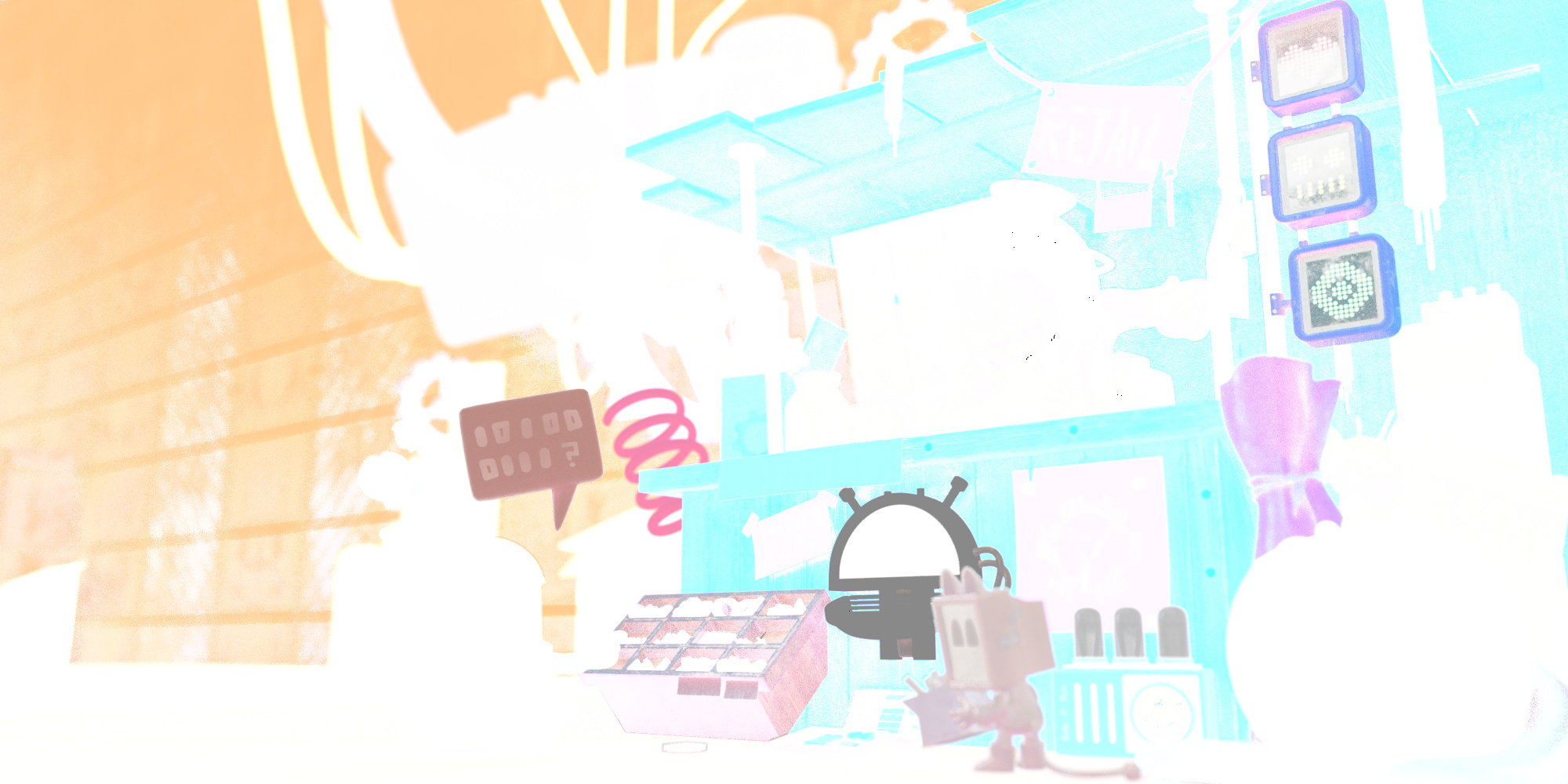
Division Difference Map

Now let’s multiply this with our 2nd Rebuild, the LightGroups side:

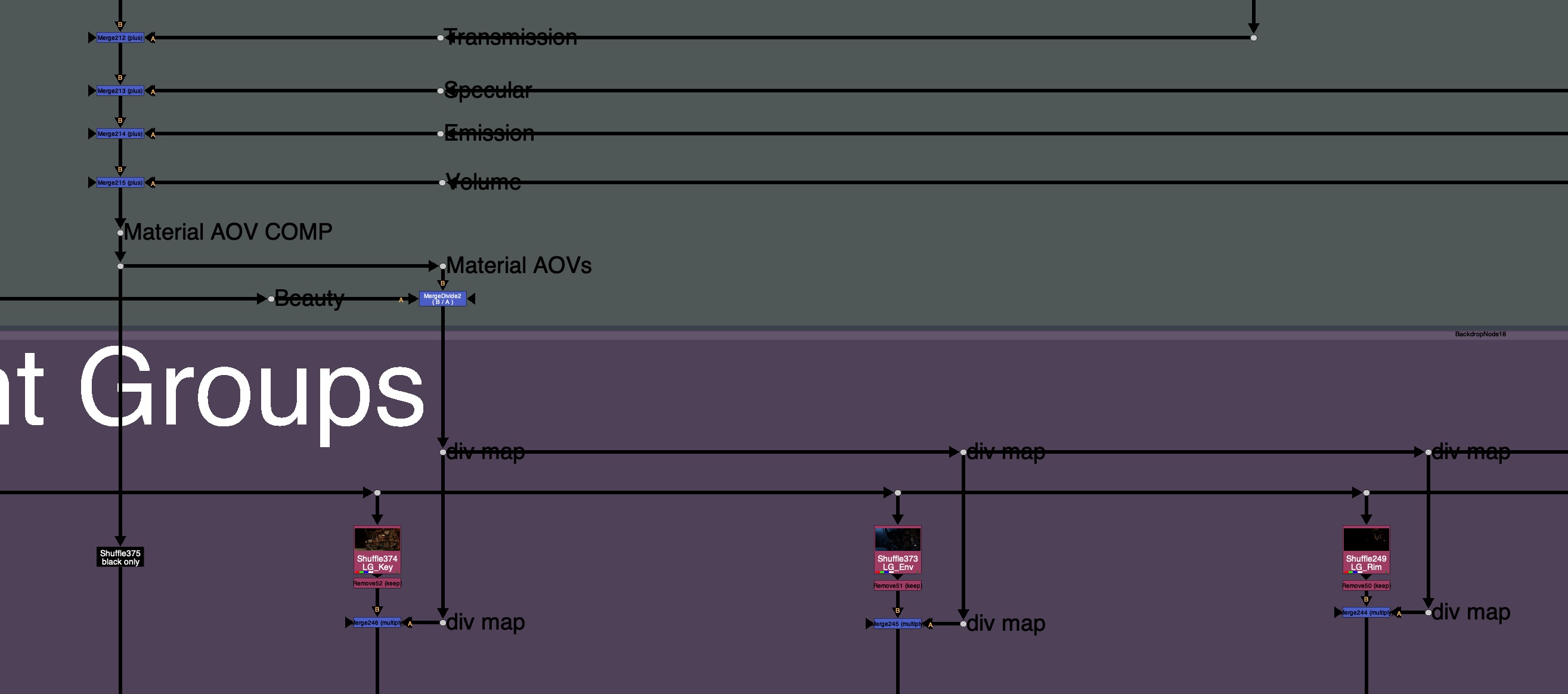
Side Note: Since Nuke’s Merge node does not have a native B / A operation, if you ever wanted to swap the A and B inputs and have the disable default to the Rebuild instead of the Beauty (for Templating reasons), then you would need a special MergeDivide.

Feel free to download this tool here: MergeDivide.nk

The Result from applying the Division Difference below looks a lot better than the Subtraction Method, and there are no longer any Negative Values in the image.

Division Difference Method

So why does this suddenly work? And what is going on with that Division Difference Map?


Division (Relative) Difference Map
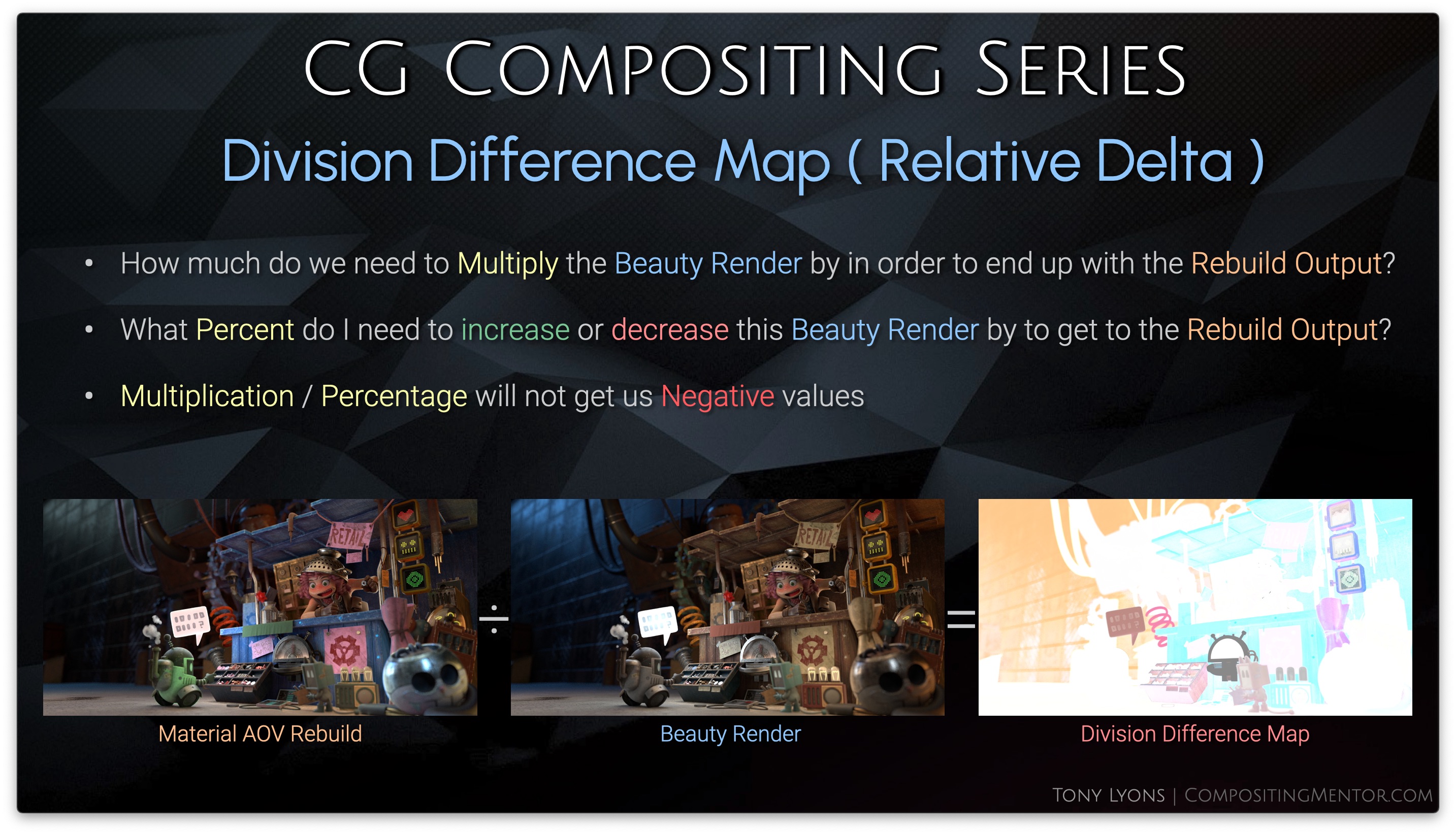
This new Difference map is answering a different question than the subtraction difference map was:

  • How much do we need to Multiply the Beauty Render by in order to end up with the Rebuild Output?
  • What Percent do I need to increase or decrease this Beauty Render by to get to the Rebuild Output

Multiplication / Percentage will not get us Negative values

That Division Difference map appears all white, but in fact, it has values over 1, superwhites, that we cannot see by default. let’s darken it a bit so we can see the pixels over the value of 1.

Darkened Division Difference Map – for Visualization

Let’s break it down:

  • Values above 1 will get brighter
  • Values between 0 and 1 will get darker
  • Value of 1 means No Change

So any number multiplied by 1, is itself, and does not change. That is why the map is mostly white.

Multiplication can also be represented as a percentage:

So we could express the pixels on this map in a percentage:

So our new map will be increasing or decreasing our 2nd Rebuild input by a specific percent.

Let’s go over the math equation to see how it works. Once again we have our inverse operation, Starting and returning to Material AOVs using division and multiplication:

Then we are swapping out the Beauty Render, in the second step, with our LightGroup output. So we are applying our Division Difference Changes on top of the LightGroup Changes.
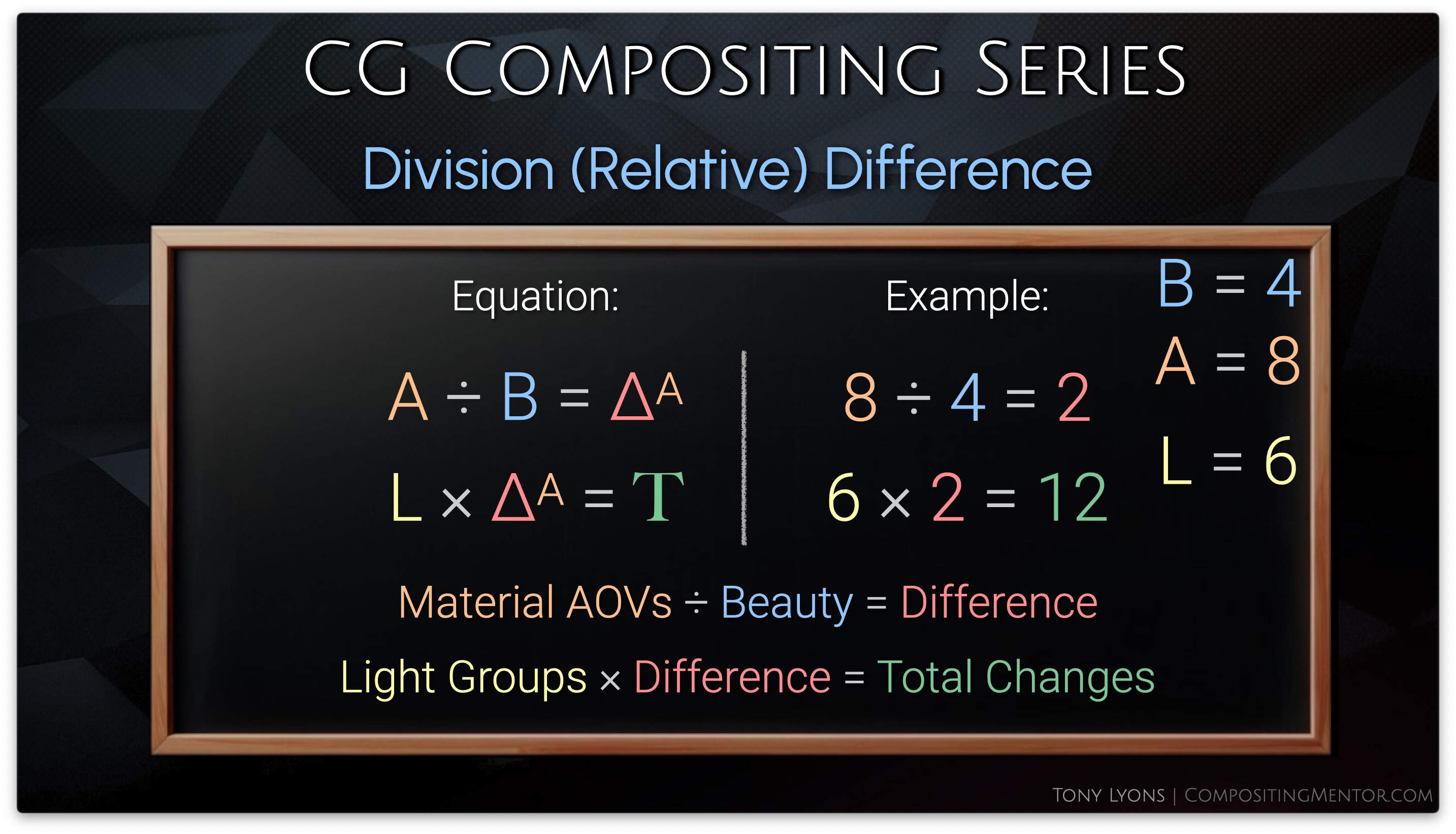
It’s worth mentioning again, that just like before, it does not matter which order you divide or multiply the Rebuilds, Material AOV 1st & LightGroup 2nd or LightGroup 1st & Material AOV 2nd, will yield the same result.


So why does the Division Difference work so much better than the Subtractive Difference?

Below is a animation showing the difference between the add/subtract and multiply / percentage.

Notice that the subtraction will go past zero towards negative values, while multiplication will only approach zero or be zero, but never go negative. We don’t really ever see a negative percent.
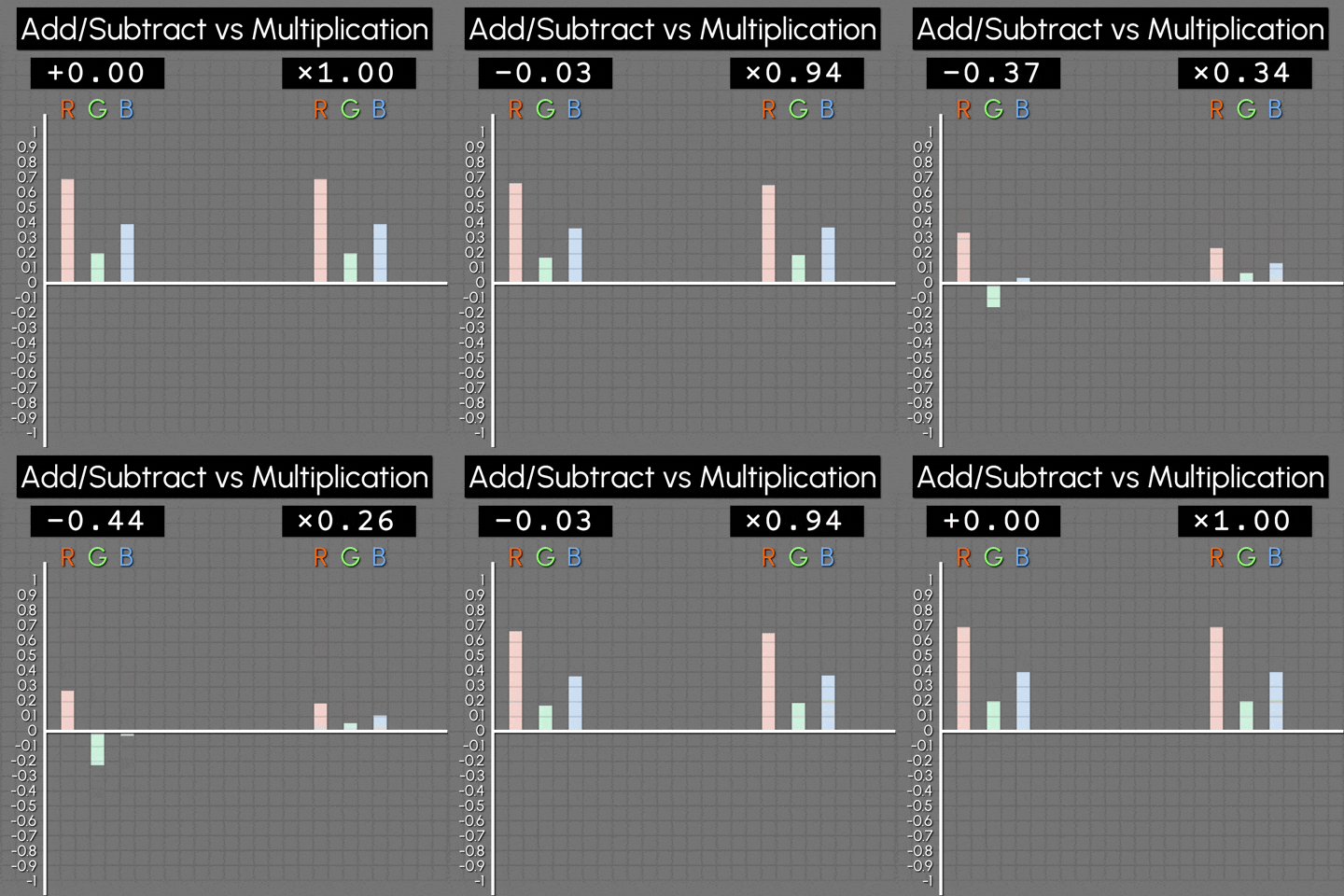
Going back to that embedded layers image. This time, instead of subtracting the pass on both sides, we are multiplying to zero on both sides, but we don’t run into negatives, because if you multiply something by zero twice, it is still only zero. 4 x 0 x 0 = 0. So we are actually still safe.
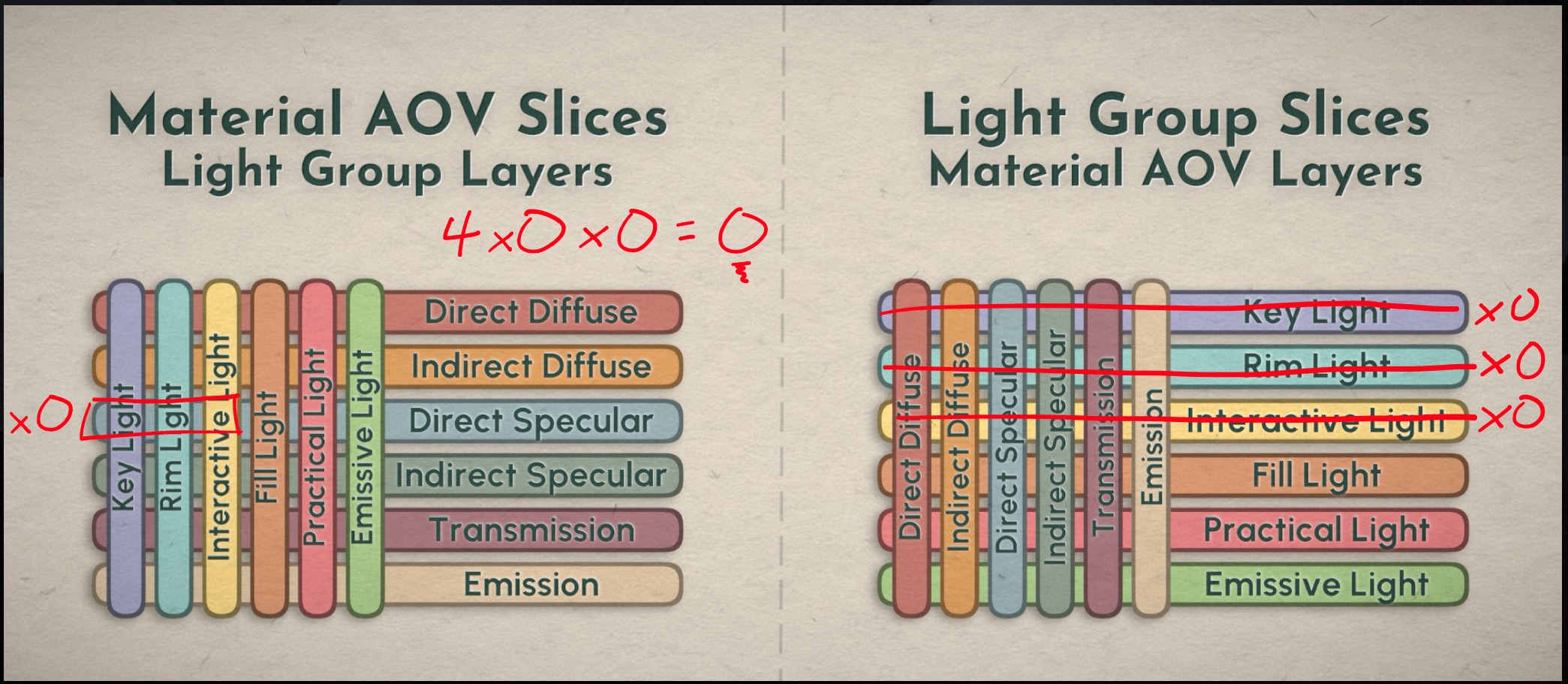
I encourage you to stress test this Division Difference Method with your own renders and unique cases. You are able to push the limits to an extreme level without noticing anything breaking or feeling off.


Template Layout Options

We have to decide if we want to set up our template with our 2 Rebuilds:

  • side by side
  • top to bottom

We also need to decide which Rebuild will be first and which will be second, the first will be the one captured in the change map. So either Material AOVs or LightGroups.

We could also go right to left instead of left to right, on the side by side, if we so choose:

Here are some possible template layouts in the node graph:

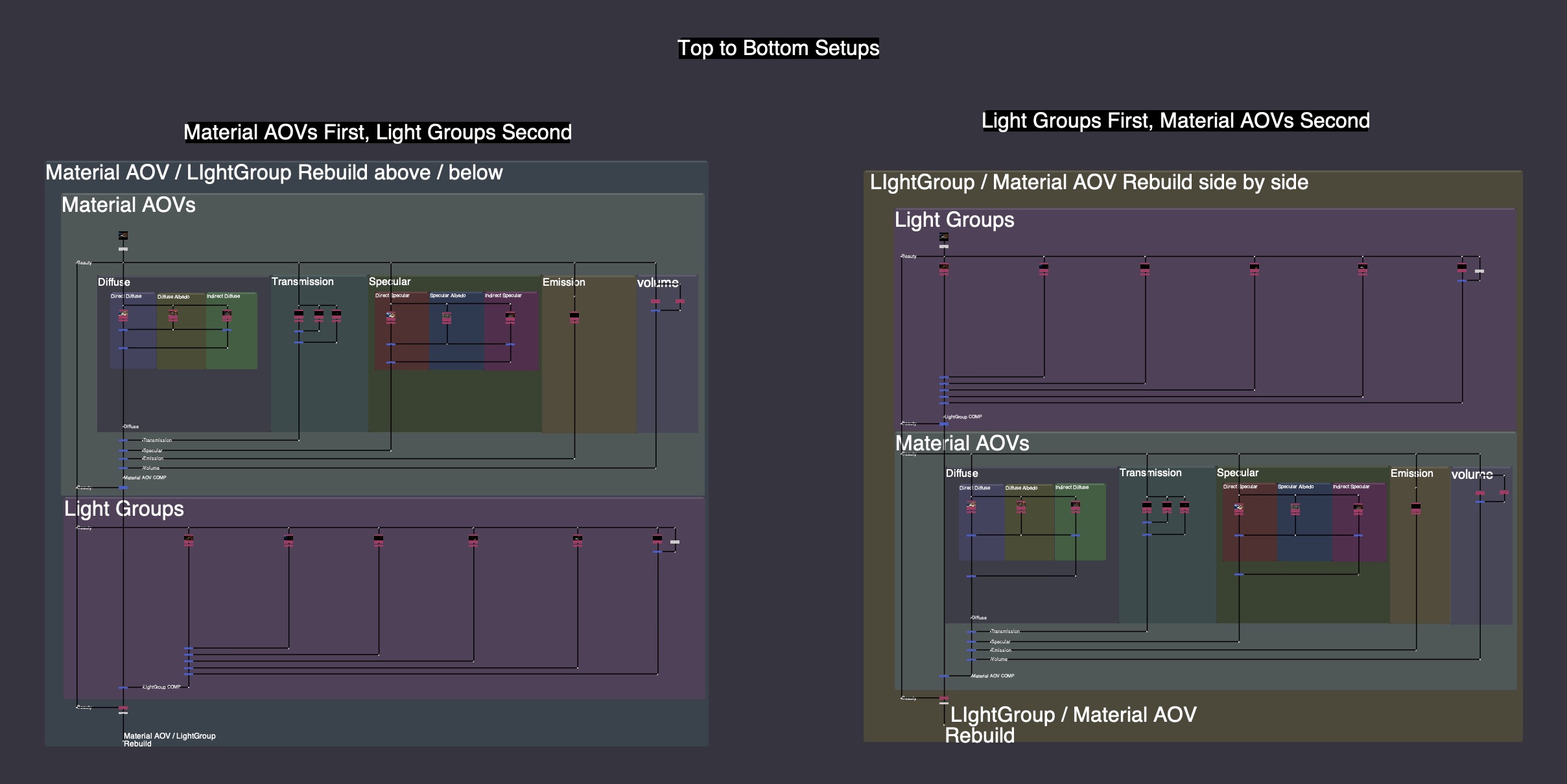
One thing that is a bit annoying is that while using these Templates, and making changes, we can really only see the effect of our changes by looking at the very bottom, after the changes are combined and both setups are taken into consideration. Is there any way for us to have a more interactive experience, by seeing some of the changes affecting different parts of the Template. Let’s explore that idea.


Interactive Changes throughout the Template

Instead of considering the Rebuild as 1 whole output, like our Beauty, we need to remember that it is made up of individual pieces, like our piechart from before. The passes were split and adjusted and added all up to equal the Beauty.

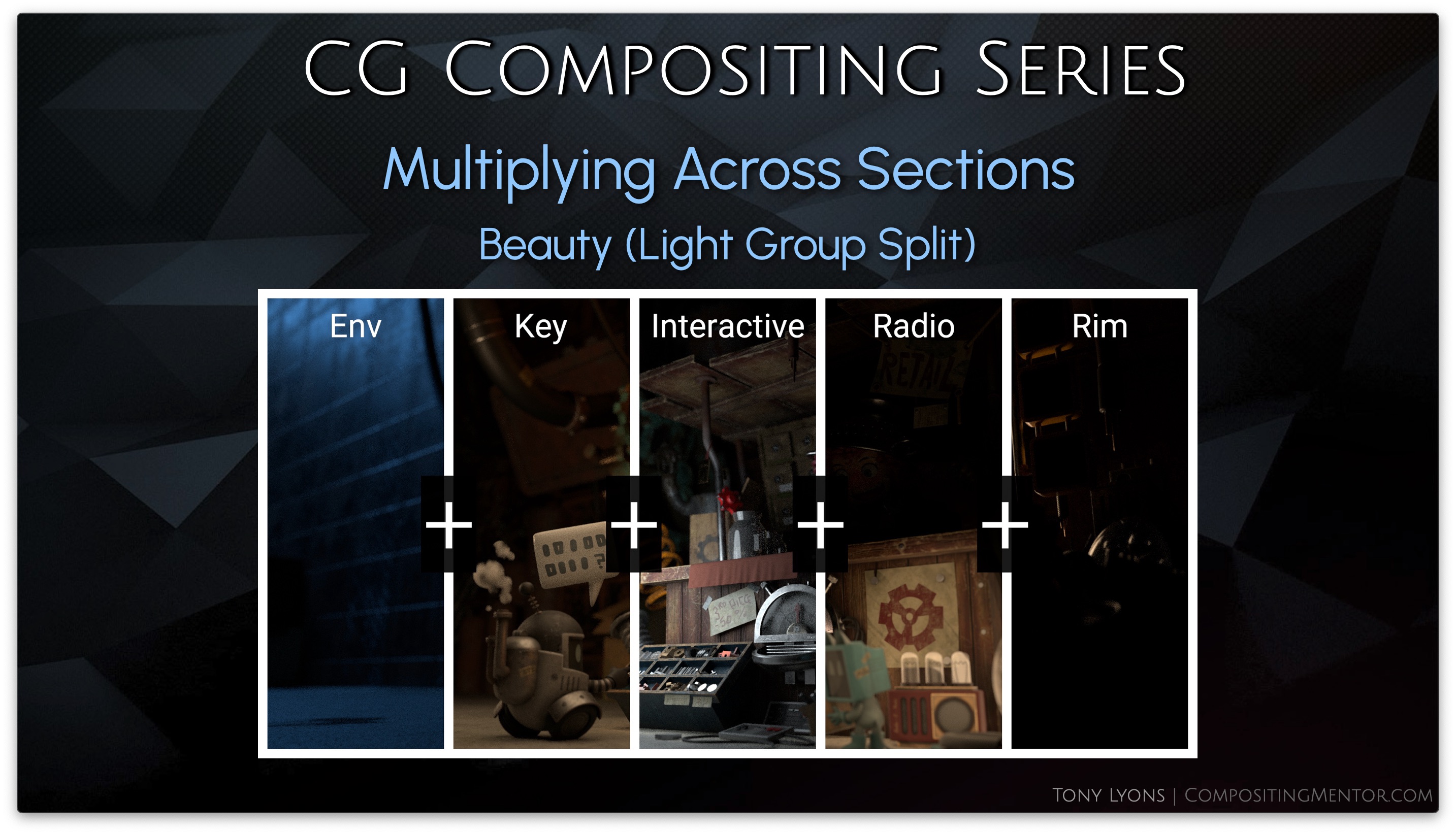
So instead of multiplying the Division Difference Change Map to the output of the 2nd Rebuild, we could multiply it to each individual pass separately. This would give us the same result once we add all the passes together.

Let’s explore the math of this, it becomes a little easier to understand.

If we split the Output into smaller components, we can apply the multiply to each component and then add them up after. This would be the same result as us just multiplying the whole.

The Equation for use would look something like this (Delta being the Difference, and T being Total Changes):
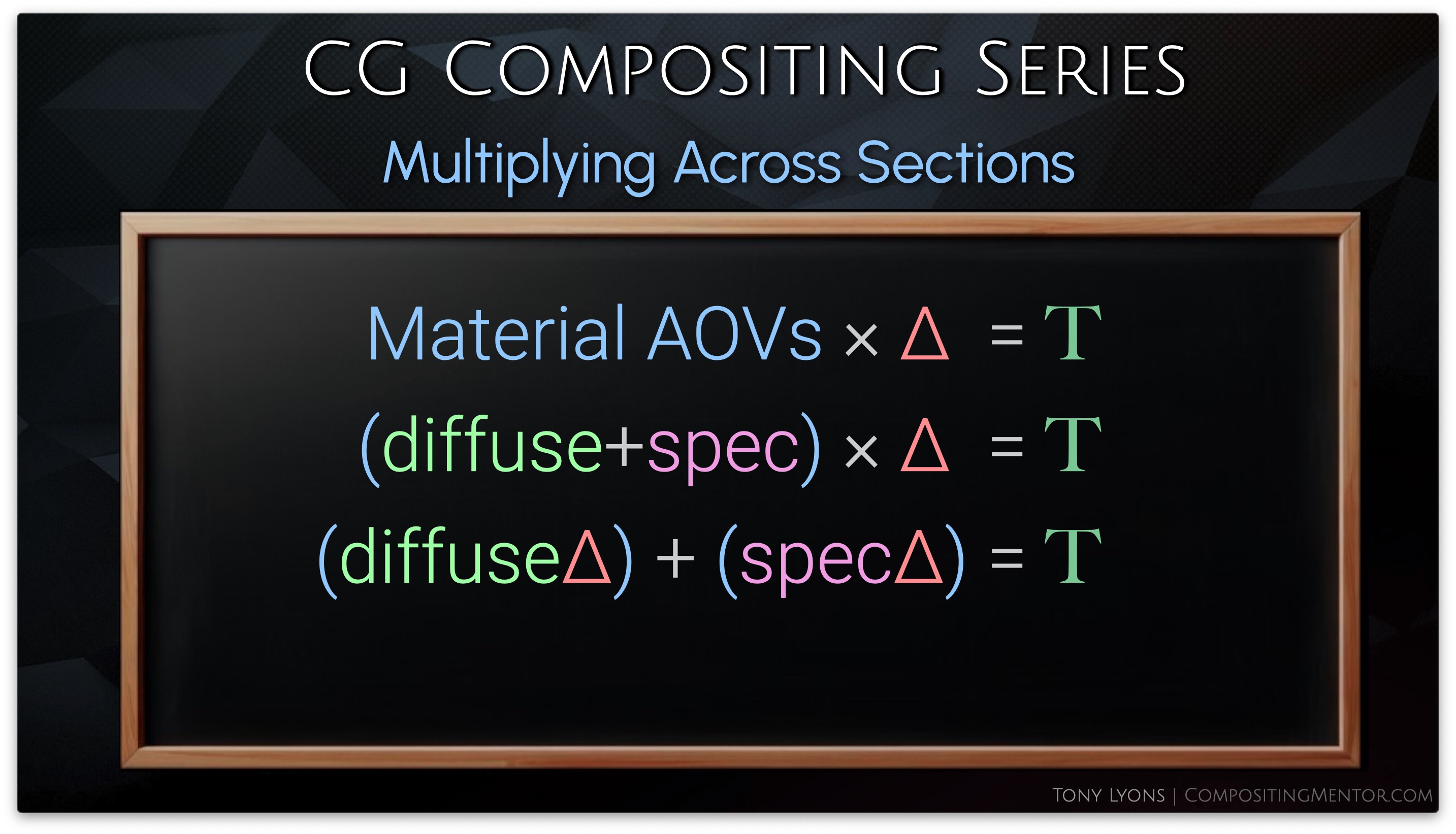
In nuke, we can set this up in our templates. I am just going to stick to Top to Bottom Templates for the example, as it’s a little easier to set up and understand.

It’s SUPER IMPORTANT to realize that we are only capturing the changes from the 1st setup, and applying them to the 2nd setup. There is no way to make the changes of the 2nd look back around and apply to the first, because you would create a paradoxical change loop: Changing the 1st, which changes the 2nd, which changes the 1st, which changes the 2nd, which changes the 1st…. you get the idea.

So that decision of the flow of your Template, and which setup you want to see the changes reflected in, is very important to decide as you build your CG Template

So, let’s say that we have our Material AOVs 1st, and we are applying the changes to the LightGroups. We’ll need to multiply each lightgroup pass with the division map
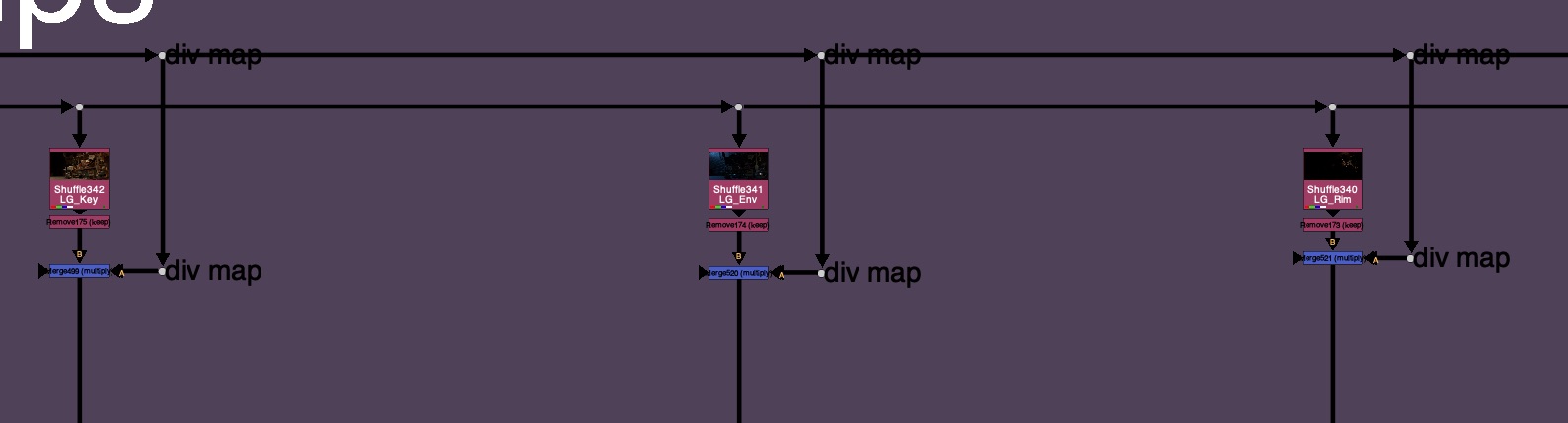
And if we started with LightGroups, we’d need to multiply the 2nd setup Material AOVs with the division difference map.

base LightGroups
LightGroups with Material AOV Changes applied per pass

or if you were to use the LightGroups first, you could transfer your changes to each individual Material AOV:

base Material AOVs
Material AOVs with LightGroup Changes applied per pass

The result is an interactive user experience where you we can see our changes trickle down throughout our template and influence all the downstream passes. This can really help visualize what is happening at a local level.


Rules and Caveats

  • Material AOVs passes must add up to equal Beauty
  • Light Groups passes must also add up to equal Beauty
  • Do not do color corrections that introduce negative values (saturation)
  • Treat the CG Template as a glorified Color Correction
  • On the 1st Rebuild side (The Captured Change side) avoid:
    • Transforms / Warps
    • Filters: Blur, Defocus, Median, Glow
    • Chromatic Aberration
    • Replacing / Merging a totally different image on top
      • Texture changes should happen at the albedo level

You want to try and consider the entire CG Template as one big color correction. The pixel is being tracked all the way through the setup, in the change map, and comparing back to the beauty and applying to the second rebuild. Things like Transforms or filters, are changing the possible, or blending pixels together, and will cause artifacting because the Change map is not able to really capture the changes properly. Also some filters are a post effect, and really should not be adjusted after use, such as a Glow.

Example of Glowing 1st rebuild and viewing result in 2nd rebuild:
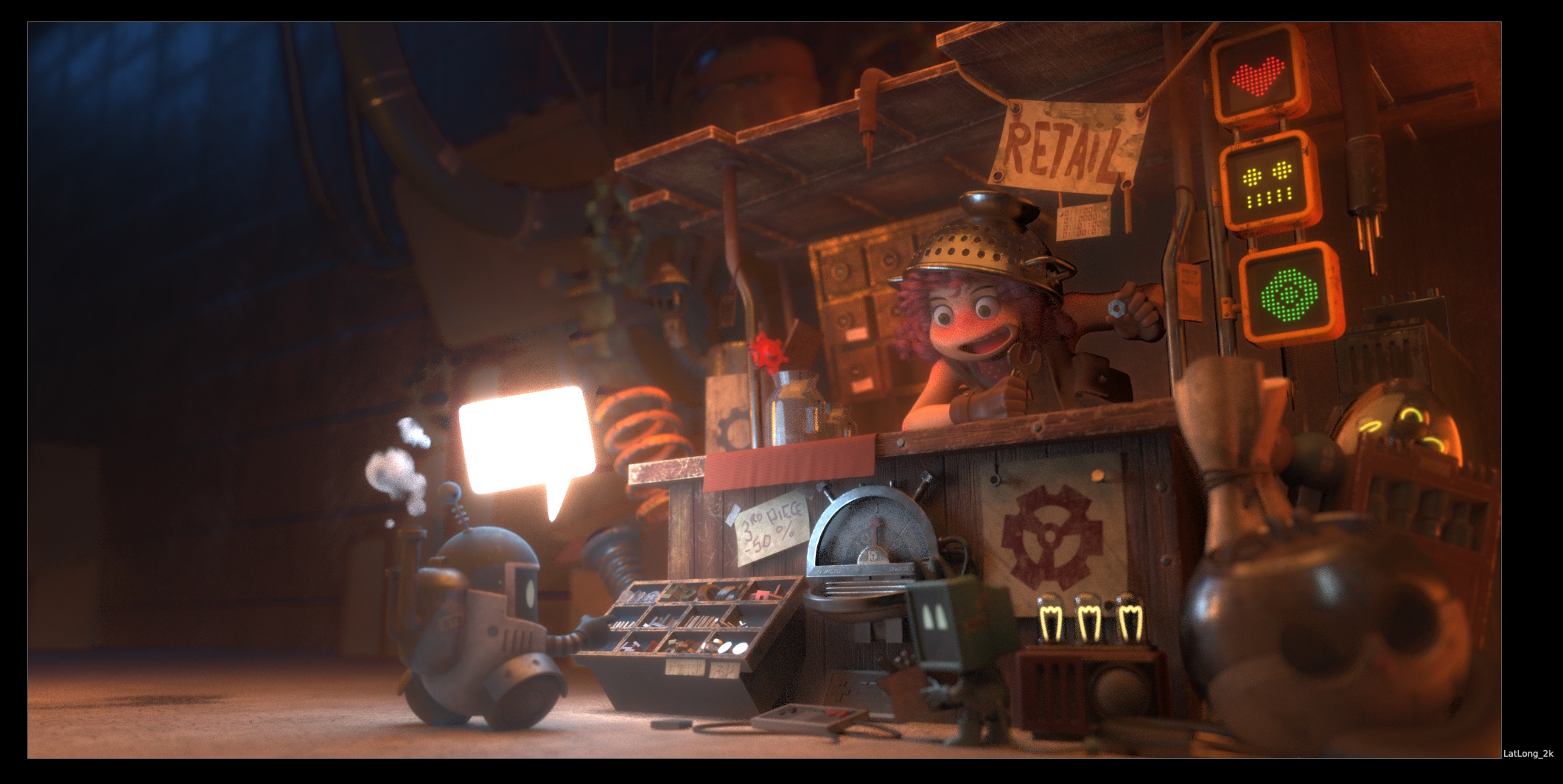
glow problems

Transforms or moving pixels around, will also not allow the setup to track the pixel the whole way through and leave to various artifacting, as shown below:

transform problems

You will want to apply your filters and transforms either after the CG Template, or possible only on the 2nd Rebuild section. So basically avoiding the division change map, which is unable to capture it, and only applying those operations afterwards.


Template Examples

I will be providing you examples of Side by Side, Top to Bottom, and Interactive Change Templates for each renderer: Blender, RedShift, Arnold, and Octane.

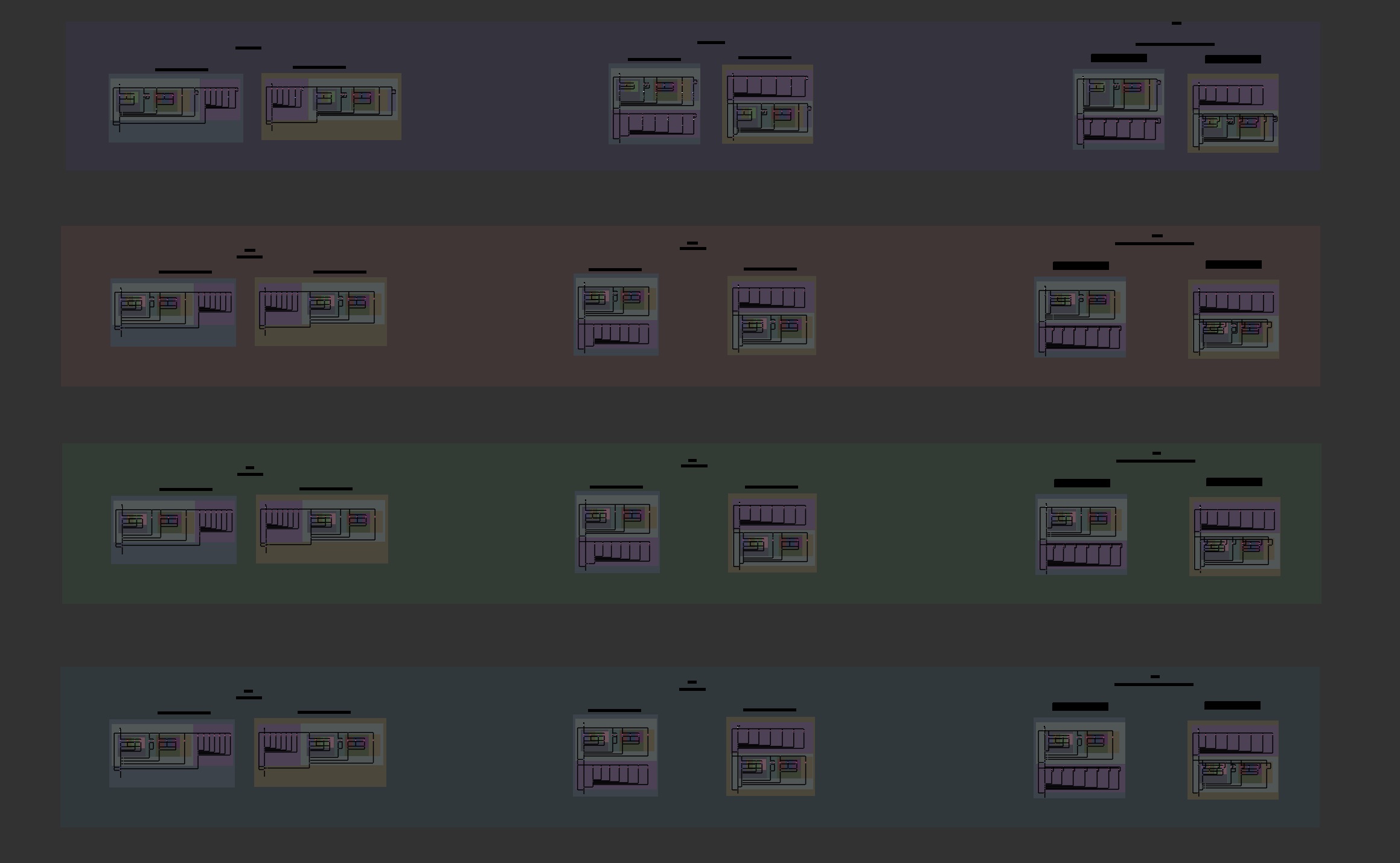
All Template Examples: Blender, RedShift, Arnold, Octane. Side by Side, Top to Bottom, Interactive

Template Ideas and Inspiration

There are just way too many variations for me to provide in every situation. However I can give some example ideas or inspirations that I have seen and worked with that you could consider implementing into your CG Template if it fits with your style of comping.

  • Managing Div-Map with Exposed Pipes
  • Using Stamps or Hidden inputs for Div-Map
  • Storing Div-Map in a Layer / Channel for later use
  • Grouping Sections for less clutter
  • Template Controller, pick which parts are in use:
    • Beauty
    • Material AOVs Only
    • LightGroups Only
    • Combined LG / AOV
  • Reversed Direction

Conclusion

This Division Difference Multiplication Technique used to solve the LightGroup / AOV Paradox is fairly unknown at the moment. There seemed to be a huge black hole of knowledge out there on this subject. I’d like to give a huge shout out to Ernest Dios for being one of the true masterminds behind this technique, and for first introducing me to it. Also a big thank you to Alexey Kuchinski for all of his mentorship.

My hope with this whole CG Compositing Series was to equip you with the knowledge of every piece of the CG Template. What all the passes are, Why they are important, How to use them, Where to put them and how to organize them to Rebuild the Beauty, and When to adjust them for specific notes.

And of course, the final piece of the puzzle. How to combine it all and use the LightGroups and Material AOVs together in an elegant way. To help you push your CG Renders to their absolute limits, without the need for a rerender.

I hope you got value out of this video, or out of any video in the CG Compositing Series.

If I could ask one small favor from you, it would be to help share this video, or this blog, to compositing or VFX friends and colleagues. Whether it’s in a group chat, work chat, discord, linkedin post, I believe this knowledge is too important to keep secret. I would love to see this amazing workflow become more commonplace in the world of Compositing.

Thank you so much for all of your support over the years. It’s be a long journey since the first CG Compositing Series Intro video, and we are finally at the end…for now. I hope it was worth the wait.

Until next time.


Downloads

Nuke scripts

1 Demo nk script, and 1 Template & Idea Proposal nk script, 2 total:

CG_Comp_Series_4_1_LG_AOV_Paradox_Demo_Scripts.zip ( 164 kb )

Tools

MergeDivide tool that was demoed:

MergeDivide.nk


Junkyard

I’ve created a new Junkyard Render specifically for this Light Groups video, please download the Render and the Cryptomatte file here in order to relink it in the Demo nuke script:

Download Render files here:
Junkyard_LightGroups.zip ( 115 mb )

Junkyard_LightGroup_AOV_Split.exr ( 223 mb )


Fruitbowl

If you haven’t downloaded the FruitBowl Renders already yet, you can do so now:

You can Choose to either download all 3 FruitBowls at once:
FruitBowl_All_Renders_Redshift_Arnold_Octane.zip (1.61 GB)

Or Each FruitBowl Render Individually for faster downloads:

FruitBowl_Redshift_Render.zip (569.1 MB)

FruitBowl_Arnold_Render.zip (562.8 MB)

FruitBowl_Octane_Render.zip (515.4 MB)

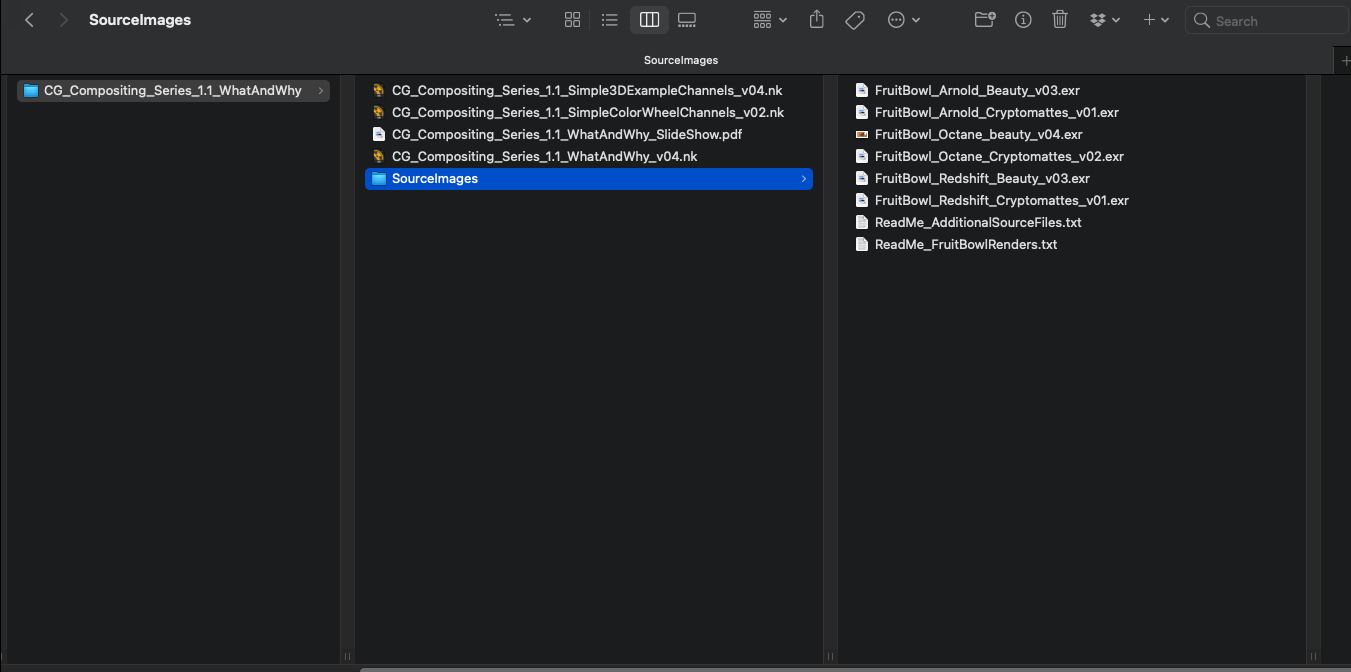
The project files and the Renders are separate downloads, so if you have already downloaded 1.1 What and Why files or the Fruitbowl Renders, there are a couple ways to combine them to work.

  1. Either add the .nk script to the previous package (in the folder above SourceImages, with the other .nk scripts)
  2. Or simply drop the Render files into the SourceImages folder of the project folder

CG Compositing Series – 3.1 Light Groups

In this video we move away from the Material AOVs and cover an equally important Beauty Rebuild using Light Group renders. This is another set of passes you can render to adjust the lights in your render, that all add up to the Beauty Render.

SlideShow PDF Download here:


What are Light Groups?

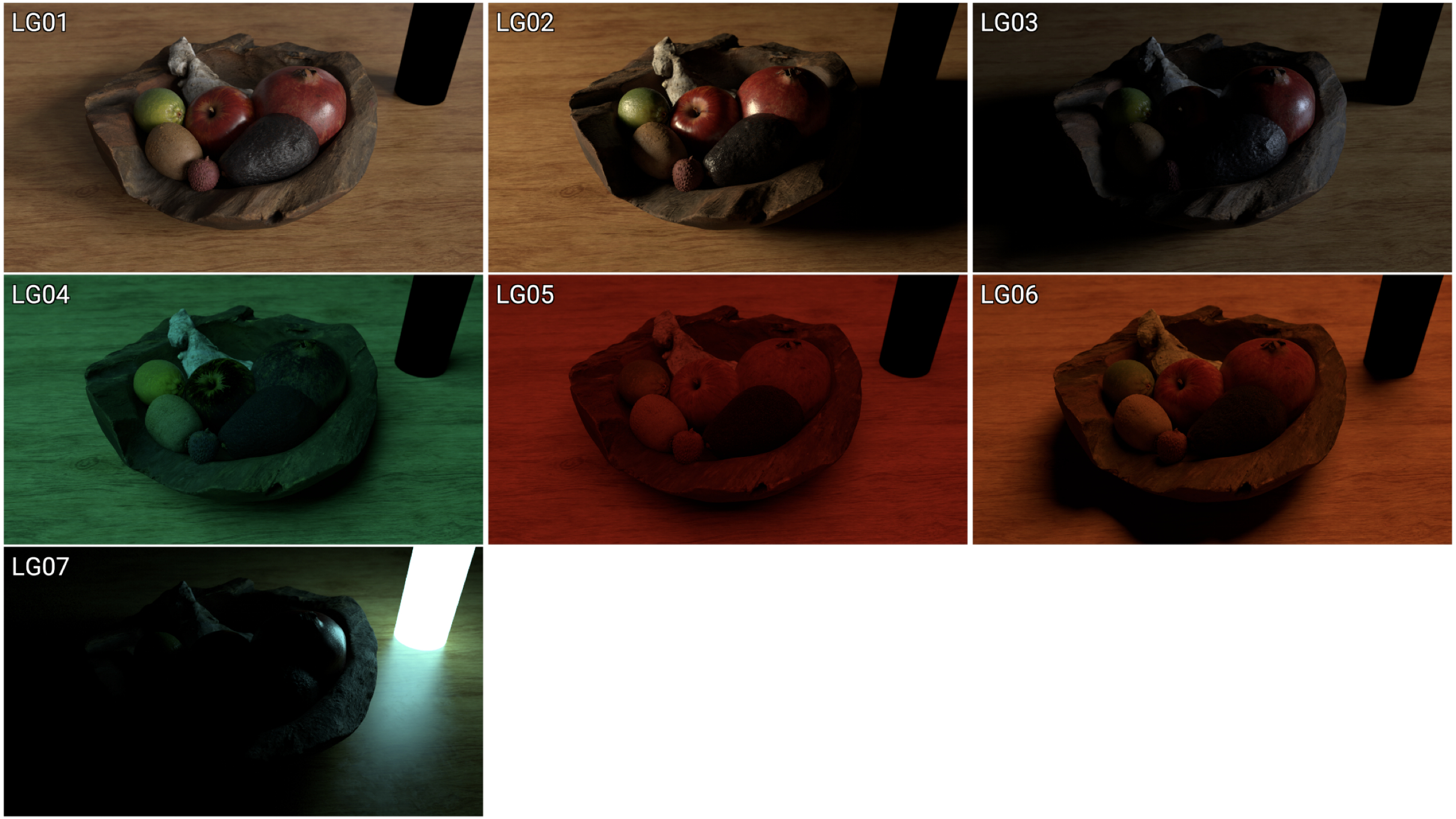
  • A Light Group is a render pass of a light (or a set of lights) in the scene, that is rendered in isolation from the rest of the scene’s lighting.
  • All other lights are “off” and only the Light Group’s light is “on” and affecting the scene.
  • All the Light Groups should add together to produce the full Lighting in the Scene; They all plus and build back the beauty render.

Importance of Light Groups

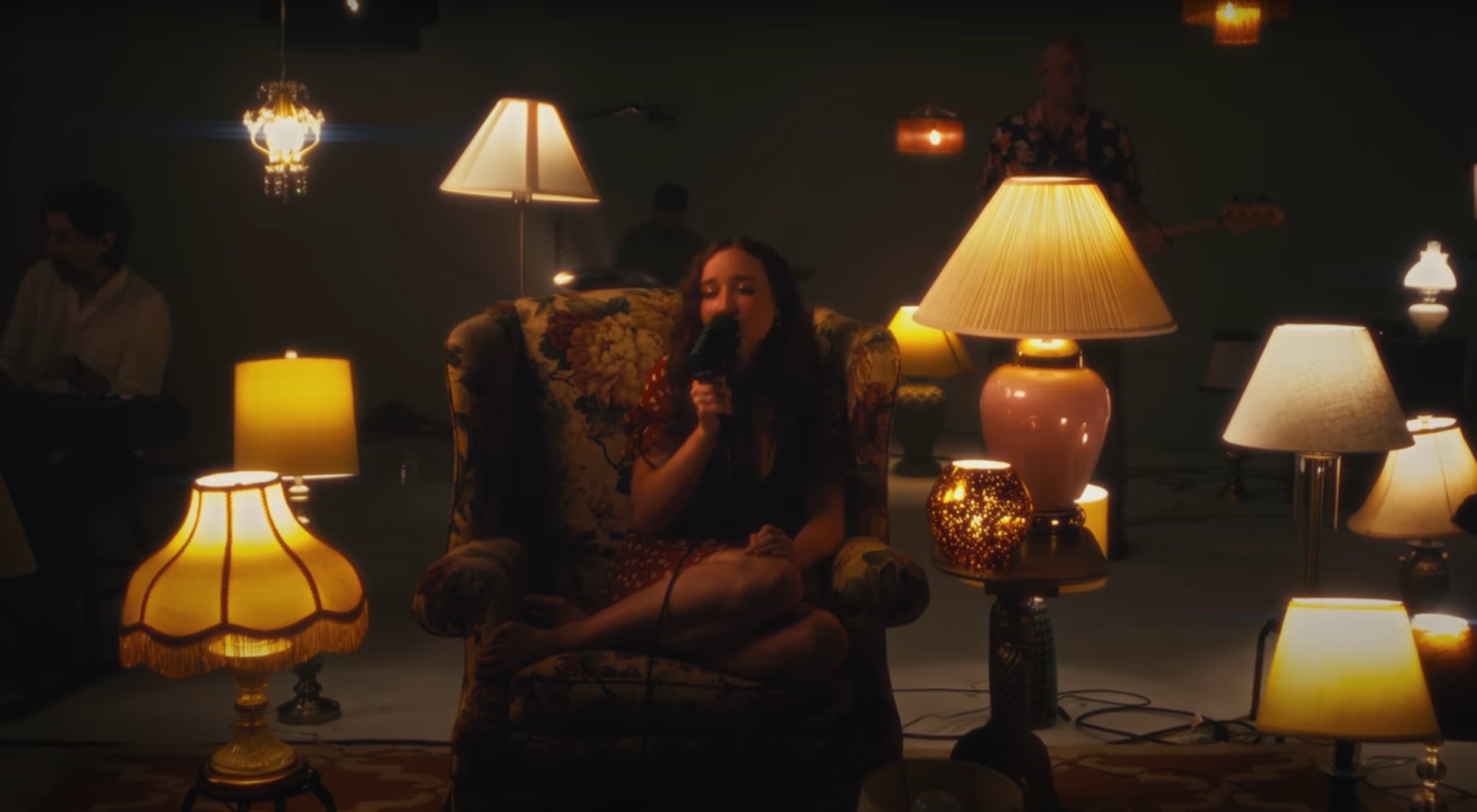
  • Creating good looking CG is not just about the materials of the objects, but also the Lights in the scene, that interact with those materials, and tell a story.
  • Different Light types can drive the aesthetic, style, realism, or story of your CG render.
  • Understanding lighting basics is important for being an effective CG compositor.

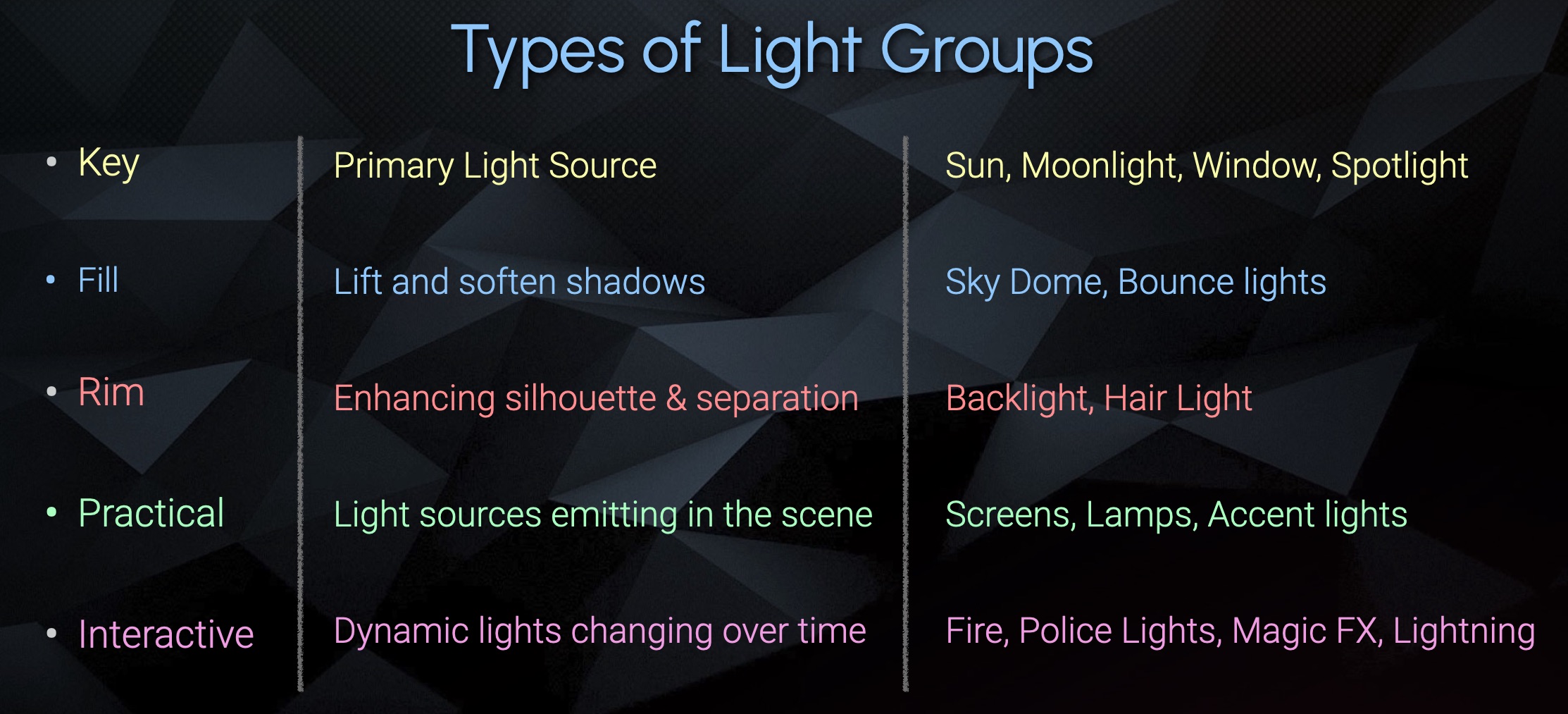
Types of Light Groups

Key – Primary Light Source
Fill – Lift and soften Shadows
Rim – Enhancing silhouette & Separation


Practical – Light Sources serving a purpose and illuminating the scene (they are part of the environment)

https://www.soundstripe.com/blogs/how-to-master-the-art-of-practical-lighting
https://www.therookies.co/projects/20802

Interactive – Dynamic Lights Changing over time


Light Groups for Compositors

A Compositor is usually focused on 2 main aspects of the Lights using Light Groups:

  1. Exposure – How Bright the Lights are
  2. Color Temperature – What Color (Hue) the Lights are

Exposure

  • Exposure is referring to how bright the image is.
  • Exposure is usually measured in “stops” of light.
  • Stops are relative, meaning they are based on the current image you are looking at.
  • +1 stop higher is 2x as bright. Doubled
  • -1 stop lower is 1/2 as bright. Halved
https://www.john-rowell.com/blog/2017/3/27/what-is-a-stop-of-light
https://www.photographytalk.com/exposure-compensation-explained
https://www.diyphotography.net/what-is-middle-grey-and-why-does-it-even-matter/

Exposure Triangle in Photography

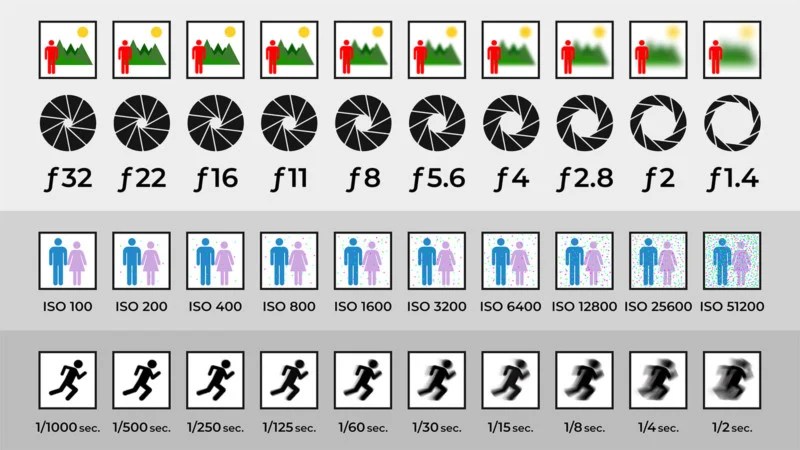
The Exposure Triangle refers to 3 settings on a camera that help balance the Exposure / Brightness of the Image. If you increase the brightness of 1 of the 3 sides by 1 stop (double the brightness), then you need to choose 1 of the other 2 sides to lower the brightness by 1 stop (half the brightness) in order to maintain the same exposure level of the photo.

Only Aperture and Shutter Speed are referring to the amount of physical light reaching the sensor through the lens. ISO refers to the amplification (multiplication) of the analog signal before it gets converted digitally.

https://www.photopills.com/articles/exposure-photography-guide
https://petapixel.com/exposure-triangle/

Check out this AMAZING website that lets you play around with the settings and balance the image brightness in a very interactive way. I loved playing around with the sliders, it is such a cool idea.

http://www.andersenimages.com/tutorials/exposure-simulator/


Aperture

https://www.photopills.com/articles/exposure-photography-guide
https://www.studiobinder.com/blog/what-is-the-exposure-triangle-explained/
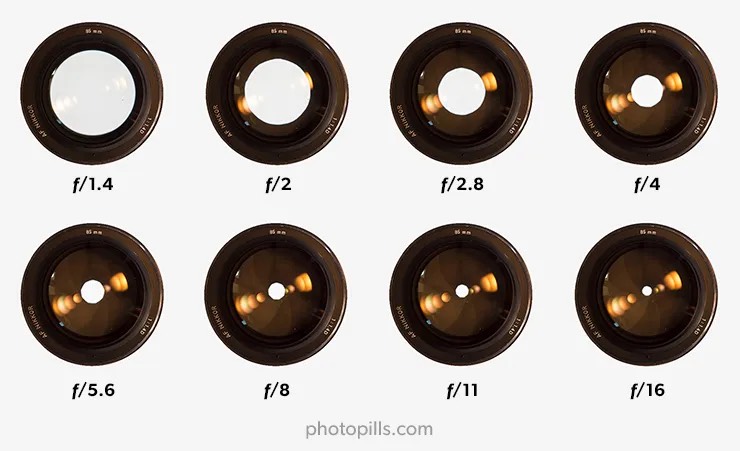
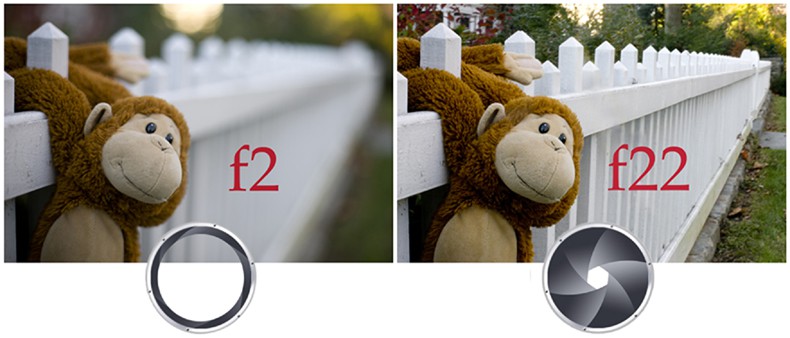
  • How big the opening of the lens is.
  • The larger the lens opening, the more light gets through, the brighter the image.
  • Also the bigger opening results in a shallower Depth of Field, or smaller zone of focus. This results in larger Bokeh and separation of foreground and background.
https://robynsphotographyacademy.com/understanding-aperture/

Shutter Speed

https://www.studiobinder.com/blog/what-is-the-exposure-triangle-explained/
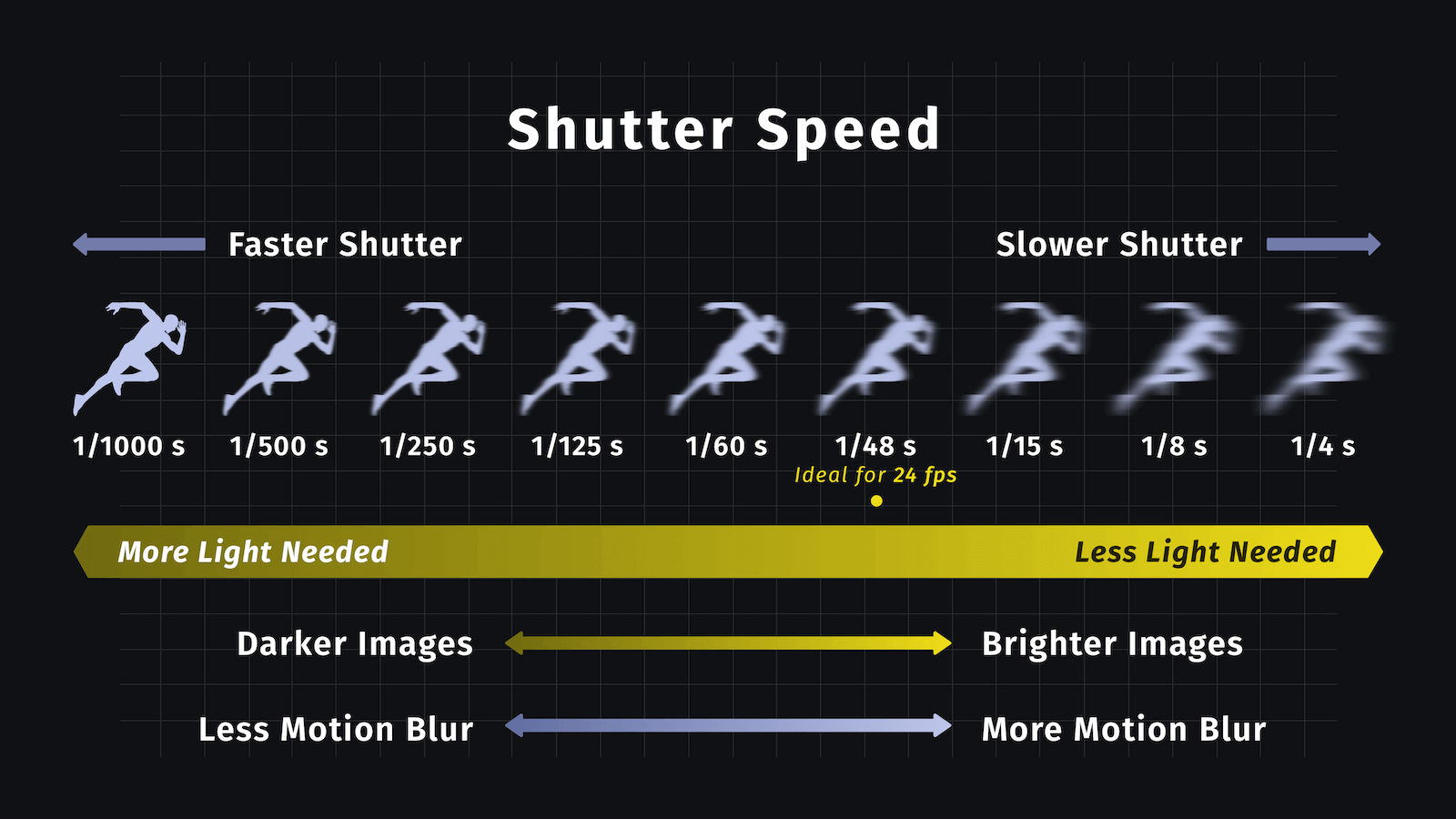
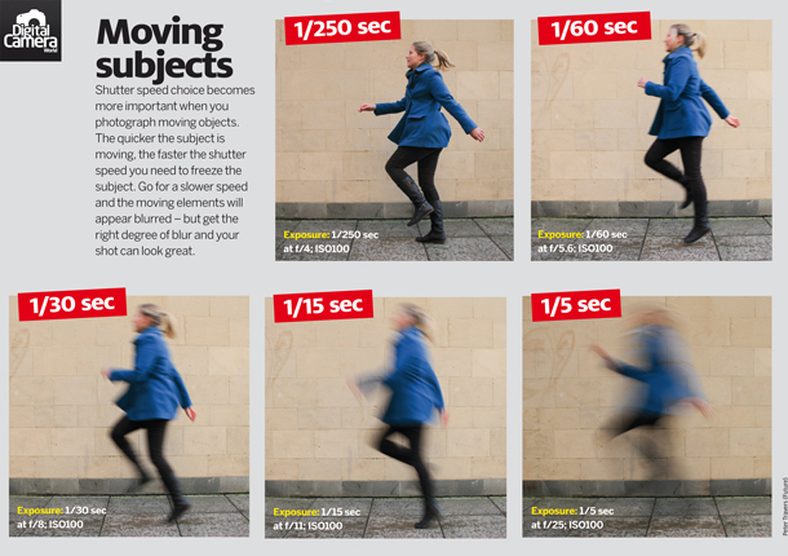
  • How much time the opening of the lens remains open for, measured in fractions of a second.
  • Leaving the lens open for longer, lets in more light and brightens the image.
  • Longer exposure times will result in more motion blur, depending on the shutter speed and speed of the object being shot.
https://isblens.weebly.com/shutter-speed.html
https://snapsnapsnap.photos/a-beginners-guide-for-manual-controls-in-iphone-photography-shutter-speed/

ISO

  • ISO used to refer to the sensitivity level of film stock in film cameras.
  • ISO stands for International Organization of Standards
  • The higher the film stock ISO, the grainier the image appeared, due the to the materials being used for the lower intensity film stock.
  • With digital cameras, sensors have only one sensitivity level.
  • Digital ISO refers to the Amplification (intensity multiplier) of the analog signal before it gets converted to digital data.
https://skylum.com/how-to/what-is-iso-in-photography
https://www.alanranger.com/blog-on-photography/what-is-iso-in-photography

Digital ISO is a lot like a volume knob on a radio. If the signal is weak (aka there is not much light making it to the sensor) then increasing the volume will make the sound louder (make the image brighter) but will also increase the static, or digital noise (sometimes referred to as grain).

pexels.com photo by githirinick
Back to the Future
https://www.photopills.com/articles/exposure-photography-guide

F-Number Meaning

  • F-number is focal length divided by the aperture diameter (size of the opening of the hole).
  • The “f/” notation is a convenient way to say “some fraction of the focal length”
  • They are called f-stops because each stop, or notch in the settings, halves or doubles the light admitted into the camera.
https://www.photopills.com/articles/exposure-photography-guide
https://www.originalartphotography.co.uk/2015/03/what-is-a-stop-photography-jargon/

Doubling the Area of a Circle

https://www.chilimath.com/lessons/geometry-lessons/area-of-a-circle/
  • Doubling the Amount of Light requires doubling the Area of the Circle (lens opening)
  • Doubling the Radius does not double the Area, it actually quadruples it. 22 = 4 , but (2 x 2)2 = 42= 16
  • What do we need to multiply the Radius by to get double the Area?

The Square Root of 2 roughly equals ≈ 1.4142

Doubling the Area of the circle requires us to multiply it by roughly 1.4, which is why the numbers on the stops are written as they are

https://www.photopills.com/articles/exposure-photography-guide

Exposure in nuke

For dealing with Exposure in nuke, I would recommend using either the Exposure Node, the Multiply Node, or the Grade node’s Gain or Multiply knobs

In the Exposure node you could change the stops directly by changing the mode to stops
You can also just multiply by 2, 4, 8, or enter 1/2, 1/4, 1/8 in the Multiply slider of a Multiply or Grade node.
With a normal Multiply, we can use an expression to be able to enter our stop number
pow(2, x) where x is the stop number, the same as the Exposure node is using.


Temperature (Color)

https://www.rmd-leuchten.de/en/color-temperature/
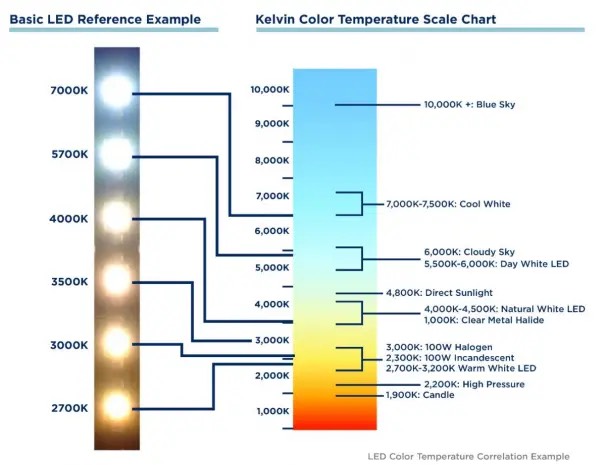
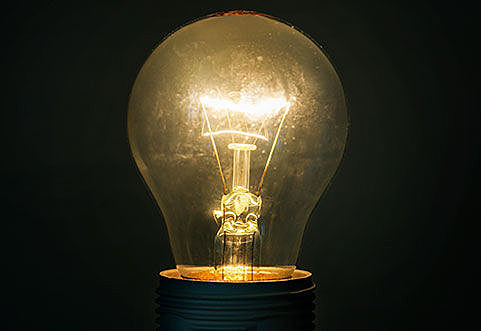
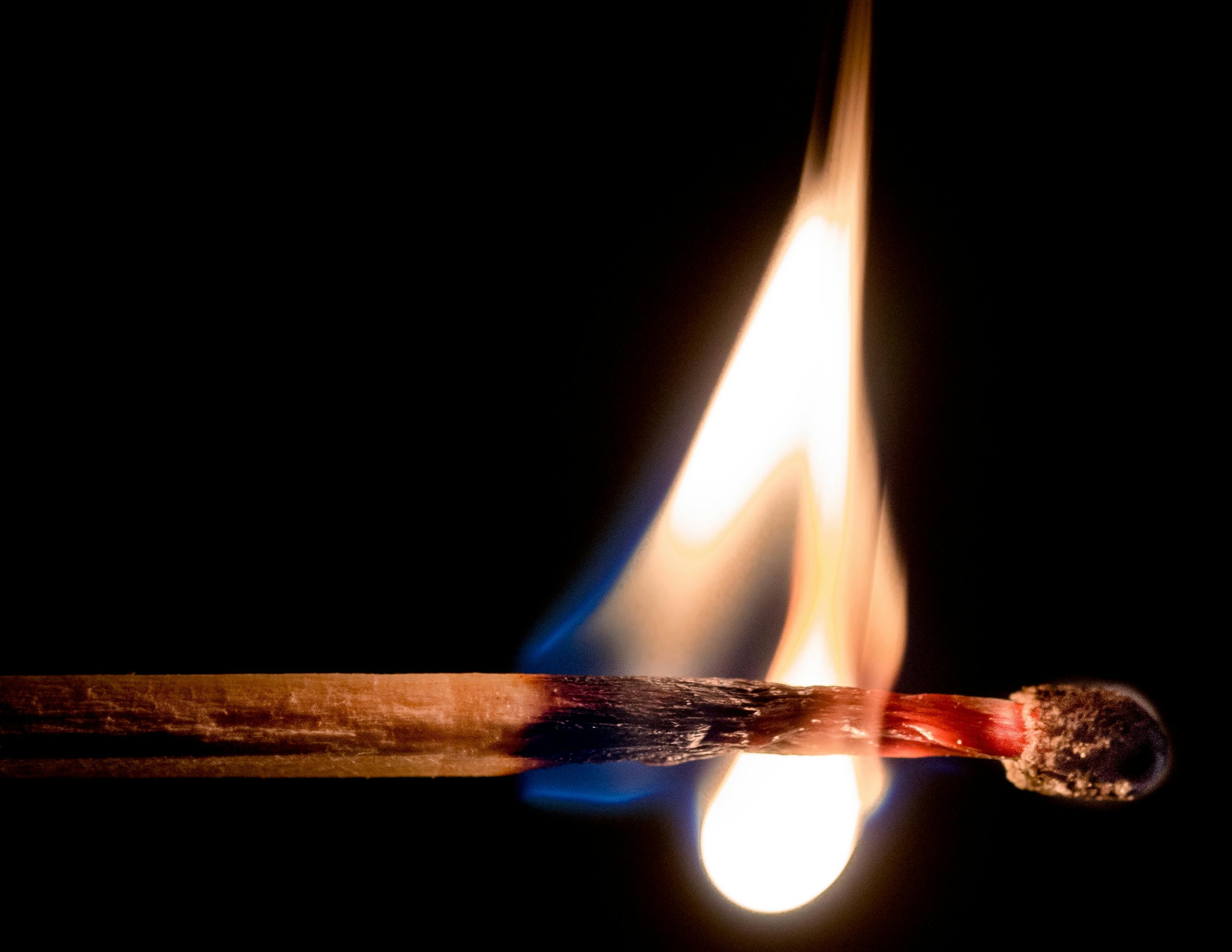
  • Temperature describes the hue, or color of the light, measured in Kelvin (K).
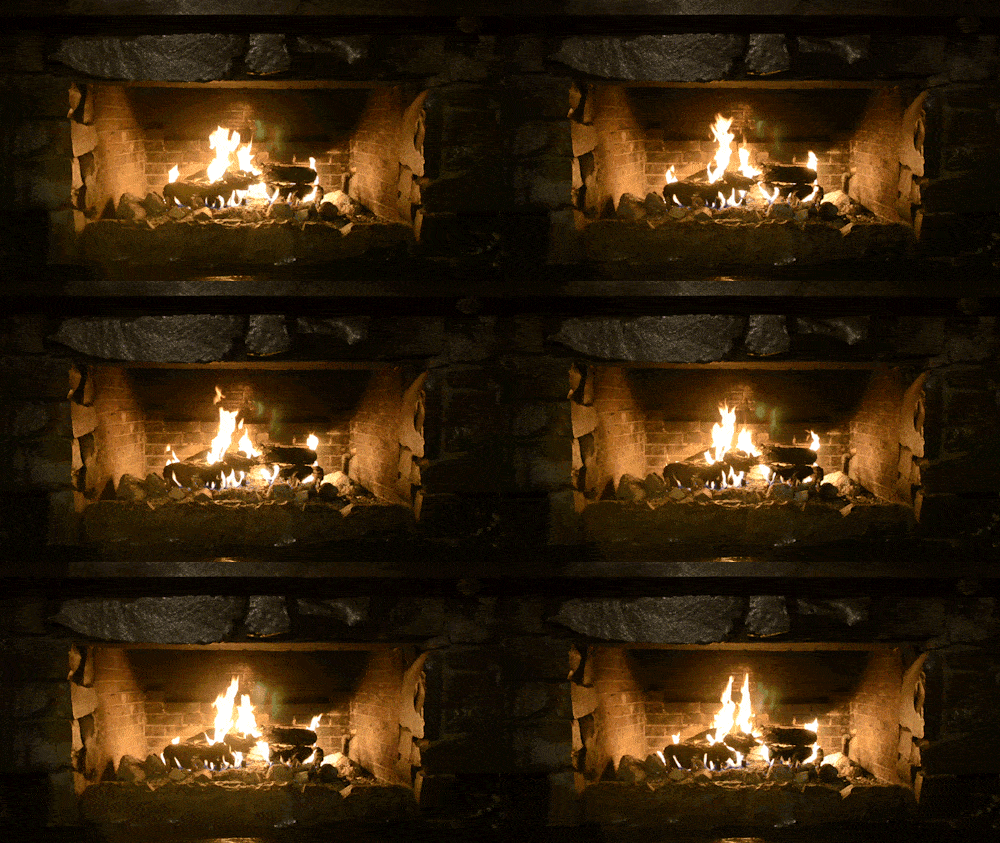
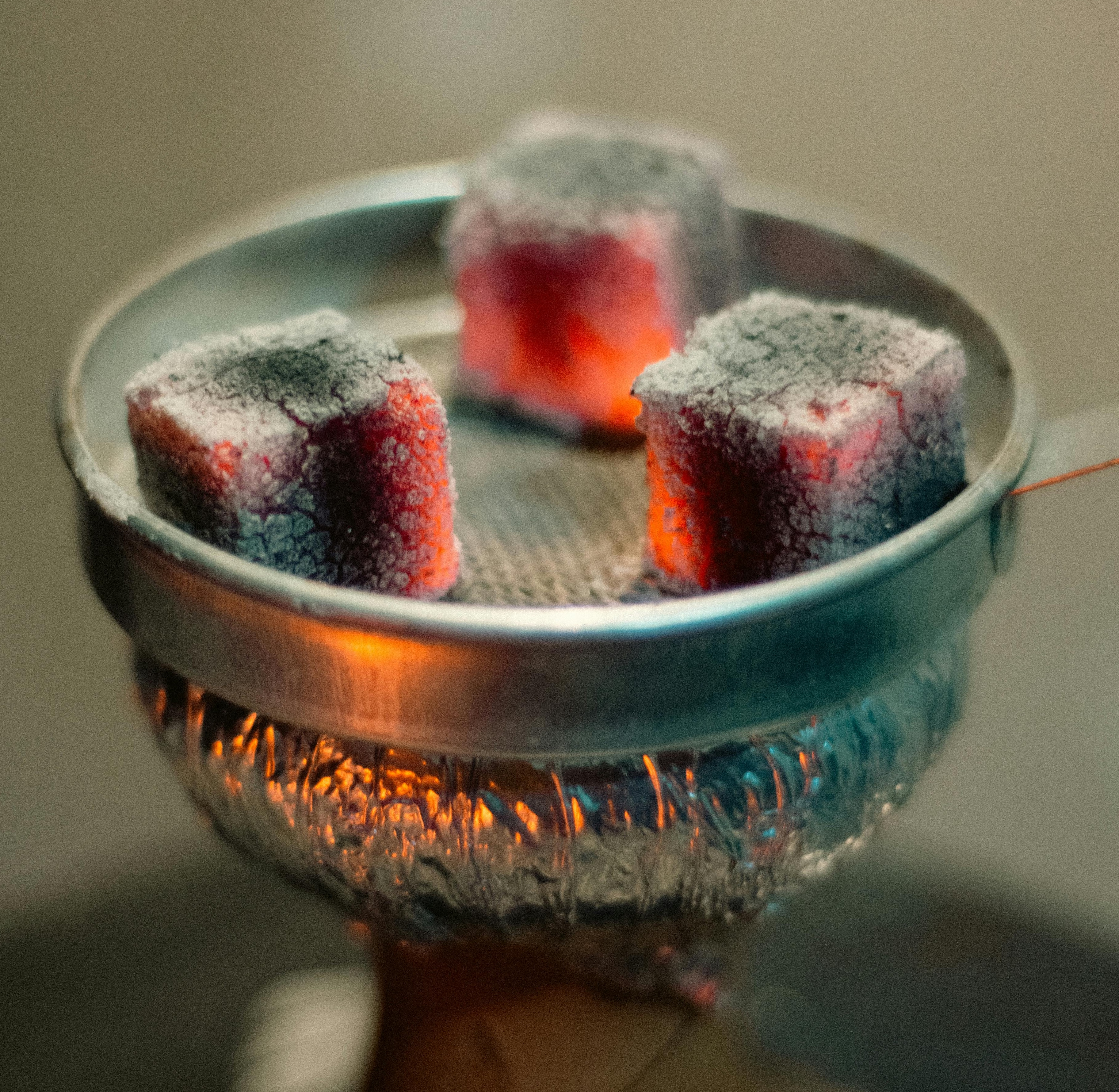
  • Heated objects emit light photons as they heat up, in a process called Black-Body Radiation.
  • As objects get hotter they emit different frequency wavelengths of light, shifting from red to orange to white to blue.
https://lednetwork.ca/blogs/the-led-network-blog/what-is-colour-temperature-why-is-it-important-for-lighting
https://gvmled.com/what-is-the-color-temperature-in-lighting/
https://rbw.com/blog/understanding-color-temperature-of-led-lighting

ColorKelvin (K)Celsius (°C)Fahrenheit (°F)
Red1000–2000 K700–1700 °C1300–3100 °F

ColorKelvin (K)Celsius (°C)Fahrenheit (°F)
OrangeYellow 2000–3500 K1700–3200 °C3100–5800 °F
White3500–6500 K3200–6200 °C5800–11200 °F

ColorKelvin (K)Celsius (°C)Fahrenheit (°F)
Blue6500+ K6200+ °C11200+ °F
https://www.autoevolution.com/news/staged-combustion-engine-fires-up-for-the-first-time-spits-out-350000-hp-in-one-second-235304.html

pexels.com photo by CottonBro
pexels.com photo by ClickerHappy

Color Grading in Nuke

I tend to use either an Exposure node for Luminance and a Grade node’s Multiply knob for Color

Or I use a single Grade node, using Gain for Exposure changes, and Multiply for color changes

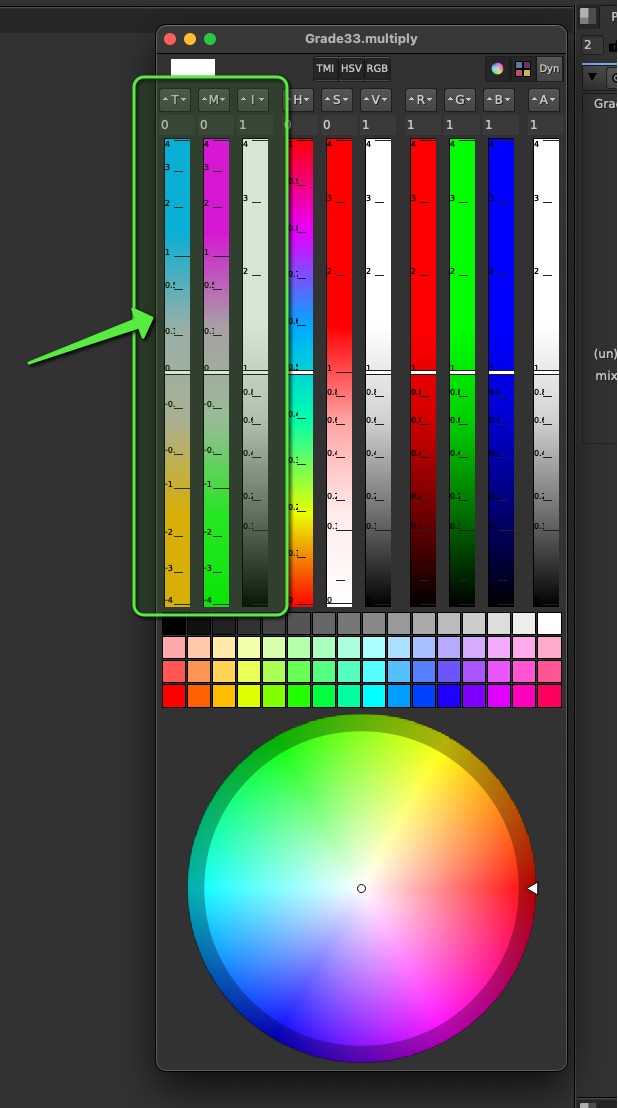
I also prefer to change my color using the Temperature and Magenta settings of the Color Panel, which allow intuitive corrections which also giving fine control.

This is also an important way to separate your Luminance correction from your color correction, by making sure the Intensity stays around 1 and Luminance is preserved while changing color.

Adjusting Light Groups with Exposure (Gain or Multiply) for Intensity / Luminance, and a Multiply for Color, are my preferred way to Color Grade my Light Groups

beauty
Light Group Tweaks

Saturation of Light Groups

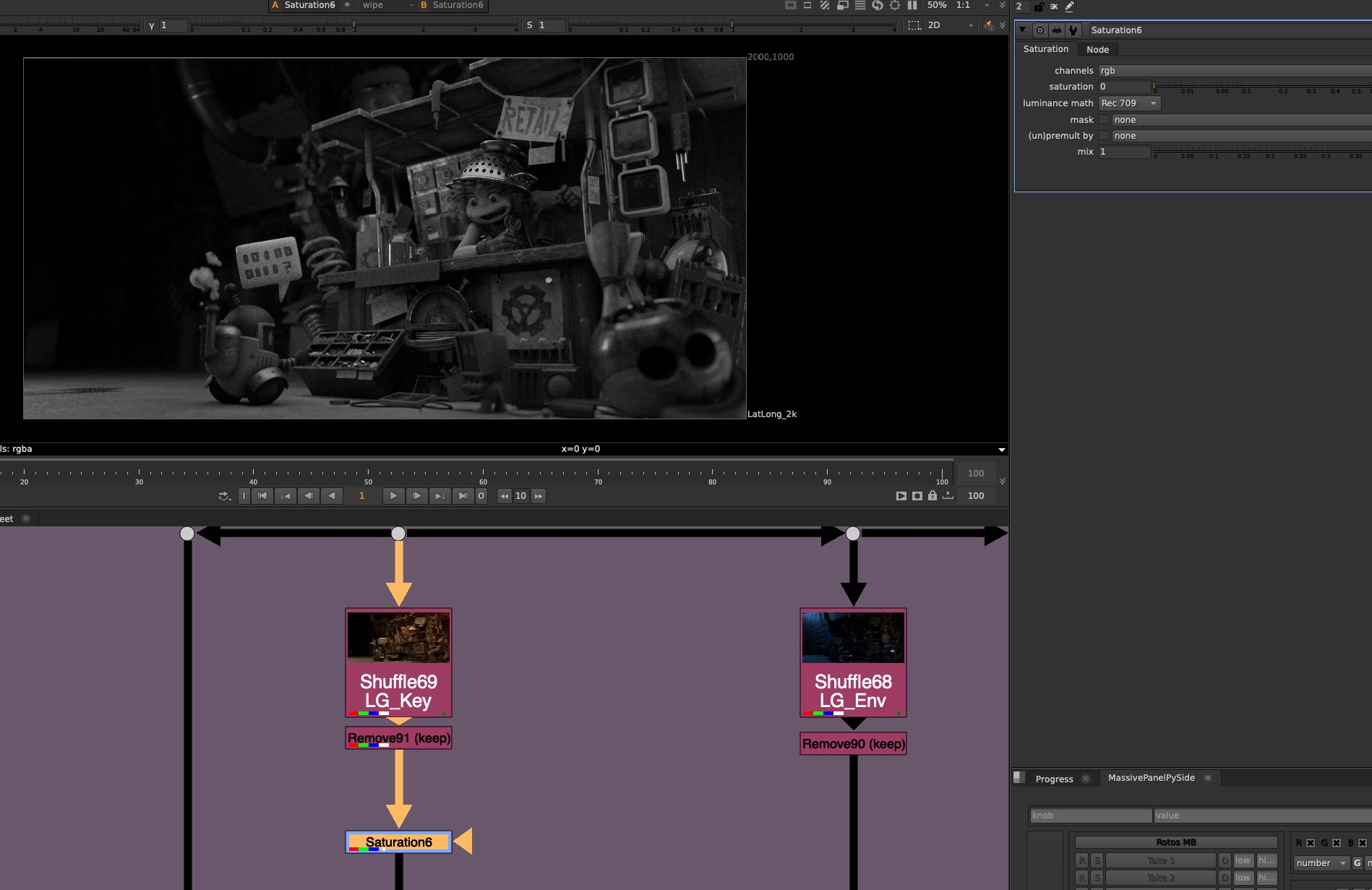
Remember that Light Groups are like individual Beauty Renders with only 1 light at a time. So you cannot simply desaturate a light group if you want to desaturate the light color.

You would either have to separate the Lighting information from the material information, using a color pass. But even then you may encounter some issues and artifacting.

Or, you can simply shift the colors of the light group to a more neutral color


Destructive vs Non Destructive workflows

You can use Gamma corrections, but be mindful that it requires an exact order of operations reversal in order to fully restore the original image. So it can be difficult to undo later if your corrections start to stack up

ColorCorrect Nodes can be especially Destructive because they are impossible to reverse, due to the fact that it is pulling a luminance key on it’s input to determine the shadows, midtones, and highlights.

This locks the input of the ColorCorrect, because if you make a change above, you are affecting the result of the ColorCorrect

It means that you either need to keep going, adding more nodes and changes on top, or perhaps start over.

Image each ColorCorrect is dependent on all of the previous ColorCorrects, this can cause a ripple, or chain reaction affect and be altering the results of all or any of the ColorCorrects if they are altered.

Of course in the end of the day, use whatever you need to do to get the shot done! But be mindful that you might be tangling a knot that you cannot untie later.

My advice would be try using Exposure and Multiply Changes for Luminance and Color first, and see how far you can get, and save the fancy ColorCorrects as a last resort, when you need to get the extra mile to completing the shot.


Demo Nuke Script

Download the Demo Nuke Script here:
CG_Compositing_Series_LightGroups_Demo_v07.nk

In the Demo Nuke script, you will find AOV and Light Group Rebuilds for:

  • Blender (Junkyard Scene)
  • Arnold (Fruitbowl)
  • Octane (Fruitbowl)
  • Redshift (Fruitbowl)

You will also find sections demoing:

  • Exposure
  • A junkyard light group rebuild that I have tweaked with Exposure and Multiply as an example
  • Saturation demo dealing with saturation of Light Groups
  • Section breaking down Destructive and non-destructive workflows in nuke.

Downloads

Junkyard

I’ve created a new Junkyard Render specifically for this Light Groups video, please download the Render and the Cryptomatte file here in order to relink it in the Demo nuke script:

Download Render files here:
Junkyard_LightGroups.zip ( 115 mb )


Fruitbowl

If you haven’t downloaded the FruitBowl Renders already yet, you can do so now:

You can Choose to either download all 3 FruitBowls at once:
FruitBowl_All_Renders_Redshift_Arnold_Octane.zip (1.61 GB)

Or Each FruitBowl Render Individually for faster downloads:

FruitBowl_Redshift_Render.zip (569.1 MB)

FruitBowl_Arnold_Render.zip (562.8 MB)

FruitBowl_Octane_Render.zip (515.4 MB)

The project files and the Renders are separate downloads, so if you have already downloaded 1.1 What and Why files or the Fruitbowl Renders, there are a couple ways to combine them to work.

  1. Either add the .nk script to the previous package (in the folder above SourceImages, with the other .nk scripts)
  2. Or simply drop the Render files into the SourceImages folder of the project folder
References

Below are some links to the various research I used to create this video:

First, big shout out again to the Exposure Triangle Simulator website:

Exposure Triangle

http://www.andersenimages.com/tutorials/exposure-simulator/

http://photography-mapped.com/interact.html

https://www.adorama.com/alc/9-online-camera-simulators-to-help-your-photography-skill/


3D Rendering Light Groups

https://www.blog.poliigon.com/blog/4-simple-steps-to-set-up-light-groups-in-blender

https://help.maxon.net/r3d/katana/en-us/Content/html/Light+Group+AOVs.html#LightGroupAOVs-LightGroupsinDetail

https://www.premiumbeat.com/blog/the-role-of-light-groups-in-arnold-for-maya/

YoutTube – Light Groups in Arnold for Maya | Francesco Furneri

https://garagefarm.net/blog/blender-light-groups

Julius Ihle – HDR Prepper Nuke Gizmo for IBL (Updated!)


Photography

https://www.canonoutsideofauto.ca/

https://www.john-rowell.com/blog/2017/3/27/what-is-a-stop-of-light

https://www.photopills.com/articles/exposure-photography-guide

https://www.studiobinder.com/blog/what-is-iso/

https://photographylife.com/what-is-iso-in-photography

https://photo.stackexchange.com/questions/35136/is-it-better-to-shoot-with-a-higher-iso-or-use-lower-iso-and-raise-the-exposure

https://theauroraguy.com/blogs/blog/iso-is-not-what-you-think-it-is-what-is-iso-really

https://photo.stackexchange.com/questions/52163/digital-iso-vs-post-exposure-correction

https://www.alanranger.com/blog-on-photography/what-is-iso-in-photography

https://skylum.com/how-to/what-is-iso-in-photography

https://petapixel.com/exposure-triangle/

https://www.outdoorphotographyschool.com/aperture-and-f-stops-explained/

https://www.exposureguide.com/focusing-basics/

https://manualmodebasics.weebly.com/shutter-speed.html

https://digitalphotographylive.com/shutter-speed/

https://isblens.weebly.com/shutter-speed.html

https://snapsnapsnap.photos/a-beginners-guide-for-manual-controls-in-iphone-photography-shutter-speed/

https://www.diyphotography.net/what-is-middle-grey-and-why-does-it-even-matter/

https://silentpeakphoto.com/photography-tips/stops-in-photography-explained/


3 Point Lighting

https://lightingpixels.blogspot.com/2013/01/tutorials-does-three-point-lighting-suck.html

https://academyofanimatedart.com/understanding-the-basics-of-3-point-lighting/

Youtube – CINEMATIC LIGHTING: 3 Point Lights | Kriscoart

https://www.linkedin.com/pulse/what-crucial-role-lighting-3d-animation-incredimate-jhkac/

https://www.soundstripe.com/blogs/how-to-master-the-art-of-practical-lighting

BEST Resource you will ever find on the subject of CG Cinematography and Lighting – Onine Book:

https://chrisbrejon.com/cg-cinematography/


Area of Circle

https://www.chilimath.com/lessons/geometry-lessons/area-of-a-circle

https://mathmonks.com/circle/area-of-a-circle

YoutTube – Video 878.1 – How do you double the area of a circle? – Practice | Chau Tu

Youtube – Area of a circle | Perimeter, area, and volume | Geometry | Khan Academy

Youtube – If I double the diameter of a circle, what happens to the perimeter and area? | Wendy Maths

Youtube – Circle Area (classic visual proof) | Mathematical Visual Proofs


Color Temperature

https://www.studiobinder.com/blog/what-is-color-temperature-definition/

https://nofilmschool.com/what-is-color-temperature-and-how-should-filmmakers-utilize-it

https://www.therookies.co/projects/76980

https://step1dezignsblog.wordpress.com/2017/10/06/how-to-choose-the-right-color-temperature-for-your-led-lighting-applications/

https://www.wonderopolis.org/wonder/what-is-the-color-of-fire

CG Compositing Series – 2.5 Material AOVs – Refractions & Reflections


Refraction & Reflection Passes (Exceptions)

In this video we aim to understanding the problem with refraction (transmission) and reflections (indirect specular) explore potential solutions. The problem with Indirect Specular (Mirror Reflections) and Transmission (or Refraction) passes is they reflect or refract the entire beauty of the environment, locking that information into 1 pass. There often seems there is not much we can do as compositors to separate those passes further.


Here we have a nightmare scenario from a AOV rebuild point of view: A glass jar full of balloons, that is also reflected in a mirror surface. Everything in the mirror Reflection shows up only in the Specular Indirect Pass, and everything seen through the glass jar shows up only in the Transmission (refraction) Pass.

We notice as well that objects that end up in the Transmission (Refraction) pass are missing from the Diffuse Pass.

Mirror Reflections, for example ground plane reflections for our subjects, are also limited to the Indirect Specular pass:


What is Transparency?

  • Transparency is the ability to see – through an object or surface to what’s behind
  • It’s as if the object or material is ignored or nonexistent and does not have to do with Light interacting with the material.
  • The light passing through is not Distorted (Refract), nor does Scatter or change Color (which could be the case with Translucency or Transmission)

Transparency basically has only 1 setting: Amount – or “How much can i see through this”

YouTube: Opacity Maps – PixPlant

What is Transmission?

  • Transmission is the passing of light completely through a material
  • Refractive, Transparent, and Translucent materials all transmit light, but Opaque materials do not. 
  • If light is not transmitted, it may have been reflected (specular) or absorbed.
https://abnercabuang.wordpress.com/2017/11/19/reflection-refraction-transmission-and-absorption-of-light/

Transmission can sometimes cause the light to inherit a color tint as it passes through and interacts with the material.  Think of colored liquids or tinted glass.

https://documentation.3delightcloud.com/display/SFRP/3Delight+Glass

What is Refraction?

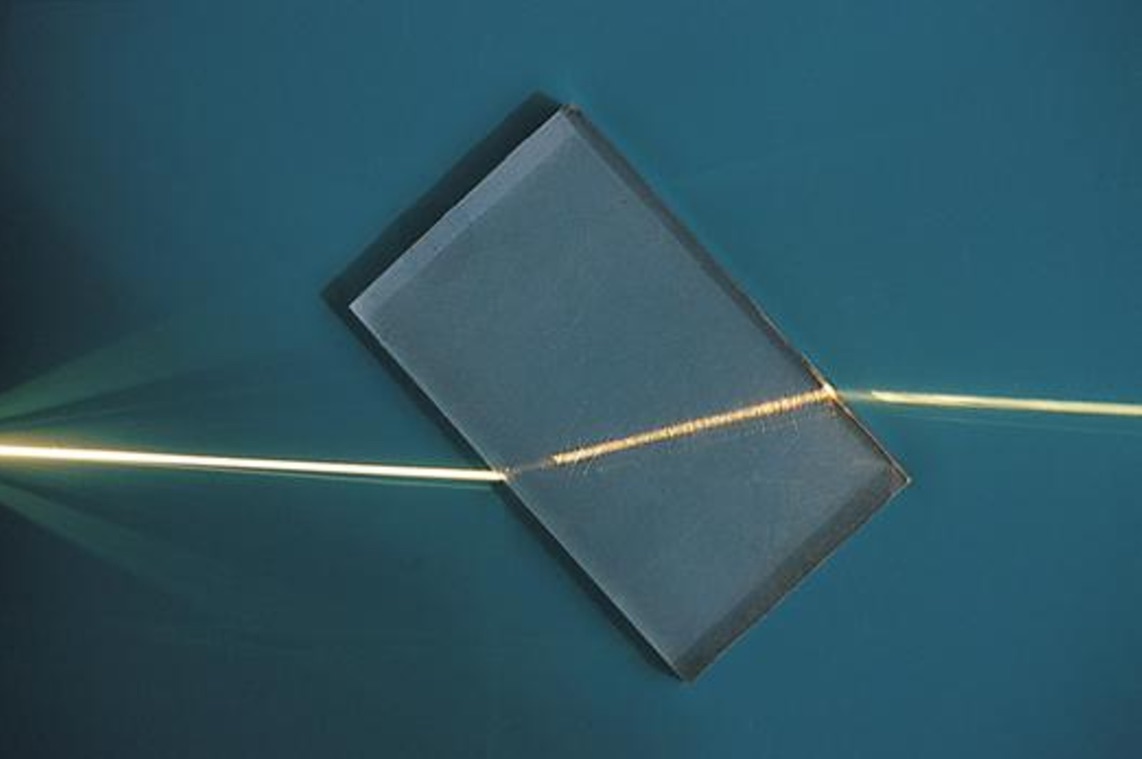
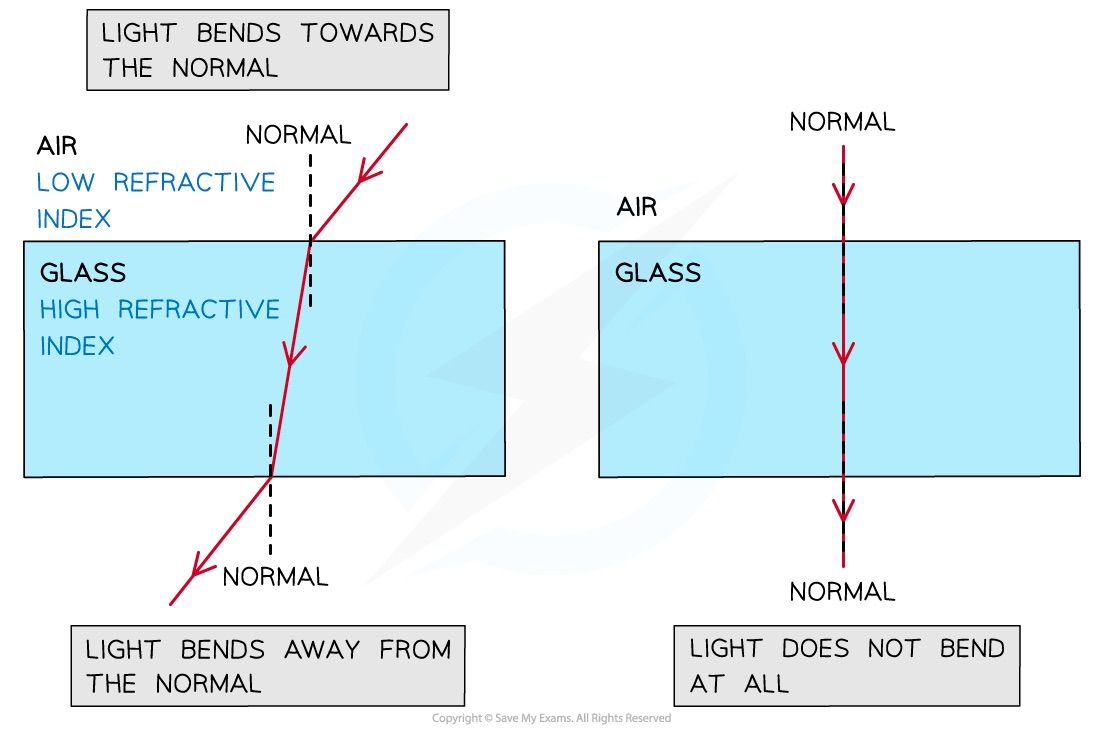
  • Refraction is the change in direction and speed of a light ray as it travels through or “Transmits” through different mediums, ie. from Air to Glass or Water or Plastic

The 2 more important characteristics of Refraction are:

1.) The Light passes through the material

2.) The Light changes direction

  • The amount of distortion, “bending”, or change in direction of a light’s path while passing through the material, depends on factor’s like:
  • Thickness of the material, Angle of View, and the material’s Index of Refraction
https://lightcolourvision.org/dictionary/definition/index-of-refraction/
https://en.wikipedia.org/wiki/Refraction
Photo by Jill Burrow – Pexels
drinking-straw-in-a-glass-of-water-refraction_congerdesign_Pixabay

Refractions vs Transmission?

  • Transmission is only referring to Light passing through an object
  • Refraction is requiring the light to have changed direction, and to pass through
  • The render pass is doing both things, so some Render Engines decided to call the pass Transmission, because it’s referring to light passing through the material
  • Other renderers call the pass Refraction, referring to the Change of Direction, “bending” or distortion of the light
  • Both terms in this case are referring to the same phenomena, just focusing on different aspects of the light’s behaviour
  • Transmission might even be a more accurate label, because technically a material could have a Refraction index of 1.0, meaning no refraction/distortion is occurring, but the light is still Transmitting. 
  • All Refractions require Transmission
  • Not all Transmissions require Refraction

Why is Light Redirected during Refraction?

  • Light travels through different mediums at different speeds, depending on the density and make up of the medium. 
  • Examples of Mediums: Vacuum (space), Air, Glass, Plastic, Water, gases, etc.
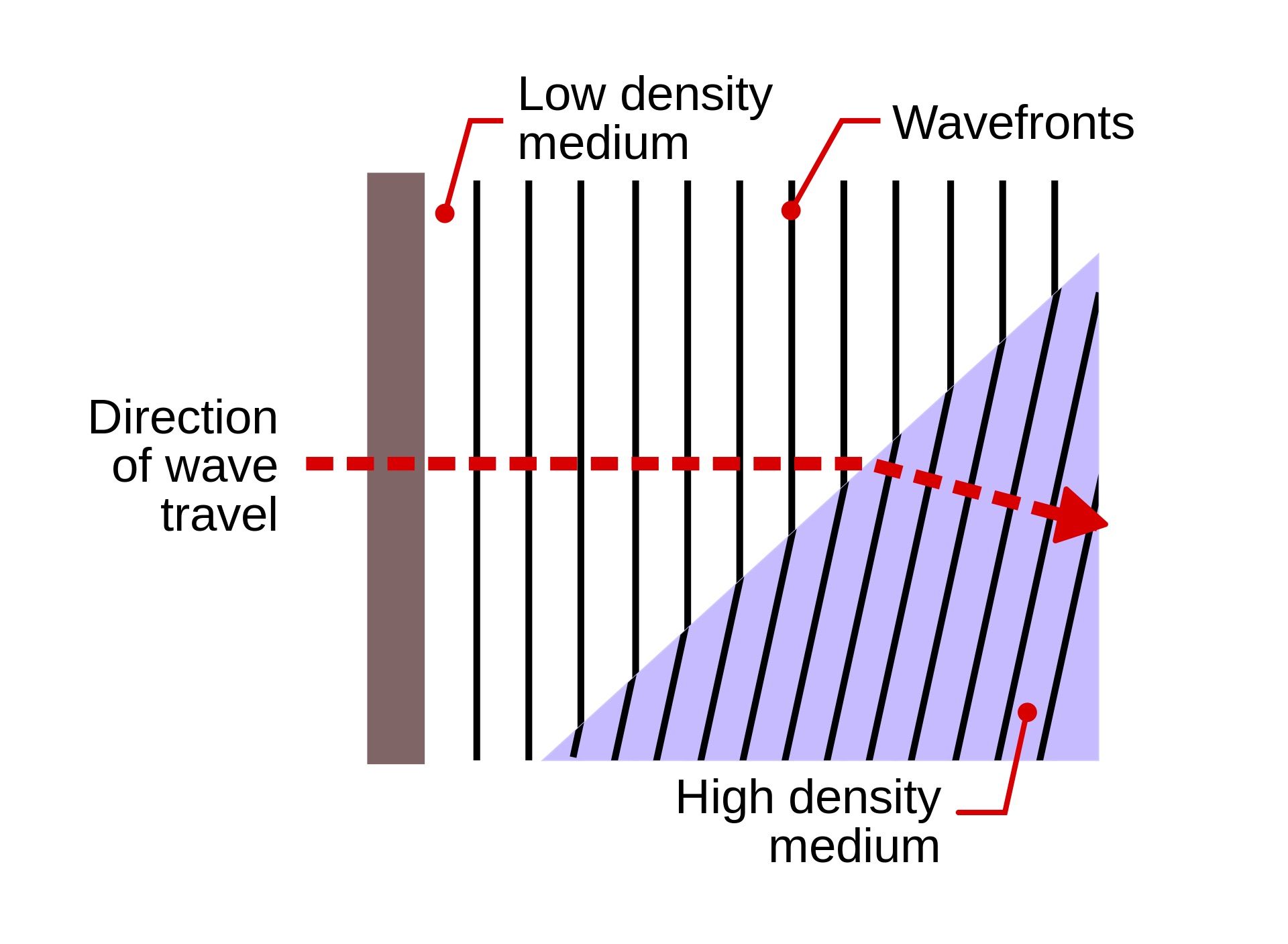
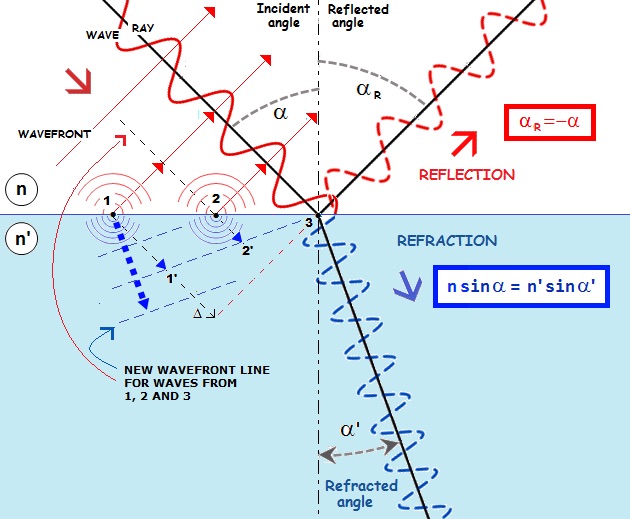
  • The change of light speed while passing from 1 medium into the next, causes the light to change direction when entering the 2nd medium.
https://stoplearn.com/refraction-of-light/

Light Wave “Turning” or “Bending”

Light is a Wave:

One side of the wave hits the new medium and slows down first, turning/bending/redirecting the light wave towards a new direction.

https://en.wikipedia.org/wiki/Refraction
https://www.telescope-optics.net/reflection.htm
https://blog.soton.ac.uk/soundwaves/wave-interaction/3-refraction/

Color Light Wave Frequencies

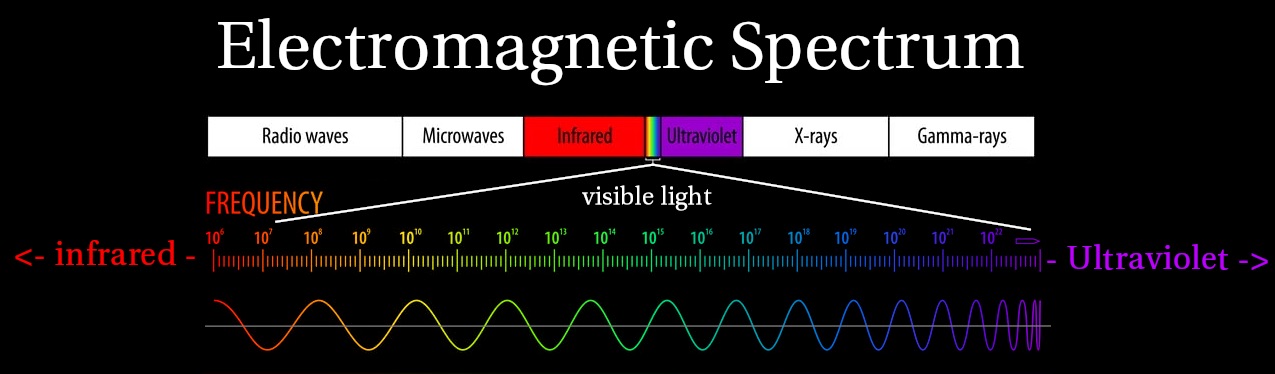
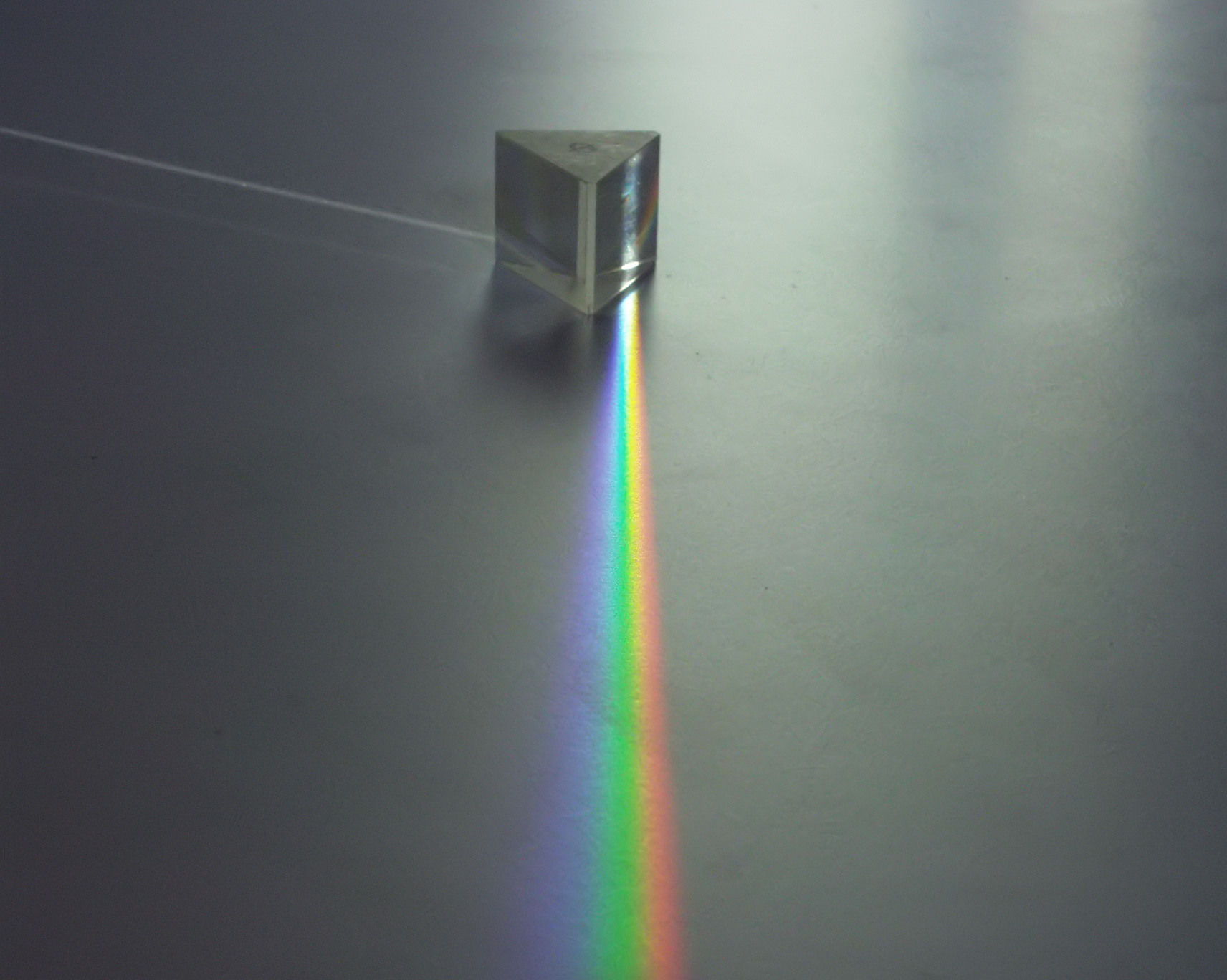
Remember that Different Frequencies of Light Spectrum show up as different colors

Different frequencies of light refract at slightly different angles, causing the colors to separate. This is what happens with Color Prisms.

https://en.wikipedia.org/wiki/Dispersive_prism
https://en.wikipedia.org/wiki/Refraction
https://sciencenotes.org/refraction-definition-refractive-index-snells-law/

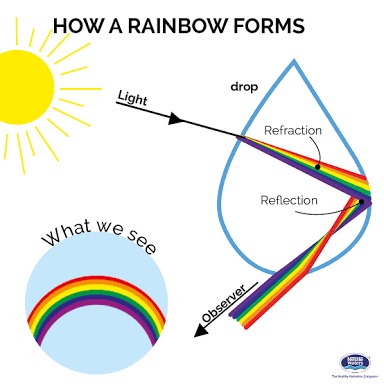
Refraction / Reflection in Rainbows

A Combination of this Refraction Color Separation and Reflections within water droplets is what allows us to see Rainbows.

https://www.quora.com/Why-is-high-humidity-required-for-the-formation-of-rainbow
https://www.quora.com/Are-specific-conditions-needed-for-Rainbow-to-occur
https://www.quora.com/If-light-travel-at-the-same-speed-in-rainbows-as-it-travels-in-air-would-we-still-have-rainbows

Index of Refraction

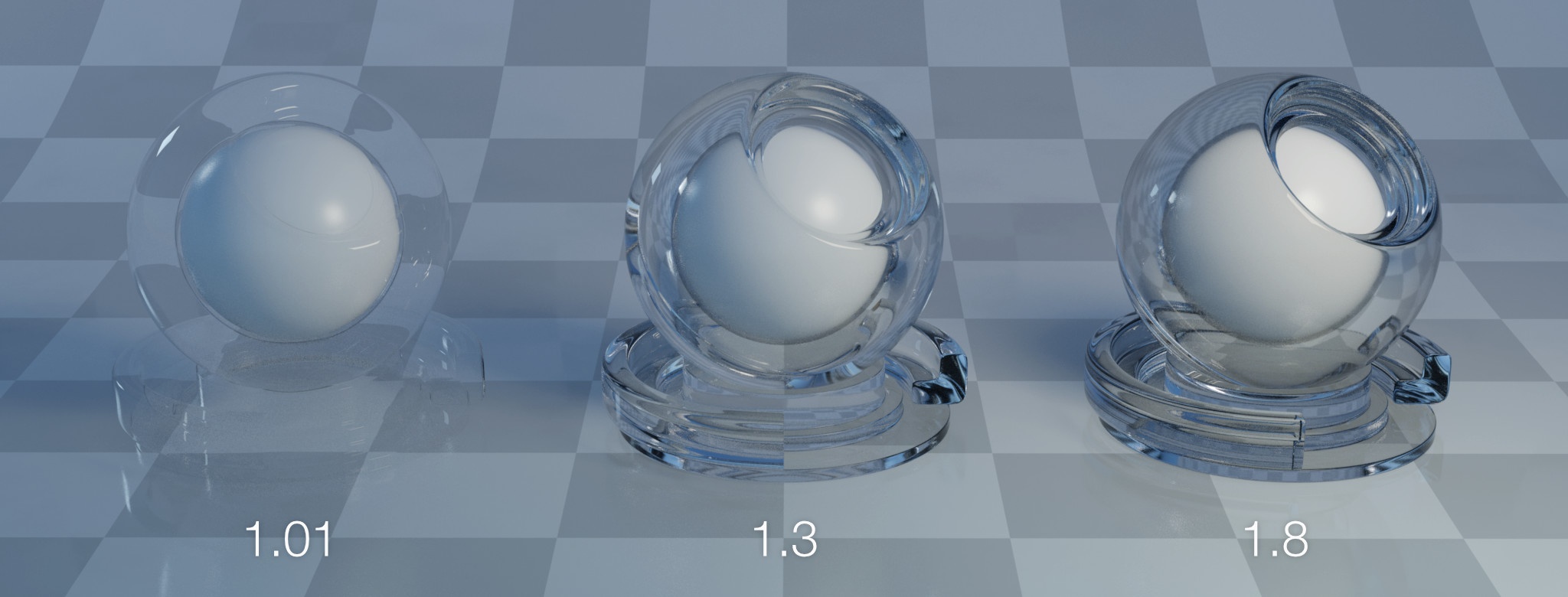
  • Different materials have different densities and make ups and will cause light waves to move through at different speeds
  • This is measured with an Index of Refraction, which measures how fast light moves through that medium, and therefore how much it refracts
  • An Index of 1.0 is light’s speed in a Vacuum – or no change in direction
  • Higher numbers mean light travels through the medium slower and light bends more
https://micro.magnet.fsu.edu/optics/lightandcolor/refraction.html
https://www.scratchapixel.com/lessons/3d-basic-rendering/introduction-to-shading/reflection-refraction-fresnel.html

In CG, this Index of Refraction is an attribute setting on Materials that will make it more or less refractive

https://documentation.3delightcloud.com/display/SFRP/3Delight+Glass

Refraction Re-Entering Original Medium

  • When the Light goes from a fast medium, to slower medium, and back into the fast medium on the other side, it has another refraction turn
  • This time, instead of one side of the light wavelength slowing first, one side speeds up first
  • If the exit angle is the same as the entrance angle, it will reverse the lightwave back to the original direction, and is parallel to the orginal light direction, just offset
https://www.quora.com/Will-the-angle-of-refraction-of-a-ray-of-light-passing-from-glass-to-air-be-equal-to-the-angle-of-incidence-greater-than-the-angle-of-incidence-smaller-than-the-angle-of-incidence-or-45-What-are-the-reasons-for-your
https://en.wikipedia.org/wiki/Refraction
https://micro.magnet.fsu.edu/optics/lightandcolor/refraction.html

Refraction Angle

  • The Angle that the light wave hits the surface also matters
  • If the light hits the material exactly perpendicular to the surface normal then it will pass through and the light does not bend at all
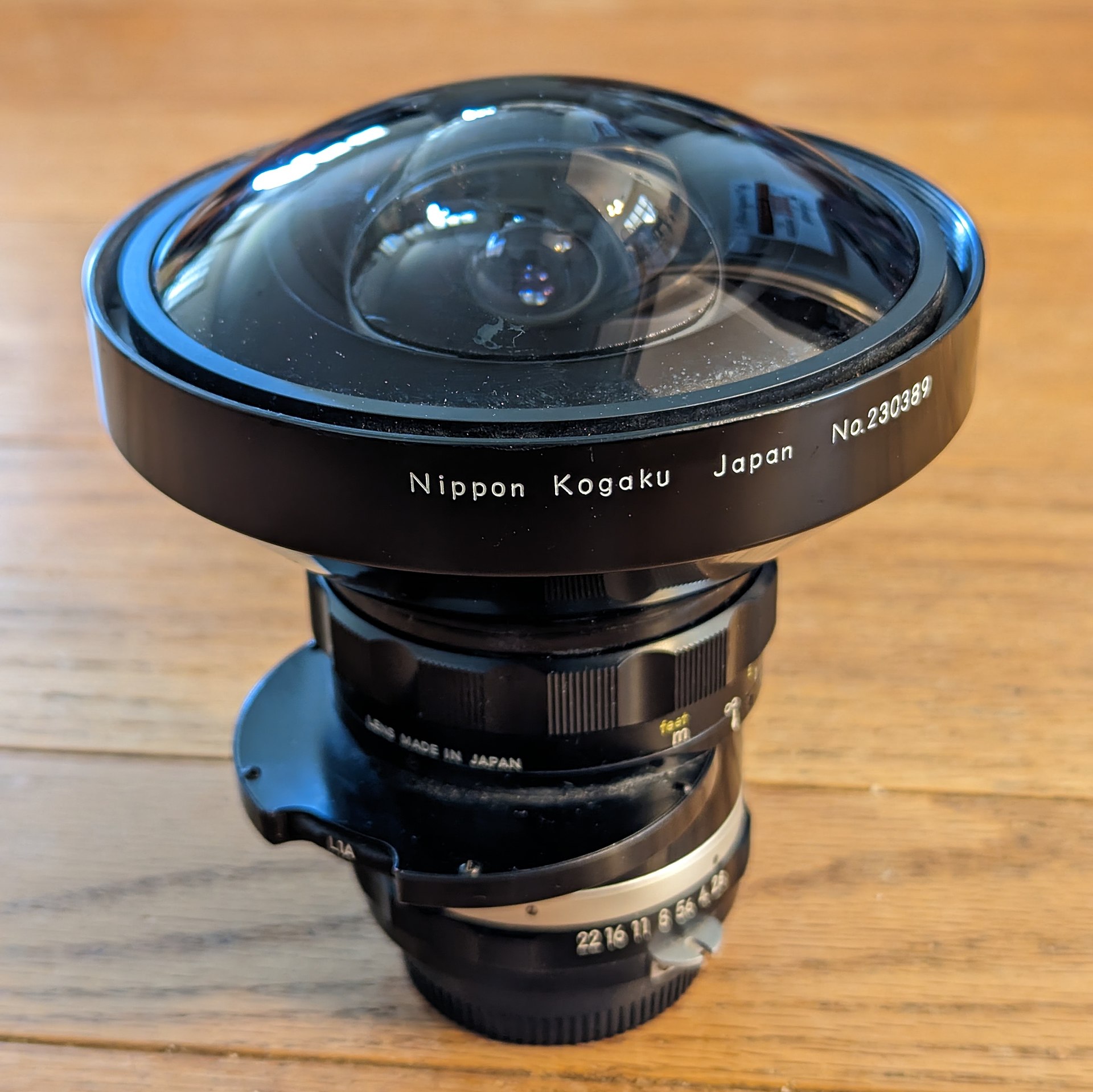
  • The more extreme the angle, the more refraction. This is why light appears most warped at the edges of curved surfaces.
https://www.hanlin.com/archives/695184
Pexels – Photo by Burak The Weekender

This is exactly what causes lens distortion to be more extreme at the edges of frame vs the center of frame

https://en.wikipedia.org/wiki/Fisheye_lens
https://help.shopmoment.com/article/181-superfish-distortion-correction

Chromatic Aberration

Combining the more extreme distortion with the Color separation is why we get Chromatic Abberation more in the edges of frame as well.

https://en.wikipedia.org/wiki/Chromatic_aberration
http://www.tlc-systems.com/artzen2-0047.htm

Caustics

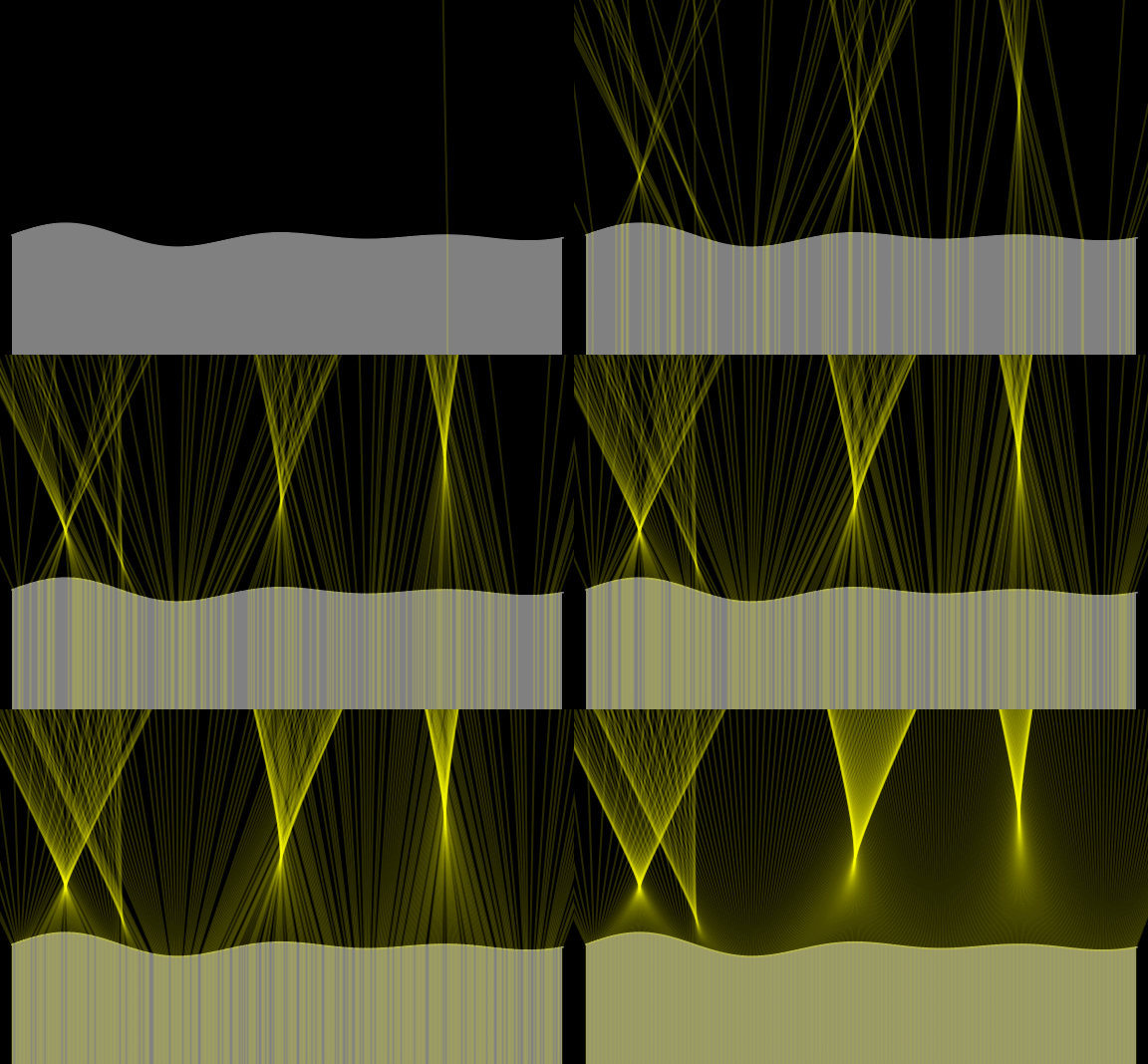
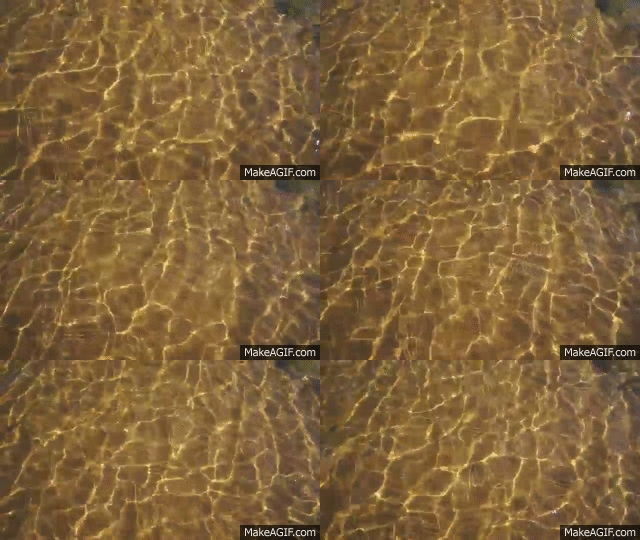
Light Refracting through complex shaped objects, changes direction, and concentrate towards certain areas more than others and create Caustics.

Pexels – Photo by Maria Orlova
https://en.wikipedia.org/wiki/Caustic_(optics)

Complex shapes create complex caustics, and moving surfaces, like water, create dynamic and organic moving Caustic patterns.


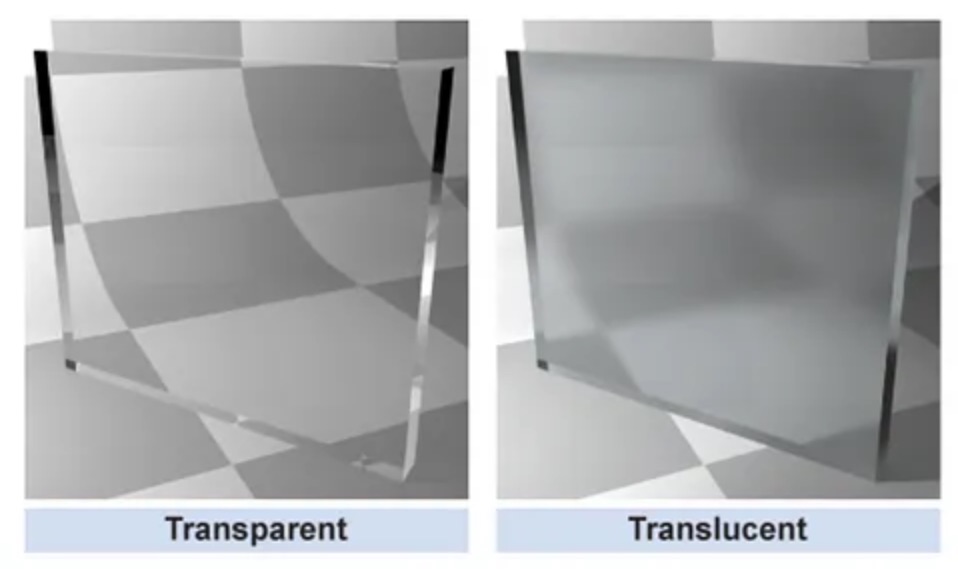
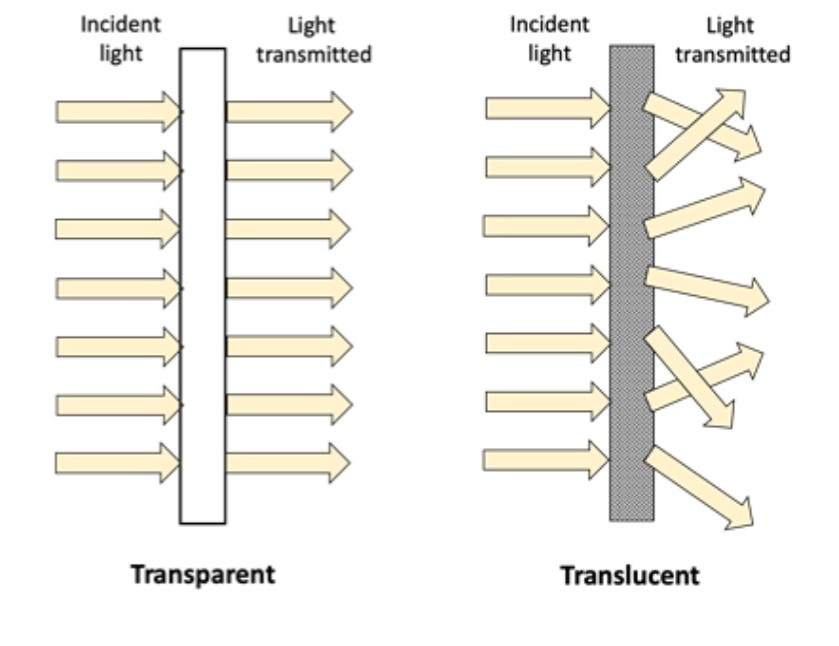
What is Translucency?

  • Transmissive materials have a Roughness or Glossiness setting that works in the same way as it does on Specular Highlights
  • Increasing the Transmission Roughness causes the light rays traveling through to scatter / “diffuse” or blur together.  Think of Frosted Glass or Plastics.
  • This effect of “Blurring” or Scattering the Transmitted light is called Translucency
https://medium.com/@stevesi/on-bigco-leaks-transparency-and-disclosure-6d7812e227a0
https://sitelikeet.life/product_details/15285792.html
https://slideplayer.com/slide/8349700/ – Light and Color Presentation – by Elijah Dixon

Roughness Blurs Everything Together

Specular Roughness Setting:

https://documentation.3delightcloud.com/display/SFRP/3Delight+Glass

Transmission Roughness Setting:

https://documentation.3delightcloud.com/display/SFRP/3Delight+Glass

Recap

Transparency – You can see through to BG, as if the material or object is not visible or ignored

Transmission – Light allowed to pass through the surface / material

Refraction – Light changes direction as it passes through the material / surface

Translucency – Light passes through material and gets scattered / blurred 


Virtual Images / Worlds

When looking at fully reflective and refractive objects, we are seeing a distorted representation of our surroundings.

https://www.scratchapixel.com/lessons/3d-basic-rendering/introduction-to-shading/reflection-refraction-fresnel.html
https://en.wikipedia.org/wiki/Refraction

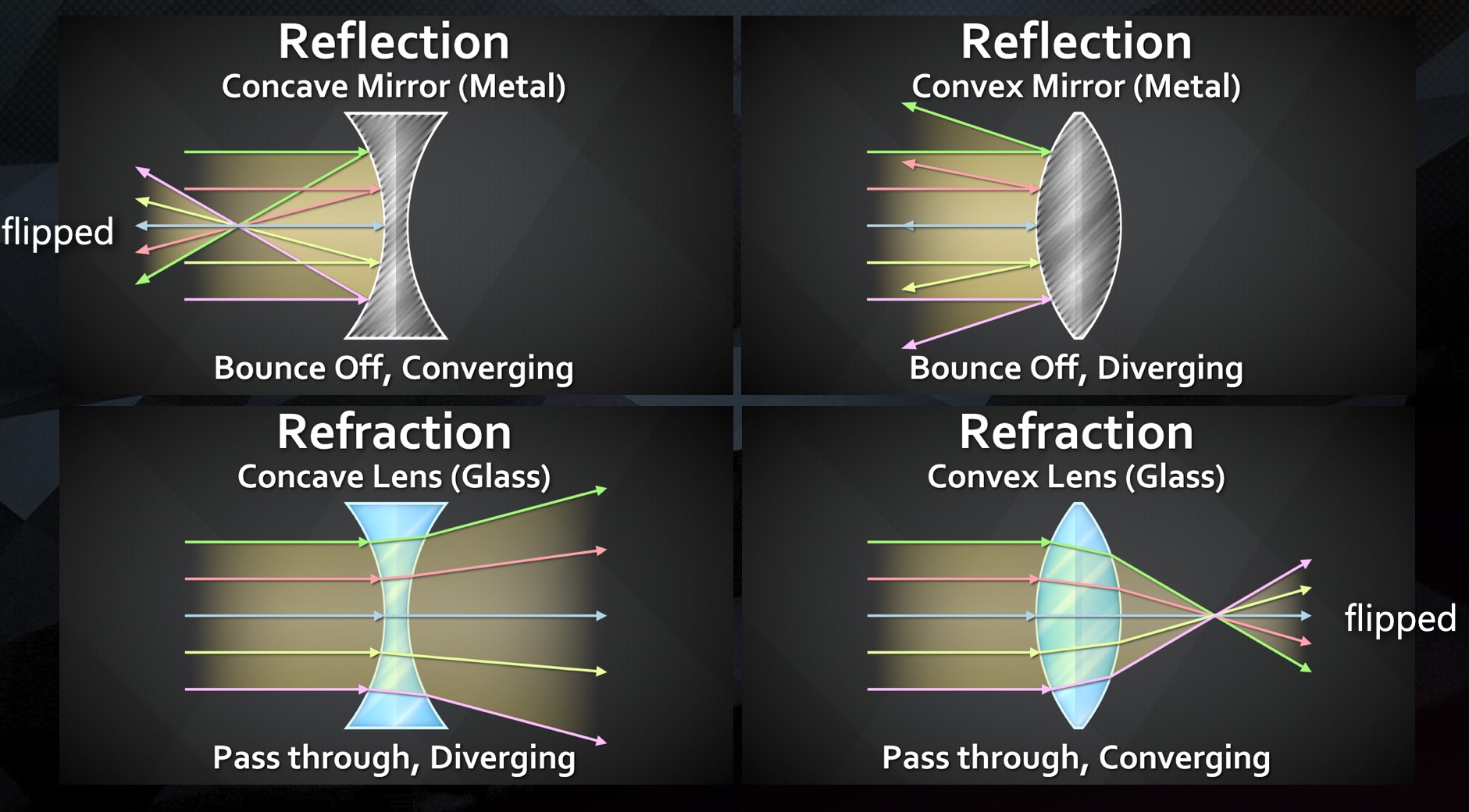
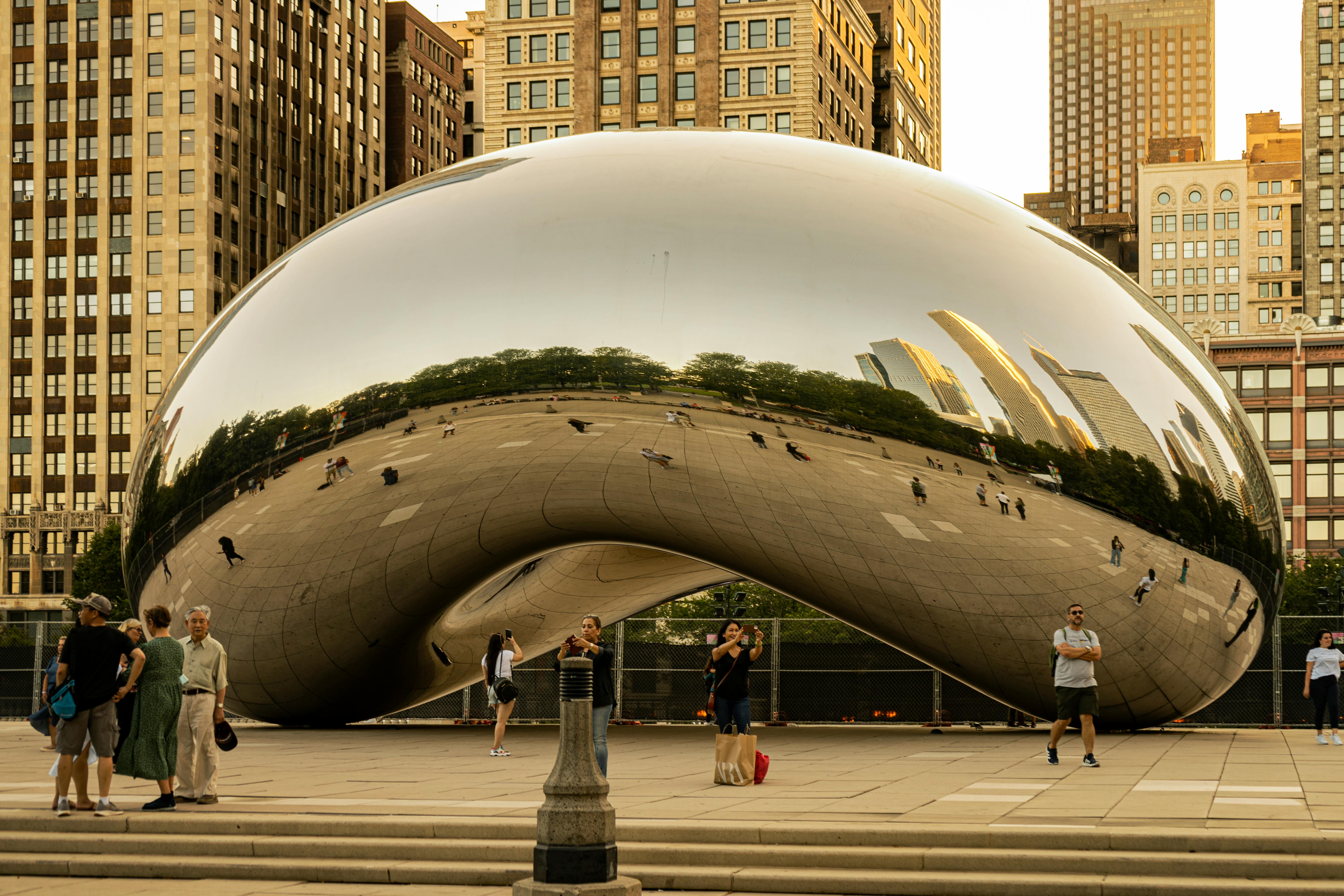
Concave/Convex Reflections

When looking at curved mirrors, it is very obvious that the object we are looking at, is a redirected and distorted view of our surrounding environment

https://www.simply.science/images/content/physics/waves_optics/reflection/Concept_map/Convexconcave_mirrors.html
https://wbbsesolutions.guru/wbbse-solutions-for-class-10-physical-science-and-environment-chapter-5/

Convex Reflections

  • With Reflections, light bounces off the material and, depending on the surface shape, changes direction upon reflecting
  • Convex shapes cause the light to Diverge – spread apart
https://www.shokabo.co.jp/sp_e/optical/labo/lens/lens.htm

Concave Reflections

  • Concave shapes cause the light to Converge – come together
https://www.shokabo.co.jp/sp_e/optical/labo/lens/lens.htm

Concave / Convex Refractions

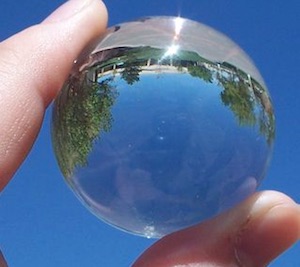
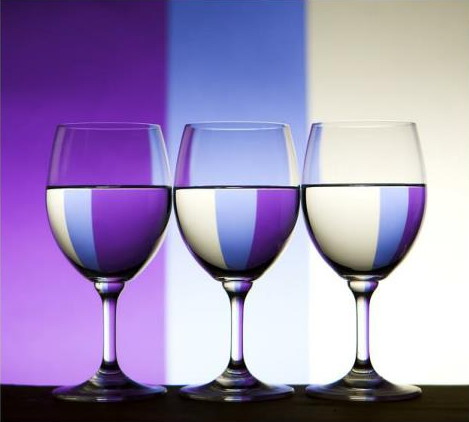
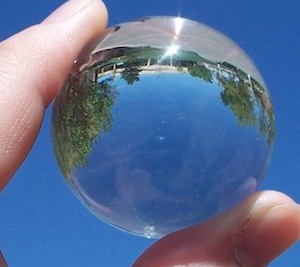
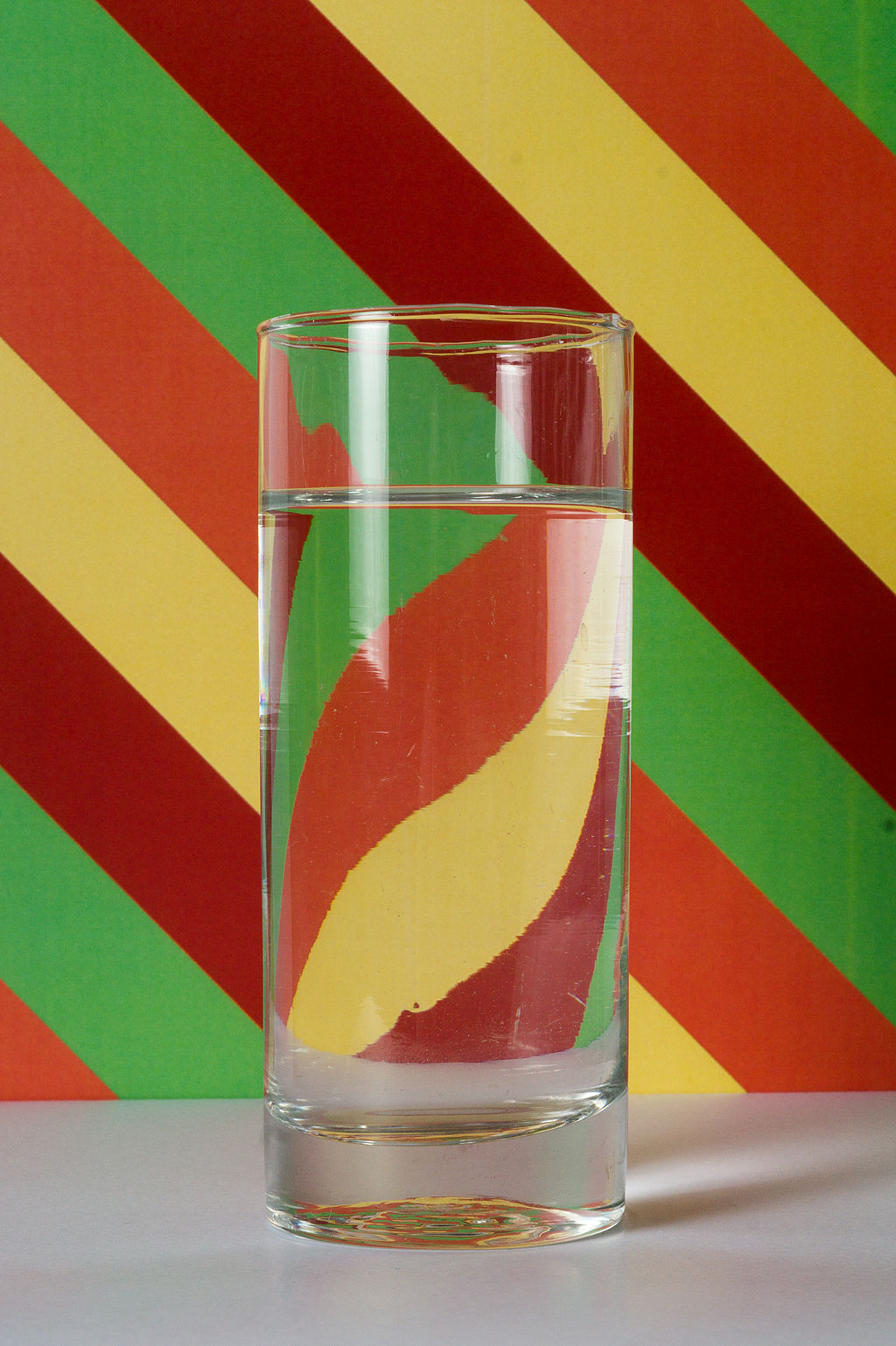
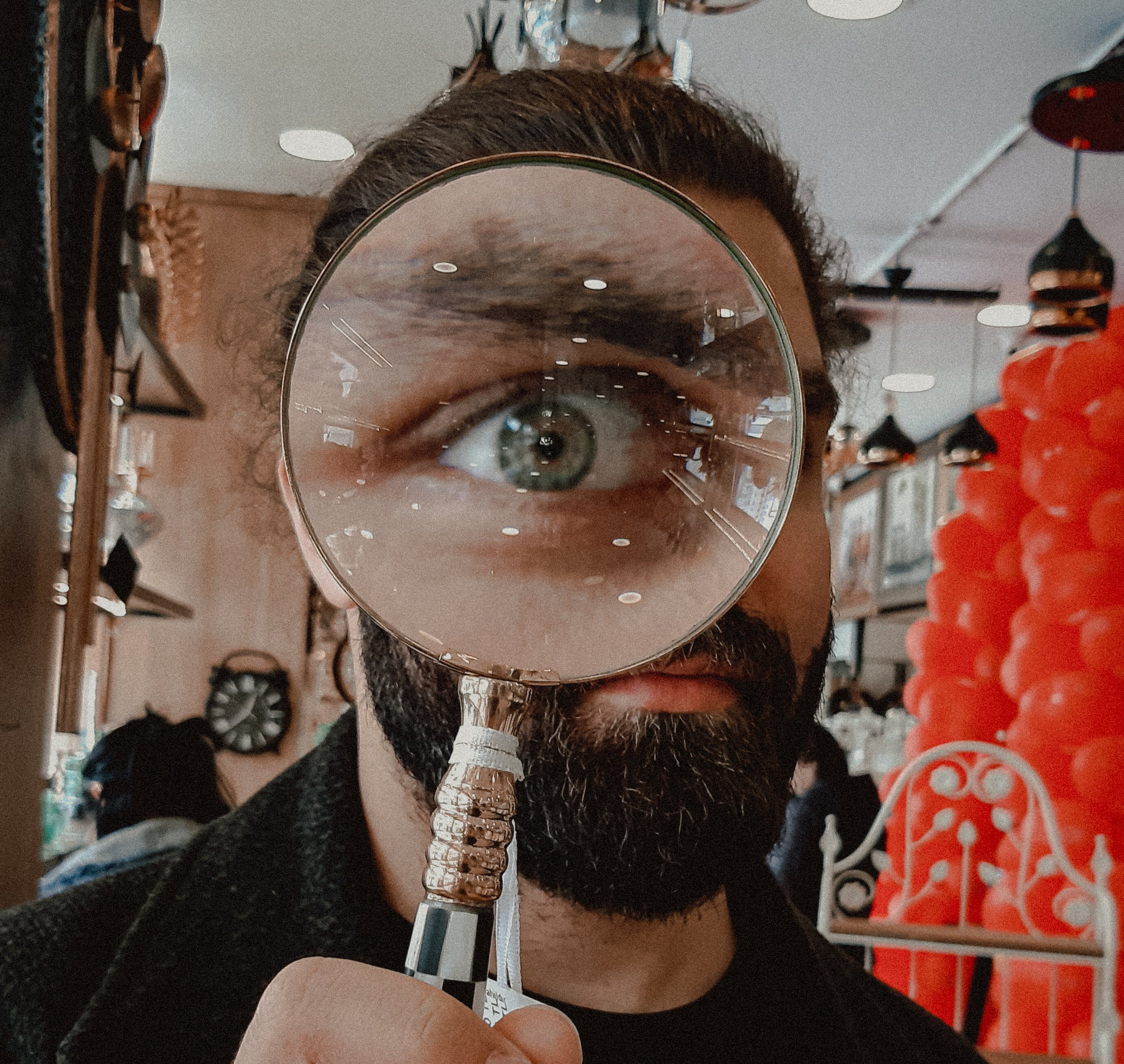
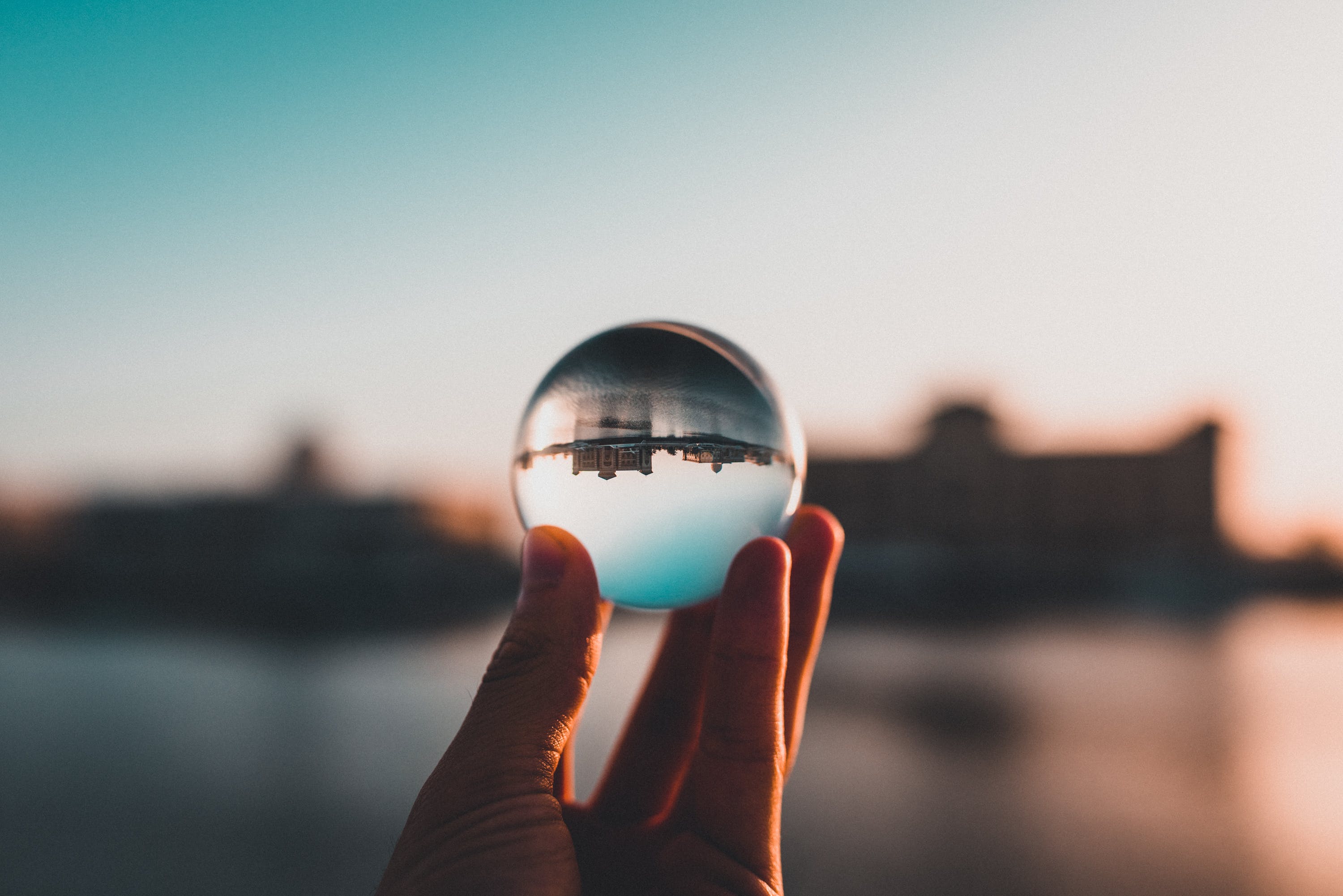
When looking at curved glass, or lenses, light that we are looking seeing through the glass, is a redirected and distorted view of our surrounding environment

photo by betül balcı on pexels
photo by shukhrat-umarov on pexels

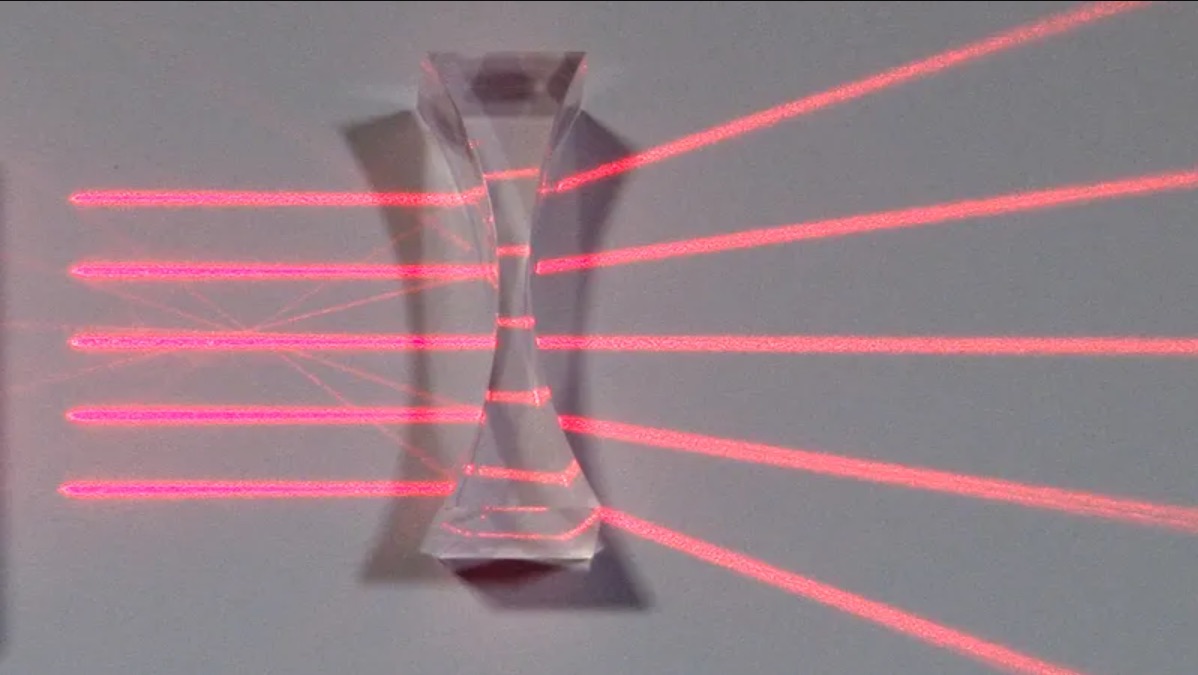
Concave Refractions

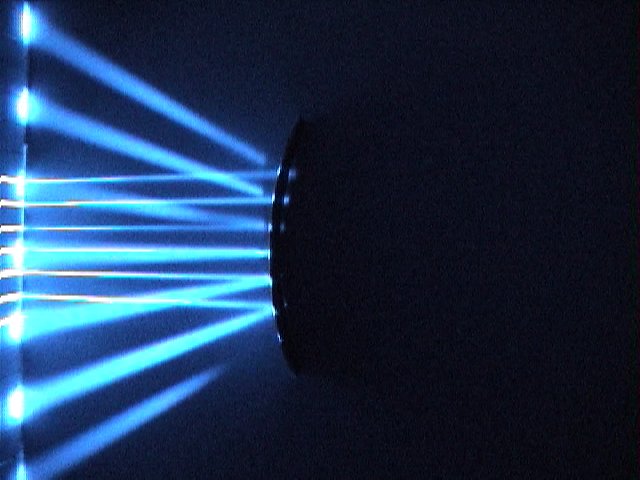
  • With Refractions, light passing through the material and, depending on the surface shape, changes direction upon refracting
  • Concave shapes cause the refracted light to Diverge – spread apart 
https://www.britannica.com/technology/lens-optics

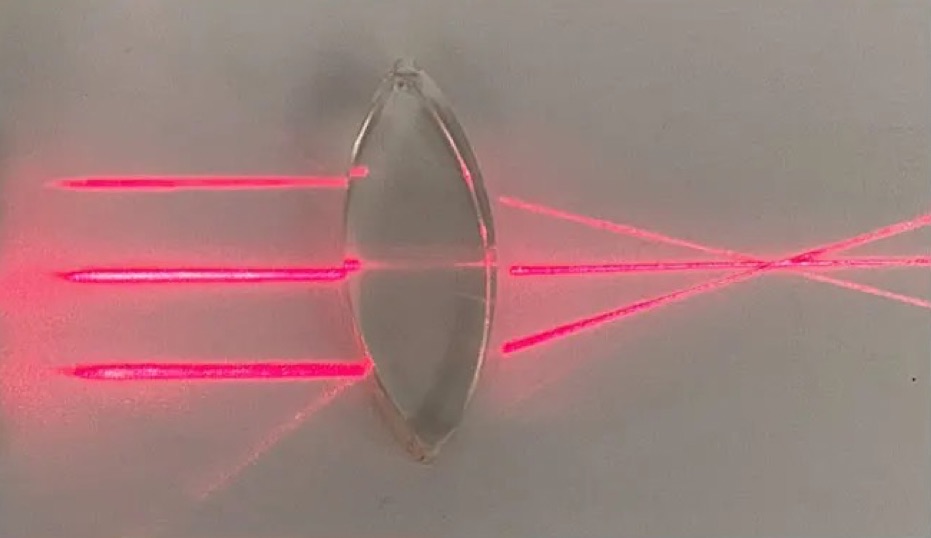
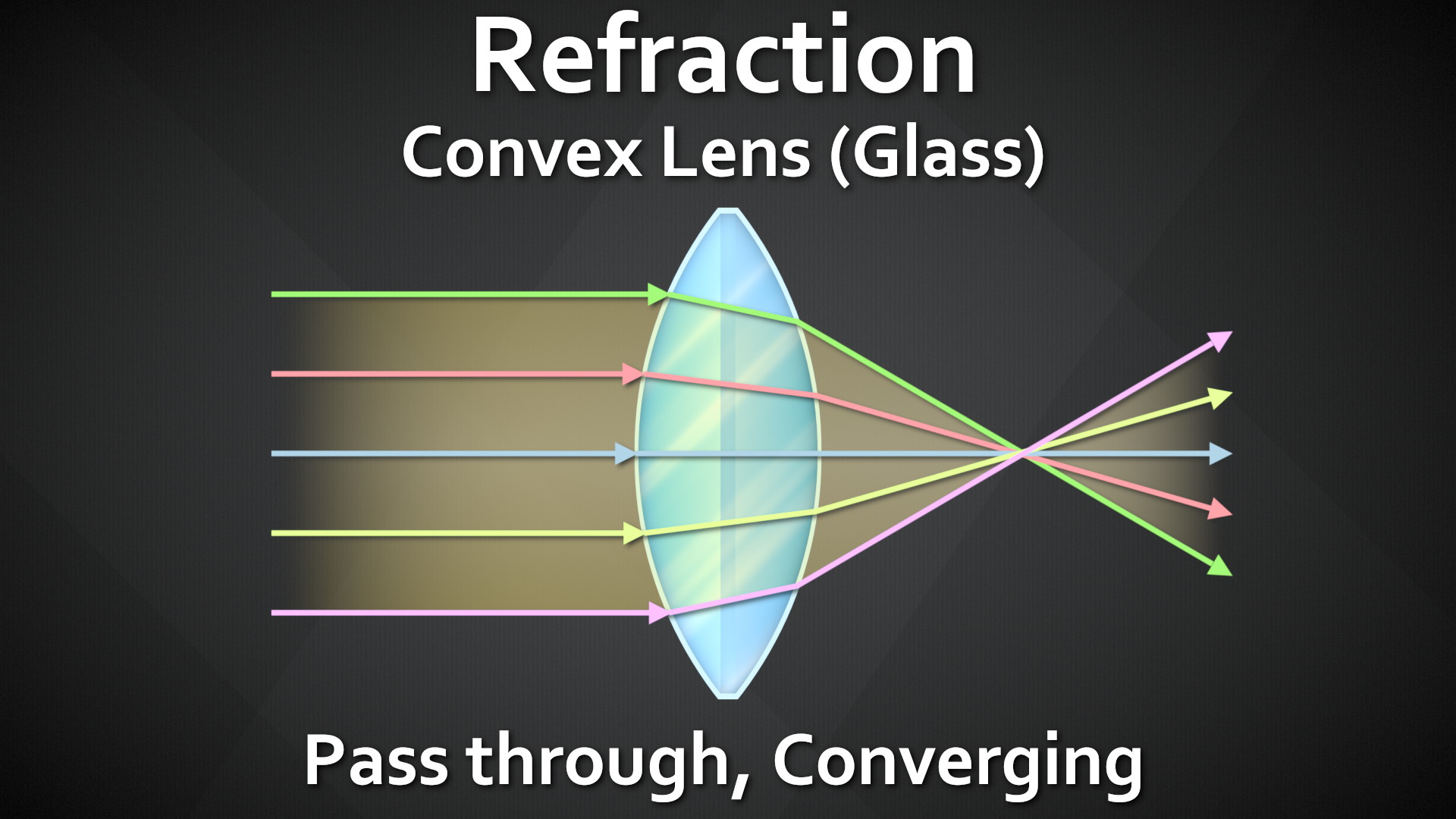
Convex Refractions

Convex shapes cause the light to Converge – come together

https://www.britannica.com/technology/lens-optics

Looking at them all next to each other, we can see Reflections and Refractions are both re-directing the light rays from another part of the scene. The biggest difference is Reflect = Light Bounces off, Refract = Light passes through.


There is No Spoon

photo by chait goli on pexels
photo by otoniel alvarado on pexels

There is No Glass Either…

https://wifflegif.com/gifs/490974-pouring-water-reverses-arrow-gif
https://www.cleverpatch.com.au/ideas/by-product-type/paper-and-card/refraction-in-action

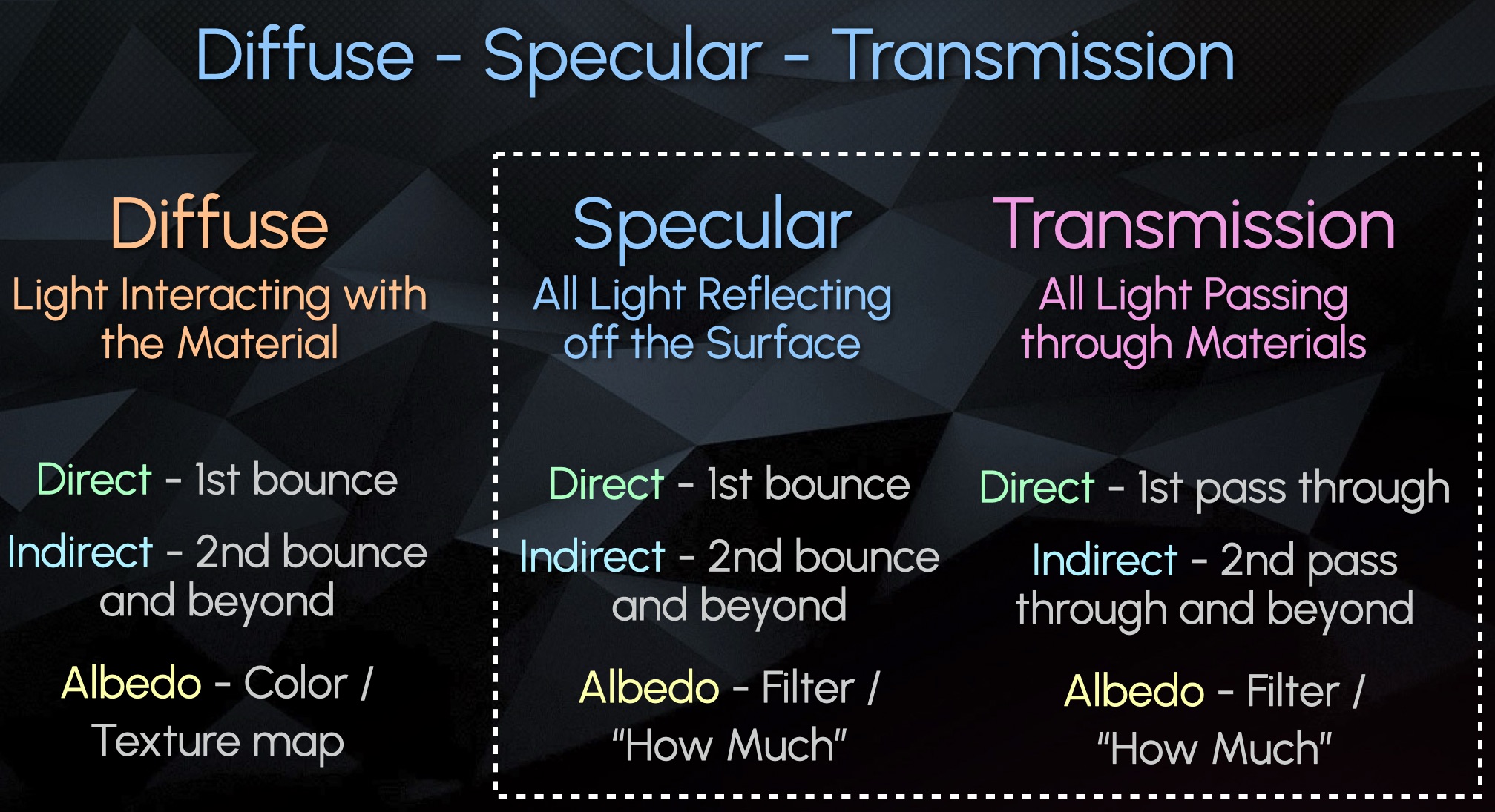
Diffuse – Specular – Transmission (New Category)

Diffuse – All Light Interaction with Material / Object

Specular – All Surface Reflections (Bounces)

Transmission – All Pass Through Refractions

Here is an Example Scene with 1 sided Glass on the left, and 2 sided Glass on the right:

We can see the Direct Transmission shows the Light Source through only the 1 sided glass, but not the 2 sided glass

Almost all information in the 2 sided glass is stored in the Indirect Transmission:

Almost all objects that contain glass in 3D are supposed to be modelled with a thickness, meaning 2 or more sides. So more often than not, your Direct Transmission Pass will be empty and all information will go to the Indirect Transmission. This is also why very often it is not even split up and is just rendered combined as Overall Transmission.


Recap #2

  • Transmission – Light passes through  
  • Refraction – Light redirects.  
  • The CG pass could be named either or but is often referring to the same phenomenon.
  • Specular and Transmission are both similar in that they are capturing light redirecting and showing a virtual image of the distorted surroundings
  • Emission is the light source
  • Diffuse describes the object itself
  • Specular Events captures light bouncing off the object’s surface
  • Transmission Events capture light passing through an object. 
  • These all get separated into their own categories.
  • Both Specular and Transmission have: 
  • A Direct pass that show the first reflection or first transmission of light
  • An Indirect pass showing all subsequent bounces or pass throughs
  • An Albedo Filter (mask)
  • Transmissive surfaces like glass are often modelled with 2 sides
  • Therefore the light usually passes through 2+ sides and ends up in the indirect pass, and the direct Transmission shows up empty
  • Often rendered as just an overall combined Transmission pass, for convenience.

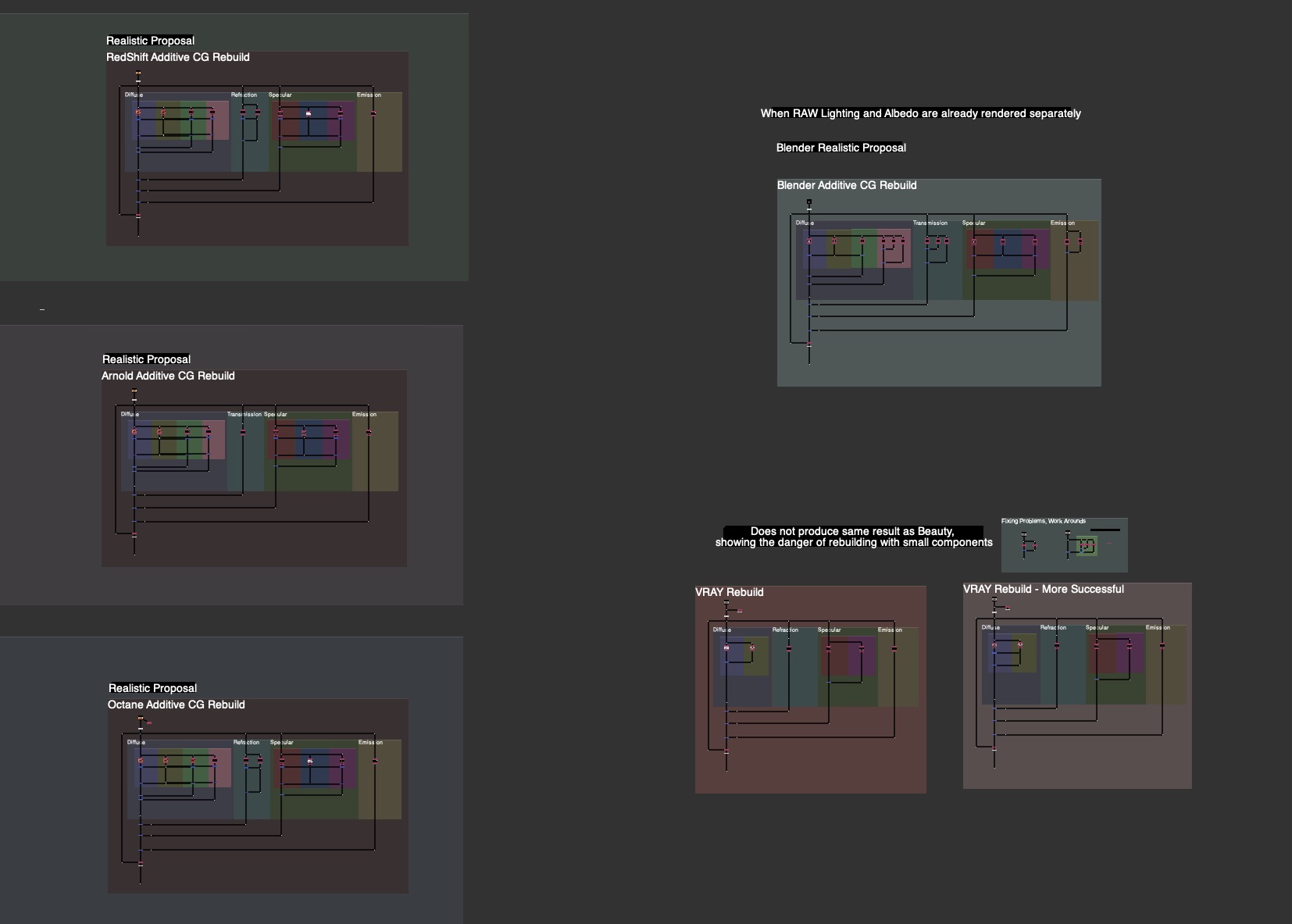
Incorporating Transmission (Refraction) Into AOV Template

Since most of the Refraction is in the Indirect, there is no need for space for splitting up and adjusting separate direct and indirect, like we do with the diffuse or spec. I recommend combining and keeping the Transmission Section Slim for Space Saving in the Template. I also recommend the layering to go: Diffuse, Transmission, Specular, Emission, Other. To me this was the clearest Layering.

I updated the Material AOV Rebuild Templates in the FruitBowl Renders for Arnold, RedShift and Octane incorporating the new Transmission / Refraction Section.

See the Downloads Section at the bottom for links to the whole nuke scripts for learning and template scripts updated per render engine, arnold, octane, redshift.


Handling Planar Mirror Reflections

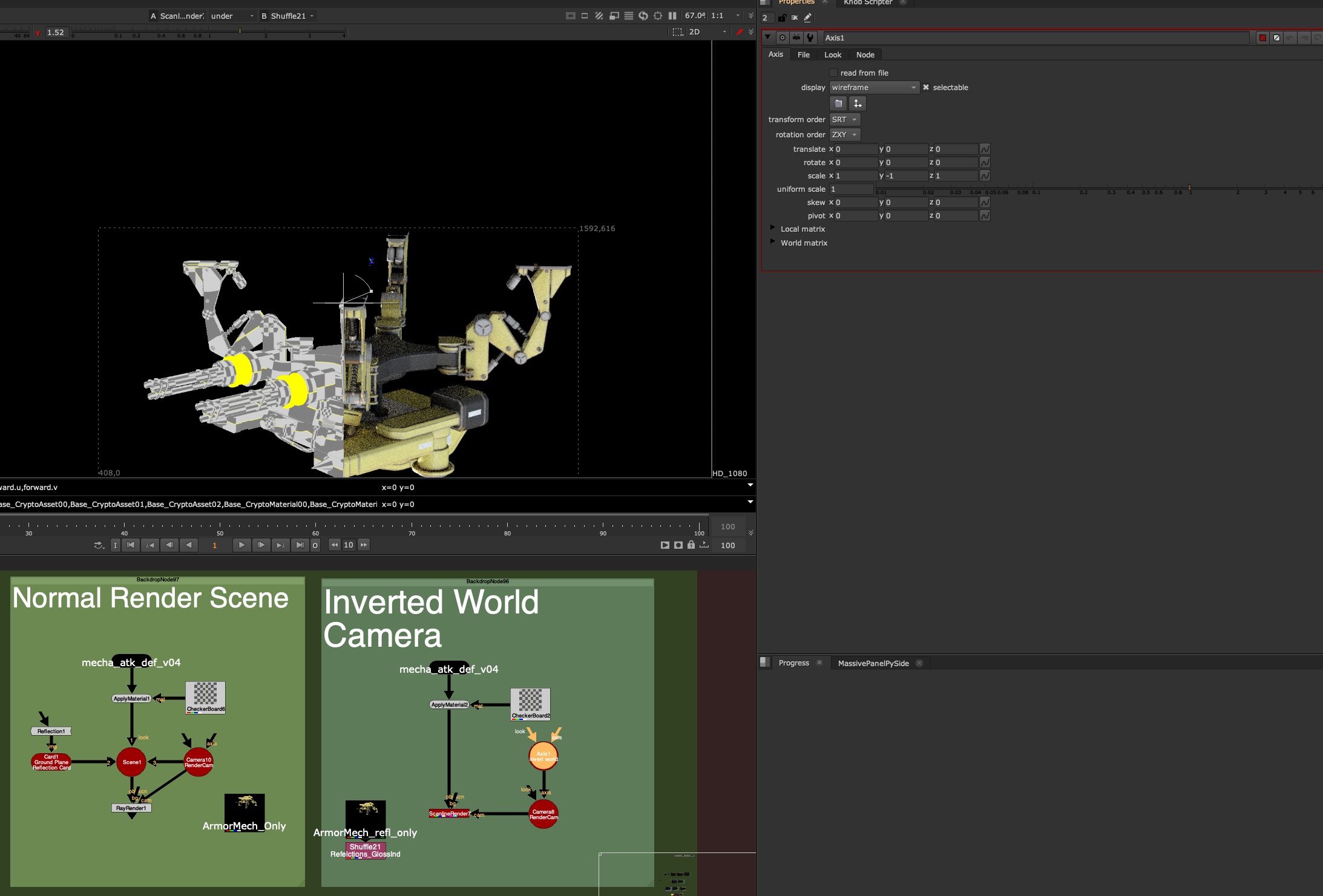
One approach to rendering Planar Reflections with AOVs is flipping the Camera along the Mirror Plane

Flipping the Camera along the normal of the Mirror Plane will produce a Virtual camera for you to render the Mirrored Virtual Image from the right perspective

If your Object is sitting on top of the 3D origin ground plane, this can be as easy as making an Axis Node, Scaling the Y to -1 and plugging your camera Axis Input into this Axis Node.

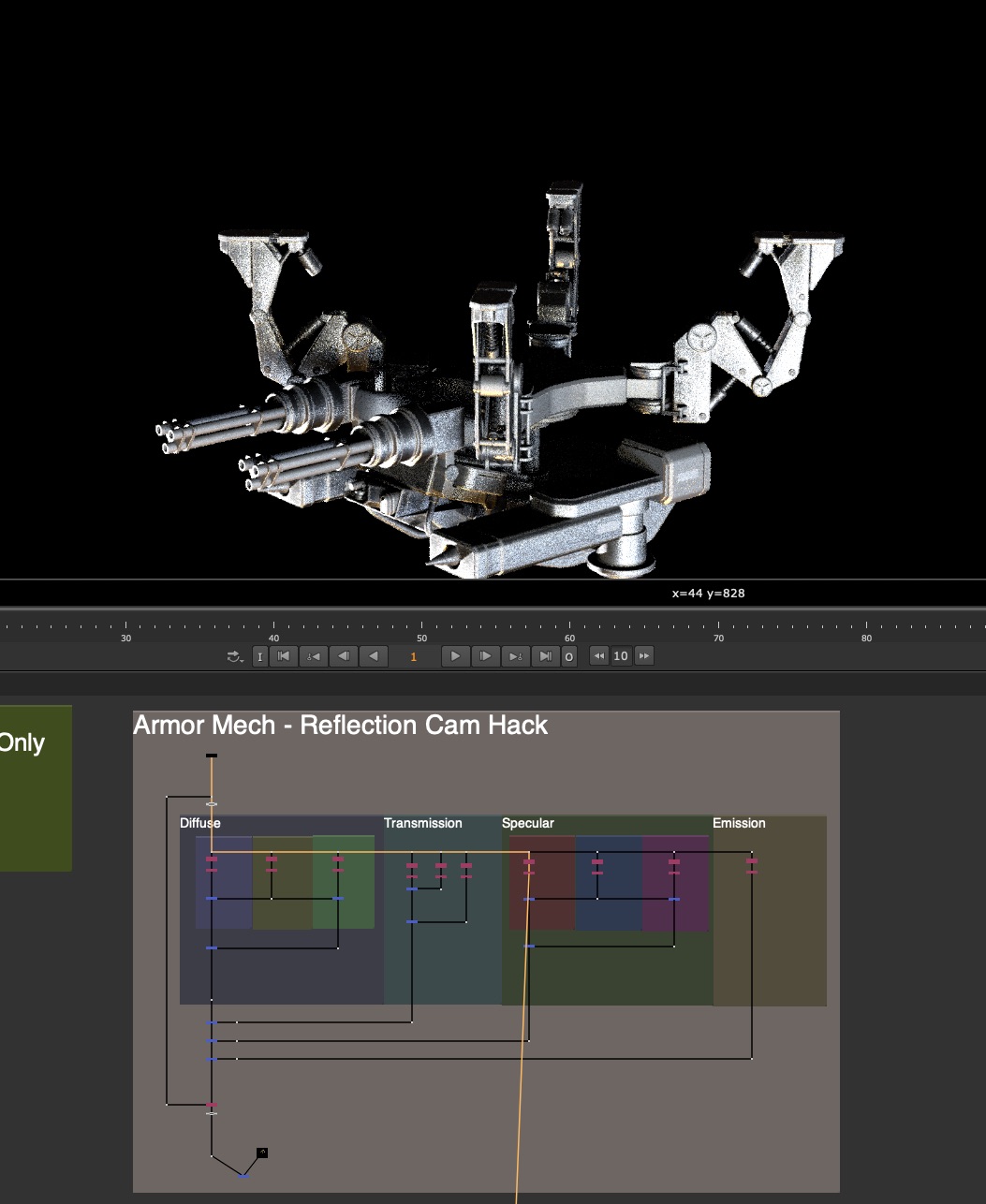
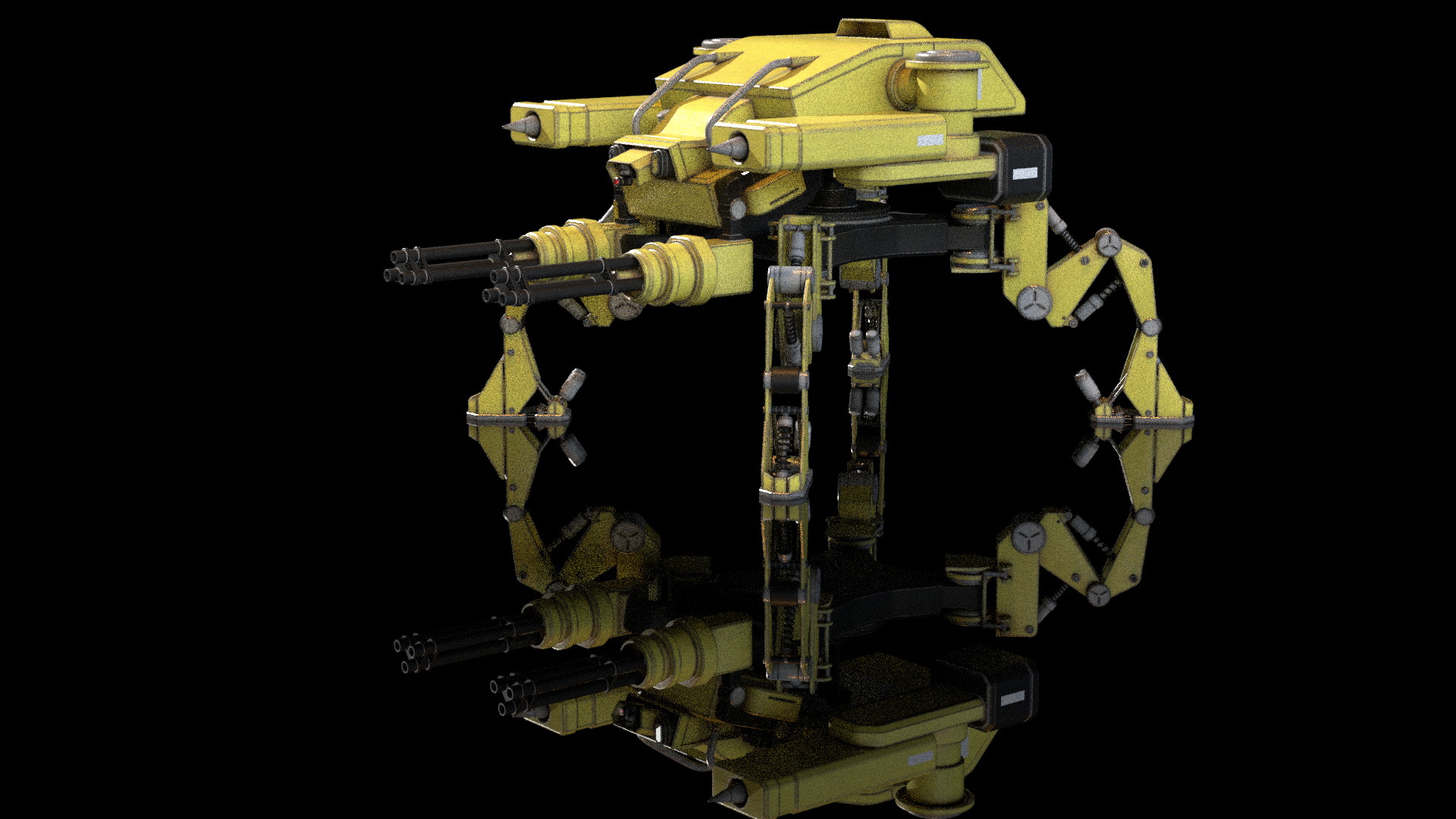
This will view your scene from the perspective of your Mirror. In the above image, you can see after flipping the Camera in -Y, the Nuke rendered result is aligned with the rendered indirect Specular pass. We’ll need to do this method in the Render Application on Lighting side, or pass this camera back to the lighter in order to render the reflection with full AOVs.

Here is the re-rendered Mirror Camera Perspective of the Armored Mech, with full AOVs, matching the original reflection angle:


What about non-ground plane mirrors?

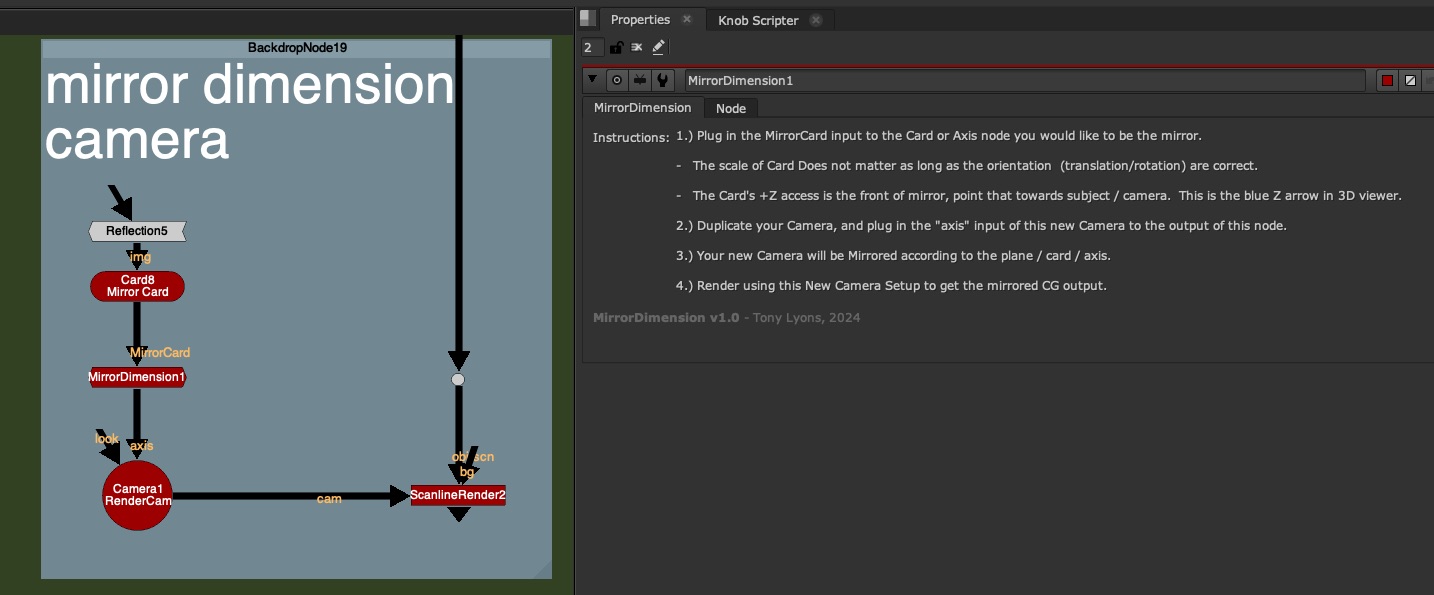
For all oriented mirror planes, the same concept applies, you want to flip the world from the pivot point and orientation of that card along it’s normal facing angle. This is easier to do in 3D applications, but can be done in nuke with a little Matrix Inversion.

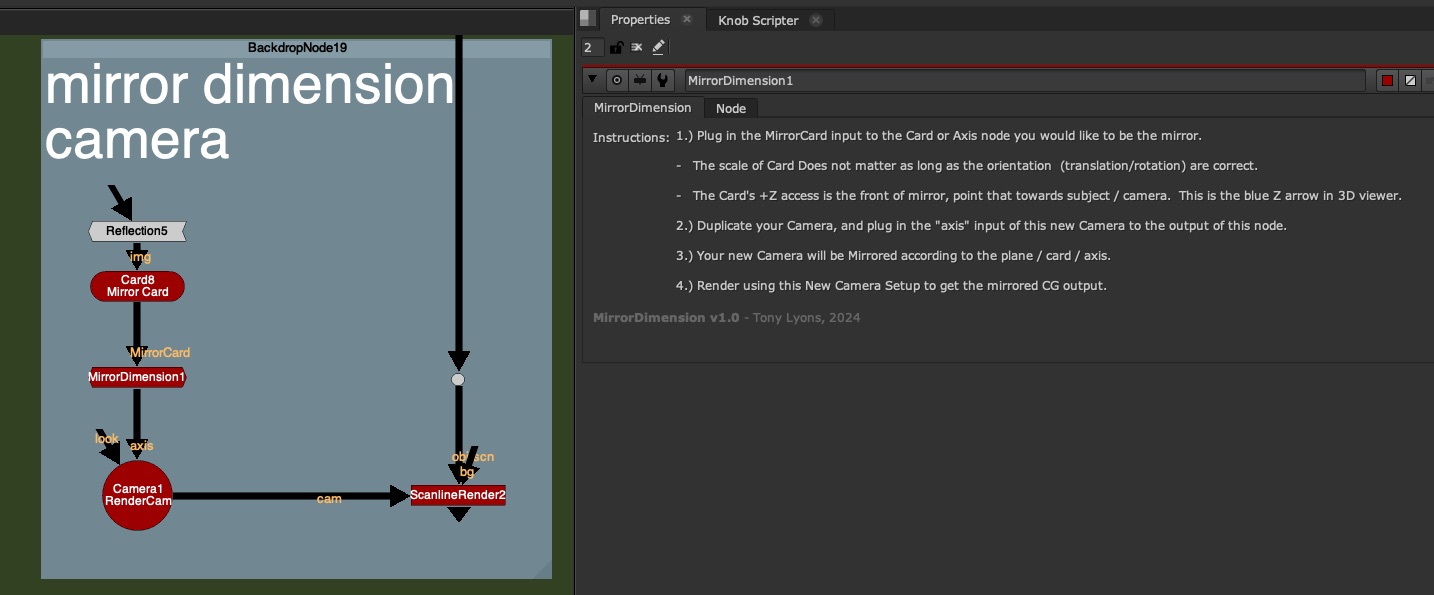
I’ve made a tool called MirrorDimension to make this Camera Mirroring super easy. Just stick this node between the Mirror Card in nuke (must have it’s transformations and rotations) and the Camera node. The gizmo is acting as an Axis Node and is just flipping the world along the orientation of the Card input.

No Settings on the node, just the following instructions:

1.) Plug in the MirrorCard input to the Card or Axis node you would like to be the mirror.

– The scale of Card Does not matter as long as the orientation (translation/rotation) are correct.

– The Card’s +Z access is the front of mirror, point that towards subject / camera. This is the blue Z arrow in 3D viewer.

2.) Duplicate your Camera, and plug in the “axis” input of this new Camera to the output of this node.

3.) Your new Camera will be Mirrored according to the plane / card / axis.

4.) Render using this New Camera Setup to get the mirrored CG output.

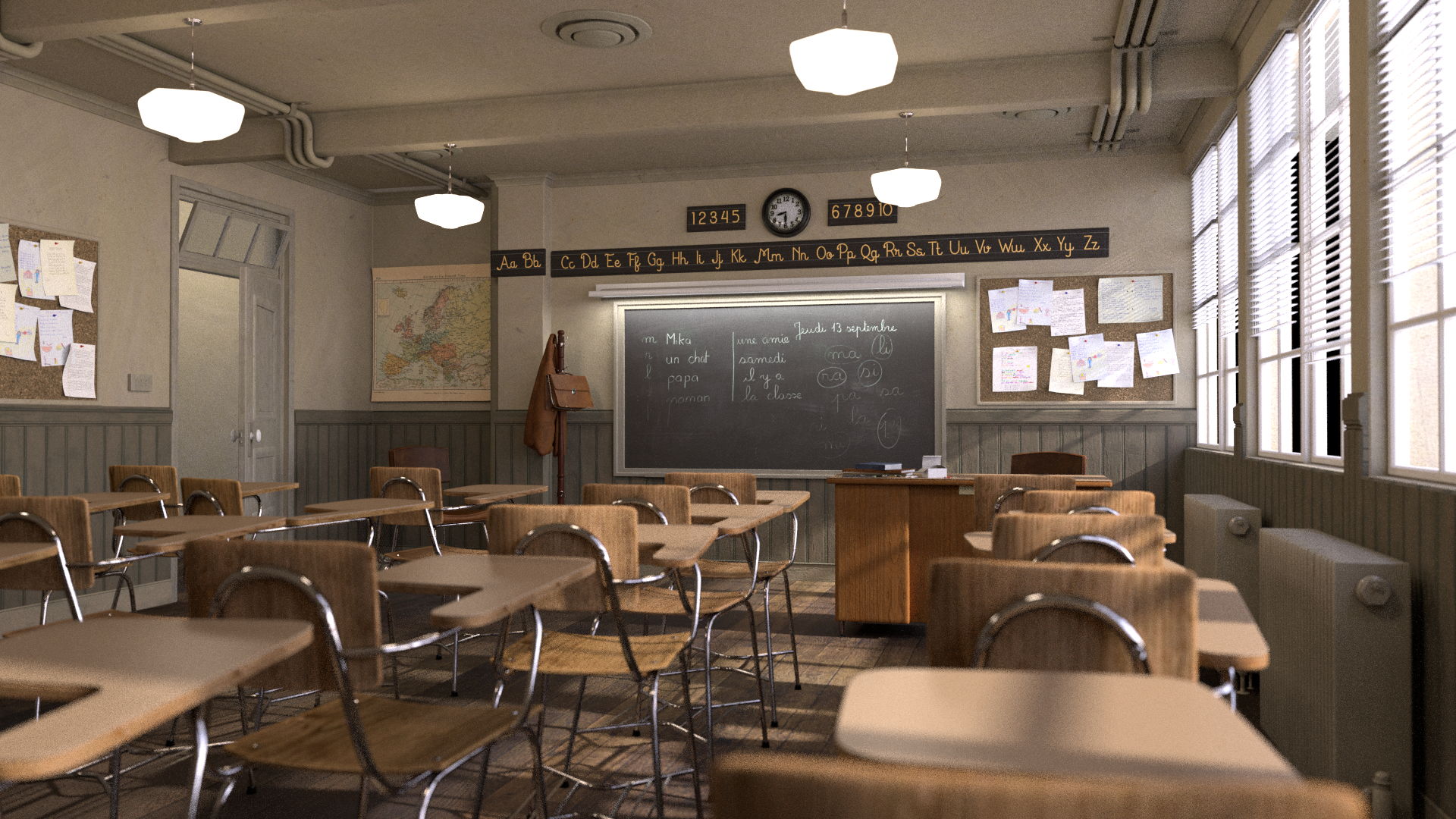
Before MirrorDimension Node – Original Camera Position:

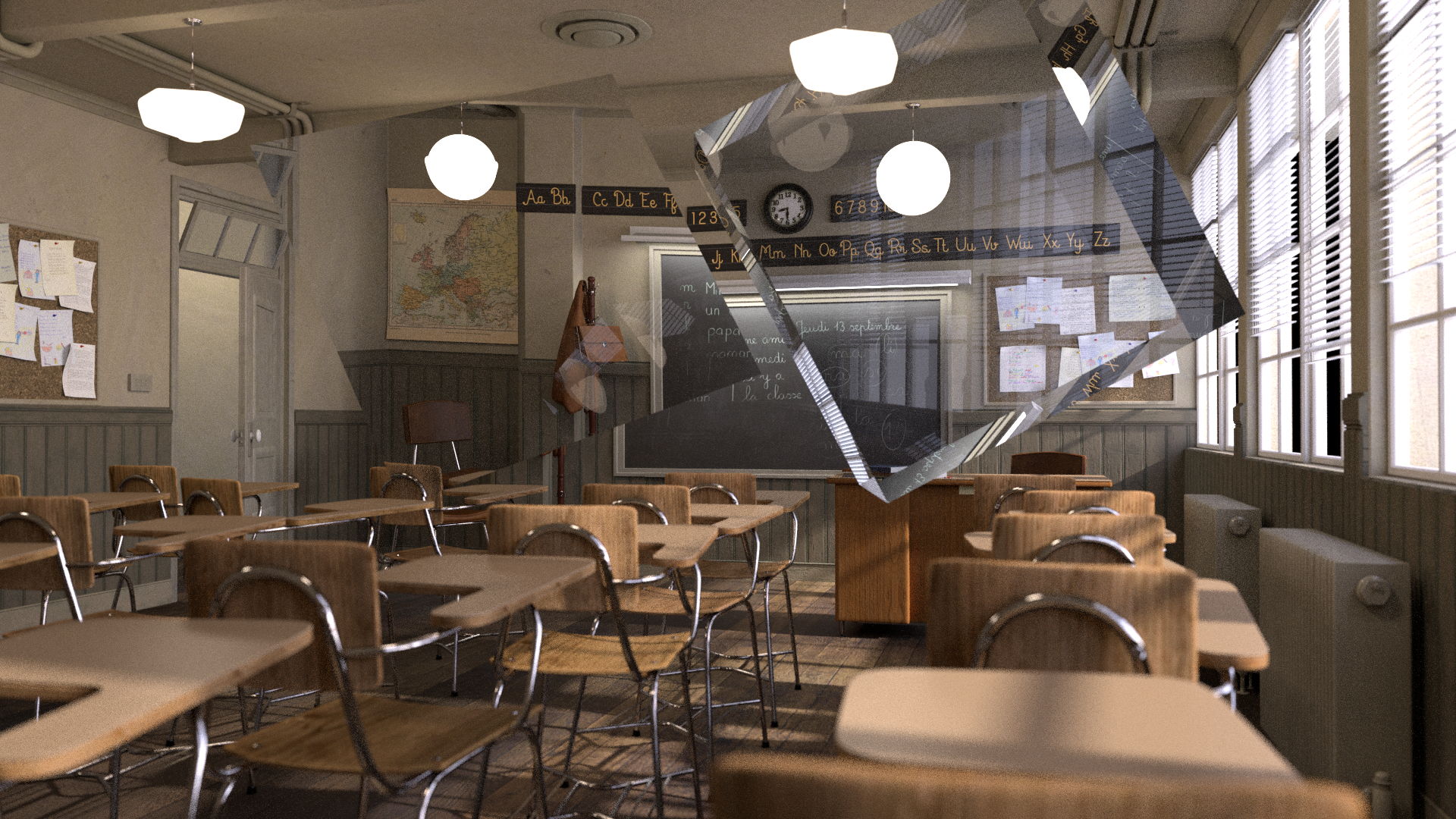
After Mirror Dimension Node Applied –

You would either do this in your 3D scene and render the AOVs or pass this camera to a Lighter to render from this mirror perspective.


Faking Reflections in Comp

If you suddenly need reflections but have no renders, you can use some of the above techniques to fake your reflections.

If you have your Geometry of the object, try projecting the rgba onto the geometry, and rendering it in nuke from the mirror dimension:

If you have no Geometry, but have a Position Pass. Try using a PositionToPoints node, plugged into your render and Position input plugged into your shuffled out Position pass (or select in the dropdown). You can render your rgb 3D point cloud of the object with the mirror camera and fake some reflections. It won’t be perfect, but perhaps in a pinch, it can save your ass and add more realism:

So the next question becomes, what can we do if it’s not a Planar Reflection? or if it’s multiple planar reflection, or surface is curved, or what about Refractions (Transmission) ?


Getting Help from Lighters

There is a serious limit to how much we can do in comp when encountering Indirect Specular or Refraction (Transmission) passes. Many times, if this is something that is a big feature of are shot and requires a lot of comp tweaks, we’ll need some help from our Lighting Department.


Julius Ihle – Head of Lighting and LookDev at Trixter

We talk to Julius Ihle – Head of Lighting and LookDev at Trixter for potential Lighting Solutions to these problems.

Julius is super knowledgeable, and introduces us to Light Path Expressions and Open Shading Language where lighters can help Build Additional AOVs and help us when the situation calls for it.

Julius is also an online educator and keeps a Lighting Blog discussing exactly these topics, check these tutorials out for more details:

Julius’ Blog:
https://julius-ihle.de/?page_id=346


Light Path Expressions

Julius’ Tutorial: LPE Quick Tip #1: Light Path Splitting for Transmission
https://julius-ihle.de/?p=2619

Here is an illustration of the drawing Julius used to explain how renderers are handling Reflection and Refraction Events

In a nutshell, the render engine keeps track of the light ray path and all the events that it undertakes on it’s journey from Camera back towards the Light

Lighters can create new AOVs with custom expressions telling the render engine exactly what parts and what events they want to see in the outputted pass.

Here is a link to the Light Path Expression community GitHub:
https://github.com/AcademySoftwareFoundation/OpenShadingLanguage/wiki/OSL-Light-Path-Expressions

And here is the Arnold User Guide that Julius Mentions in the video to check out for more education:
https://help.autodesk.com/view/ARNOL/ENU/?guid=arnold_user_guide_ac_output_aovs_ac_expression_aovs_html

LPE’s are supported by many renderers so check if the one you are using supports them.


Open Shading Language

Julius’ Tutorial: Playing with OSL #5: Arnold Reflection Alpha + Utilities
https://julius-ihle.de/?p=2788

There are also Shaders that have been written that can Reflect various AOVs, such as Utility passes and Alpha channel so that reflections can be more useful for us in comp. Julius has written his own shader to do just that, download it from GitHub:

https://github.com/julsVFX/osl


Downloads:

If you haven’t downloaded the FruitBowl Renders already yet, you can do so now:

You can Choose to either download all 3 FruitBowls at once:
FruitBowl_All_Renders_Redshift_Arnold_Octane.zip (1.61 GB)

Or Each FruitBowl Render Individually for faster downloads:

FruitBowl_Redshift_Render.zip (569.1 MB)

FruitBowl_Arnold_Render.zip (562.8 MB)

FruitBowl_Octane_Render.zip (515.4 MB)

The project files and the Renders are separate downloads, so if you have already downloaded 1.1 What and Why files or the Fruitbowl Renders, there are a couple ways to combine them to work.

  1. Either add the .nk script to the previous package (in the folder above SourceImages, with the other .nk scripts)
  2. Or simply drop the Render files into the SourceImages folder of the new 1.2 project folder
Project Files for this Video:

Along with the fruitbowl renders above, here are the nuke script and project files from this video, so you can follow along:

All Nuke Project Files and template scripts:
CG_Compositing_Series_MaterialAOVs_RefractionsReflections_AllScripts.zip (88 KB)

Nuke scripts included in the above download, but can downloaded individually are:

CG_Compositing_Series_2_5_Material_AOVs_RefractionsReflections_DemoScript.nk


CG_Compositing_Series_2_5_Material_AOVs_ArmorMech_ReflectionsMirror_Demo.nk


CG_Compositing_Series_2_5_Material_AOVs_Updated_Transmission_Templates.nk


I have also updated these Individual AOV Rebuild Templates scripts for specific render engines to include a Transmission Section:

Realistic_AOV_Bebuild_Arnold_Template.nk

Realistic_AOV_Bebuild_Redshift_Template.nk

Realistic_AOV_Bebuild_Octane_Template.nk

Realistic_AOV_Bebuild_Blender_Template.nk


Glass Balloons (Houdini Solaris)

GlassBalloons_Renders.zip (2 EXRs – 101.4MB)


Armor Mech (Rendered in Blender):

Original model by Numata3D_98 on turbosquid:
https://www.turbosquid.com/3d-models/3d-attack-mecha-quadpod-1993489

4 EXR Renders and Geo (for nuke geo projection demo):

ArmorMech_RendersAndGeo.zip (179.4MB)


MirrorDimension

I am linking to the gizmo on the Nuke Survival Toolkit github, where you can download the raw file or copy/paste the RAW source code from your browser into nuke:

MirrorDimension gizmo

Or download the .nk file here:
MirrorDimension.nk

Or on Nukepedia:

https://www.nukepedia.com/gizmos/3d/mirrordimension


Blender JunkYard Scene:

Scene from https://www.blender.org/download/demo-files/

JunkShop_v01.exr (144.7MB )


Blender ClassRoom Scene:

Scene from https://www.blender.org/download/demo-files/

3 Render Files:

BlenderClassRoom_All_Renders.zip (213.6MB)


VRay Room Render:

Vray Room – Can be downloaded from this website, look for “download example scene” (36.6MB):

https://www.chaos.com/blog/how-to-use-cryptomatte-render-elements-in-v-ray-for-sketchup


Since I am using Stamps in the script, all renders can be swapped out at the top of the script where the “SourceImages” Backdrop is, and the rest of the script will get populated correctly.


Slide show PDF

Here is a PDF version of my slideshow in case you would like to save for future research or review:


References / Research


Light Path Expression Doc:
Github Wiki: OSL Light Path Expressions

Arnold Light Path Expression Help and Examples:
Arnold Help: Light Path Expression AOVs – Arnold User Guide

Julius Ihle Blog
Julius Ihle’s Github page : julsVFX/osl
Playing with OSL #5: Arnold Reflection Alpha + Utilities
LPE Quick Tip #1: Light Path Splitting for Transmission


Websites:

Refraction Wikipedia

Transparency_and_translucency – Wikipedia

https://notes.thatother.dev/physics/refraction

https://help.maxon.net/r3d/cinema/en-us/Content/html/Integrated+AOVs.html

https://www.scratchapixel.com/lessons/3d-basic-rendering/introduction-to-shading/reflection-refraction-fresnel.html

https://abnercabuang.wordpress.com/2017/11/19/reflection-refraction-transmission-and-absorption-of-light

https://study.com/learn/lesson/transmission-light-wave-examples.html

Basics of creating glass materials in Corona renderer and 3Ds Max

V-Ray Materials

3Delight Glass – Storage for referenced pages – 3DL Docs

https://macdesignstudio.wordpress.com/tag/reflection

Light Pipe Design: How TIR & Refraction Come into Play

Light and color. – ppt video online download

On BigCo Leaks: Transparency and disclosure

Can You See Through Me? | Lesson Plan

https://wbbsesolutions.guru/wbbse-solutions-for-class-10-physical-science-and-environment-chapter-5

FAQ/Combining 3D Passes – VFXPedia

Refraction – Definition, Refractive Index, Snell’s Law

The Physics Behind Rainbow Formation

Refraction | Sound Waves

Refraction Of Light – 2023

https://www.geocities.ws/rmackrell509/4thSpring.html

What are the uses of refraction in our daily life?

What is the Index of Refraction? Measurement, Definition & More –

Autodesk – arnold – Help

View topic – Help understanding Refraction, SSS and Transmission passes?

PPT – The Basics of Refraction PowerPoint Presentation, free download – ID:2558034

Molecular Expressions: Science, Optics, and You: Light and Color – Refraction of Light

https://slideplayer.com/slide/16831983

https://www.researchgate.net/figure/Distortions-of-the-light-field-generated-by-refractive-a-and-reflective-b-convex_fig1_308768656

https://global.canon/en/technology/s_labo/light/003/02.html

Delivering VR in Perfect Focus With Nanostructure Meta-lenses

https://osa.magnet.fsu.edu/teachersparents/articles/lensesgeometricaloptics.html

https://www.simply.science/images/content/physics/waves_optics/reflection/Concept_map/Convexconcave_mirrors.html

What is the difference between Translucency and Transparency?

https://www.linkedin.com/pulse/transparency-vs-translucency-whats-difference-between-archie-blake-3acne

Transparent vs Translucent


YouTube Links:

Light Absorption, Reflection, and Transmission

How is Light Absorbed, Reflected and Refracted

Why does light bend when it enters glass?

Refraction of Light

Reflection, Refraction and Absorption

Opacity Maps – PixPlant

Refractive index of water

How To Demonstrate Light Bending or Refraction

How Lenses Function (CanonOfficial)

Refraction Explained

Compositing/Render layers in Blender

CG Compositing Series – 2.4 Material AOVs – Albedo & RAW Lighting


Albedo & RAW Lighting (Complex) Passes

In this tutorial, we go further down the levels of complexity into the most complex category, which includes Albedo and RAW Lighting. These are the smallest components of AOVS, the building blocks, and unveil how lights, textures, and materials come together to produce the beauty render.


What is Albedo?

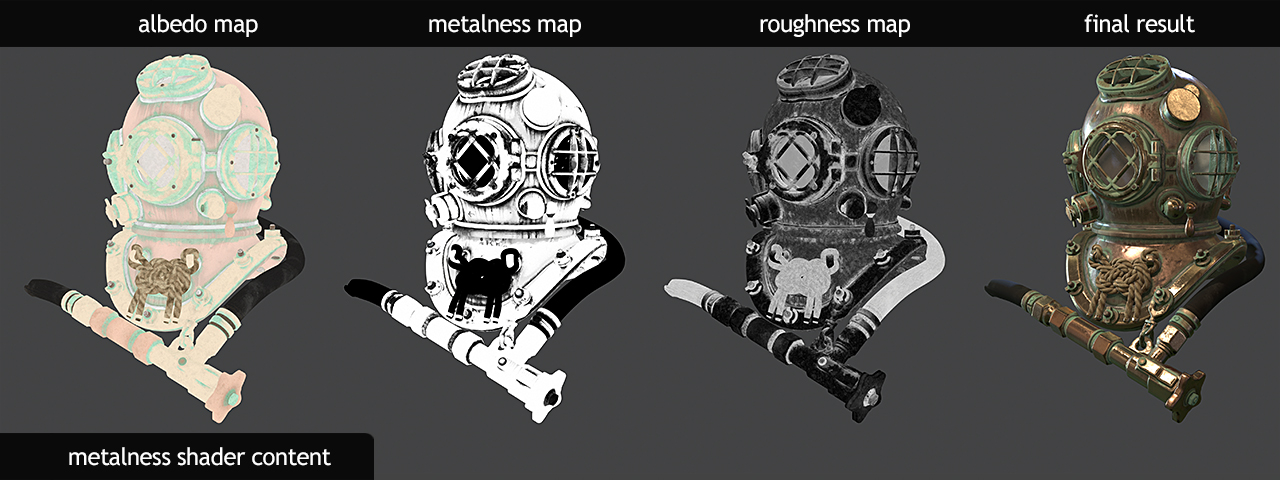
  • An Albedo Map is the base color or texture map that defines either the diffuse color or specular tint of the surface.
  • Remember that in Physically Based Rendering (PBR) depending on whether a material is Metallic or Dielectric (non metallic), determines whether the albedo color is used as Diffuse Color or Specular Color.
  • It knows what to use the albedo for based off of a black and white metallic map
https://meshlogic.github.io/posts/blender/materials/nodes-pbr-basic-shader/

What’s the difference between Albedo and Diffuse?

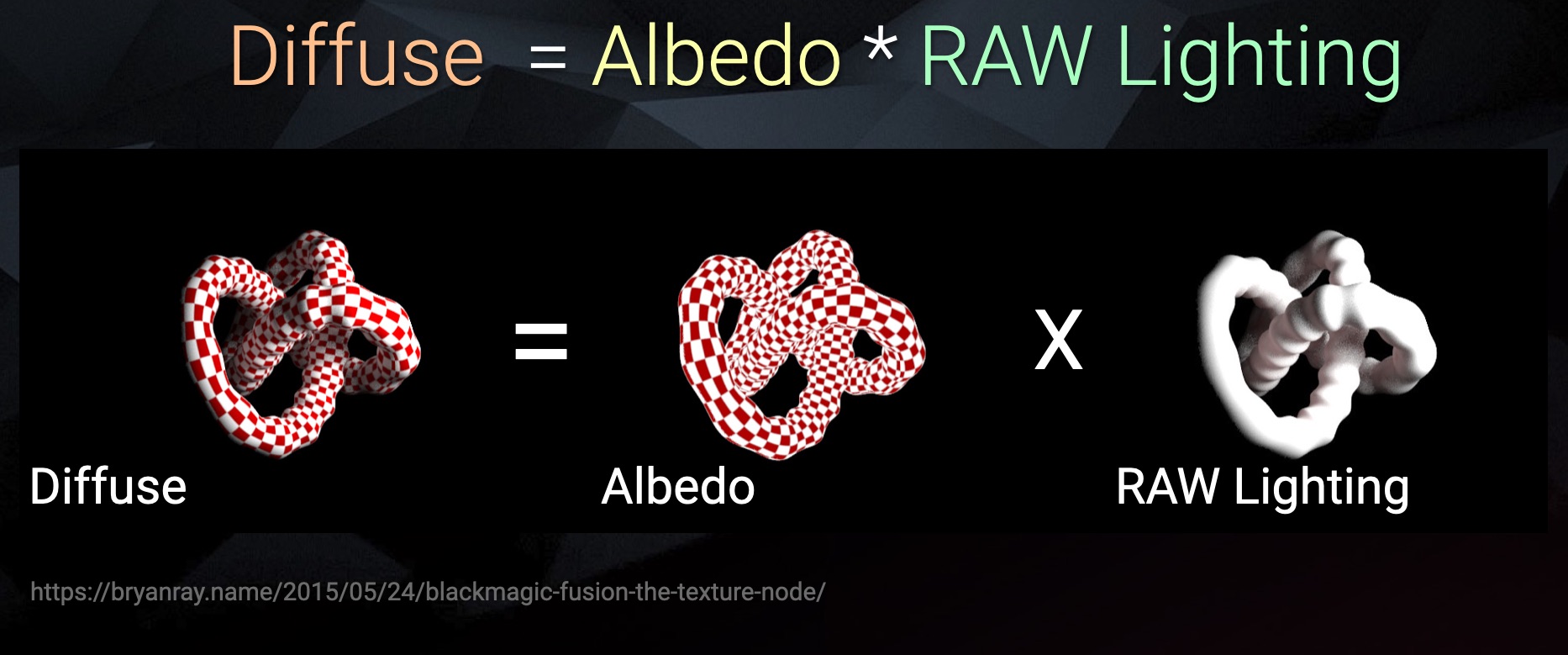
  • Diffuse contains lighting and shading information such as highlights, shadow and light color.  It’s object’s color / texture in the lit scene.
  • An Albedo Map is basically the object’s texture as it would appear under uniform lighting, without the influence of shadows or highlights.
https://www.cgdirector.com/albedo-map/
https://bryanray.name/2015/05/24/blackmagic-fusion-the-texture-node/

Other names for Albedo

  • Texture
  • Color
  • Base Color
  • Diffuse Map
  • RAW Diffuse Color
  • Diffuse Filter

Common terms:

  • “Map”
  • “Filter”

What is RAW Lighting?

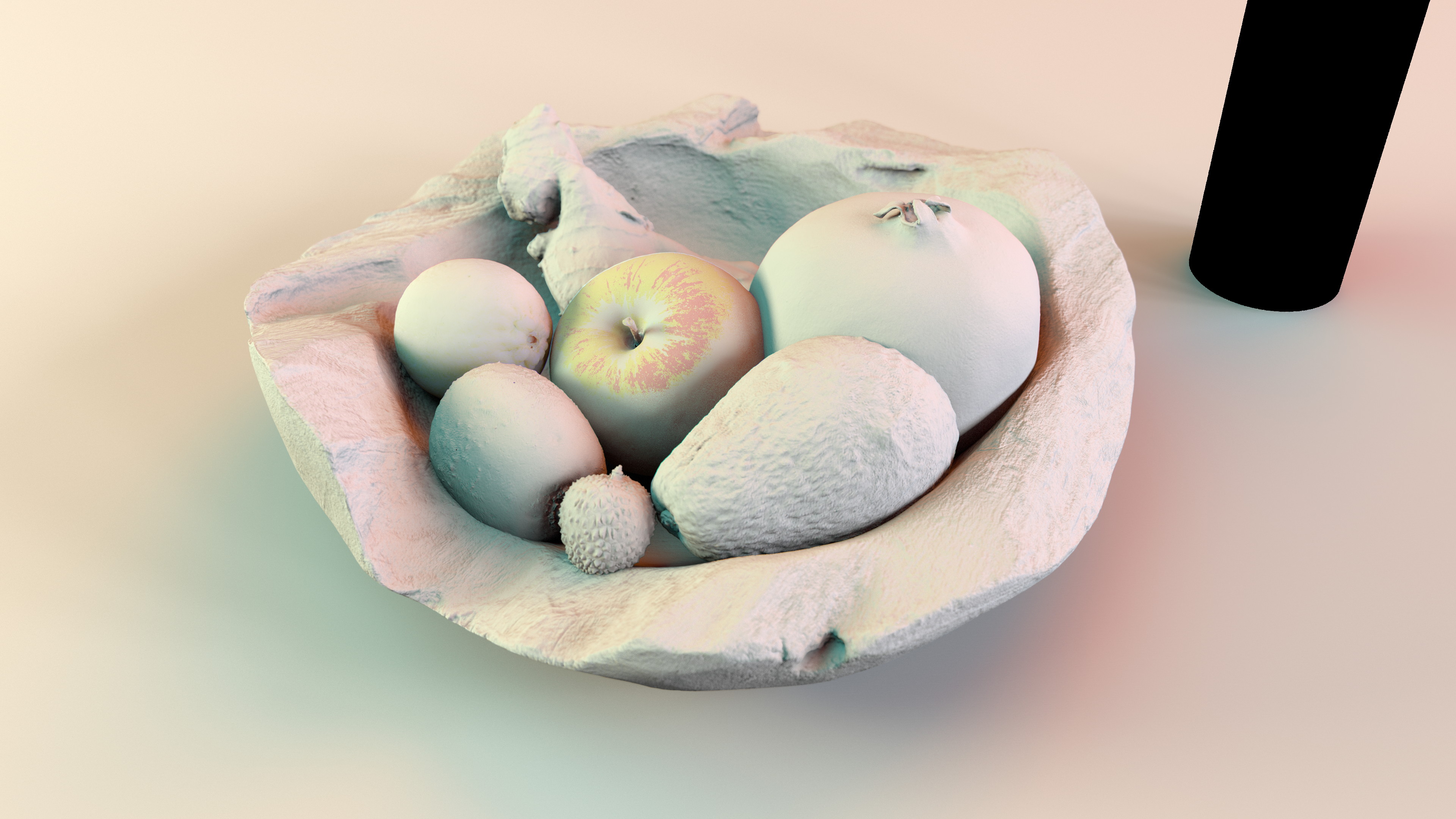
  • RAW Lighting is the pure lighting information of the scene, without any specular, object colors, or textures.
  • A pass that describes how light is affecting in the scene.
  • This multiplied with the Albedo makes up the Diffuse Pass.
RAW Lighting Pass – Fruitbowl Render

How are they combined?

Albedo and RAW Lighting are always multiplied together, not plussed

Diffuse = Albedo * RAW Lighting

https://bryanray.name/2015/05/24/blackmagic-fusion-the-texture-node/

What is RAW Specular and Specular Filter?

The RAW Specular pass is that objects in the scene would look like if they had a 100% reflective chrome shader on. It renders everything uniformly reflective.

Specular Filter is like a mask or a albedo multiplier, that limits the visibility of the RAW specular reflective pass to certain areas. The thought process is: Might as well render everything reflective, and then decide where and how much it is needed.

Just like the albedo and the RAW Lighting, RAW Specular and Specular Filter are multiplied together to form the final Specular pass

Specular = RAW Specular * Specular Filter


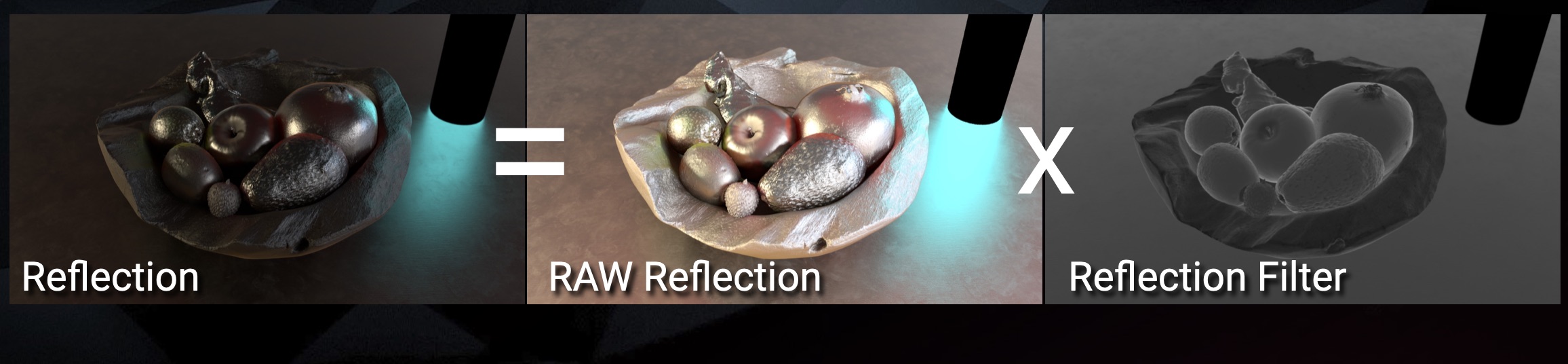
What is RAW Reflection and Reflection Filter?

RAW Reflection and Reflection filter is essentially the same thing at RAW Specular and Specular filter. You might see this term depending on the renderer. Sometimes Specular is referring to Direct Specular and Reflection is referring to Indirect Specular.

The more important take away is you want pair the “RAW” pass with it’s “Filter” or “Albedo” pass. They get combined and multiplied together to equal the final pass

Reflection = RAW Reflection * Reflection Filter


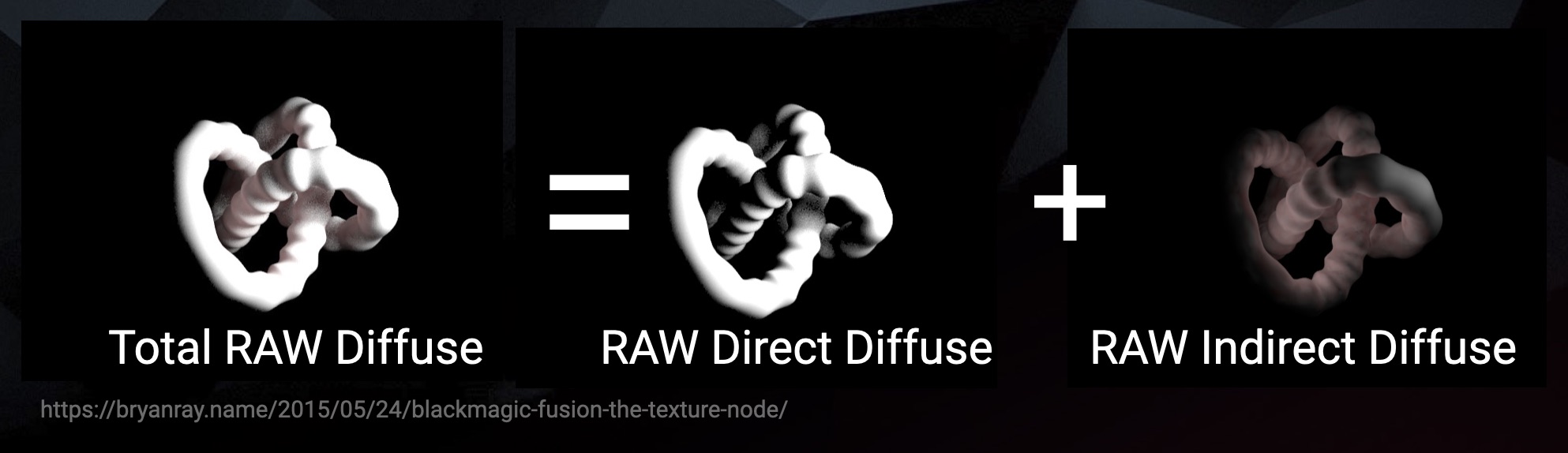
RAW Direct Diffuse & RAW Indirect Diffuse

Just like the normal Diffuse pass, RAW Lighting passes can also be split into Direct and Indirect Lighting. So you can end up with the RAW Direct Lighting and the RAW Indirect Lighting. Both passes are using the same Diffuse Albedo, so it is only the lighting that is split, not the albedo.

Total RAW Diffuse  = RAW Direct Diffuse + RAW Indirect Diffuse


RAW Direct Specular & RAW Indirect Specular

And just like the Diffuse RAW passes, we can also break up the RAW Specular passes into RAW Direct Specular and RAW Indirect Specular.

Again both Direct and Indirect Specular will use the same Specular Filter pass.

Total RAW Specular  = RAW Direct Specular + RAW Indirect Specular


Diffuse Equation

Knowing the diffuse equation will help us understand how it is built, and more importantly, the math behind splitting the Diffuse pass into it’s individual components of Albedo and RAW Lighting. Let’s go over a basic equation and reinforce some math concepts:

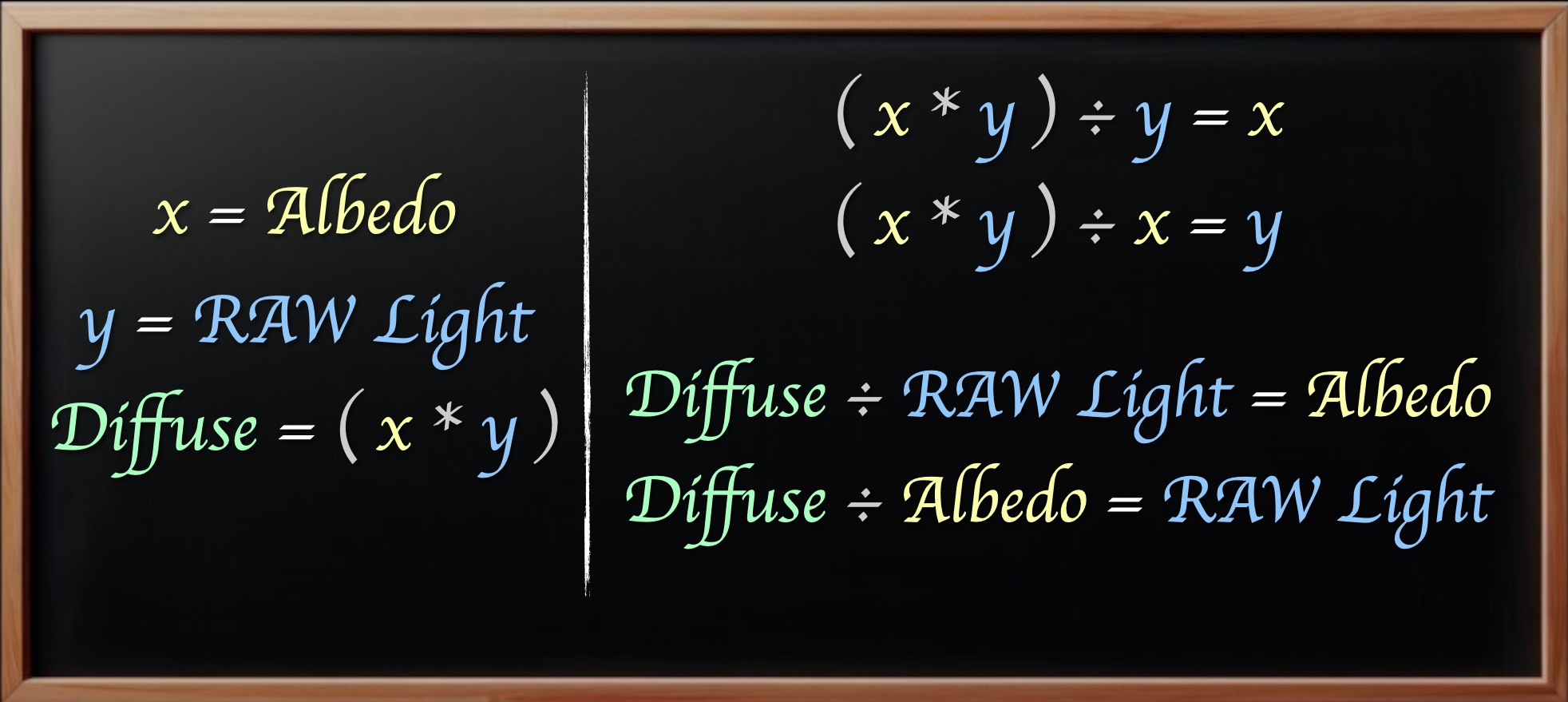
x = Albedo
y = RAW Light
Diffuse = ( Albedo * RAW Light )
Diffuse = ( x * y )

In math, certain operations cancel each other out. Just like Subtraction cancels out Addition, Division cancels out Multiplication

( x + y ) - y = x
( x * y ) ÷ y = x

We can take the Diffuse pass, and dividing by the component we do not want, we can get the component we do want. 

What that means is if you have the Diffuse pass and 1 other component, albedo or RAW Lighting, we can always generate the remaining missing pass.


x = Albedo
y = RAW Light

Diffuse = ( Albedo * RAW Light )
Diffuse = ( x * y )

( x * y ) ÷ y = x
( x * y ) ÷ x = y

Diffuse ÷ Albedo = RAW Light
Diffuse ÷ RAW Light = Albedo

Division Problems

You can divide 0 by any number and you get the result of 0. But if you try to do the reverse, you run into a classic math problem. You cannot divide by 0, the result is undefined… Not possible. 

0 ÷ x = 0
x ÷ 0 = undefined

This can cause serious problems in nuke when dividing, and we need to be careful.


Using Expression node to test math in nuke

If we use an expression node we can enter the following equation:

0/r
0/g
0/b
0/a

The nuke Expression node has some predefined variable for using the channels. So it will carry out this math on a per pixel basis for each channel.

r = red channel
g = green channel
b = green channel
a = alpha channel

we can see that once we start dividing by 0 value pixels, we are getting issues. Nuke’s answer for an undefined result is nan pixels

nan stands for “Not A Number”

inf stands for Infinity


Testing for nan or inf pixels

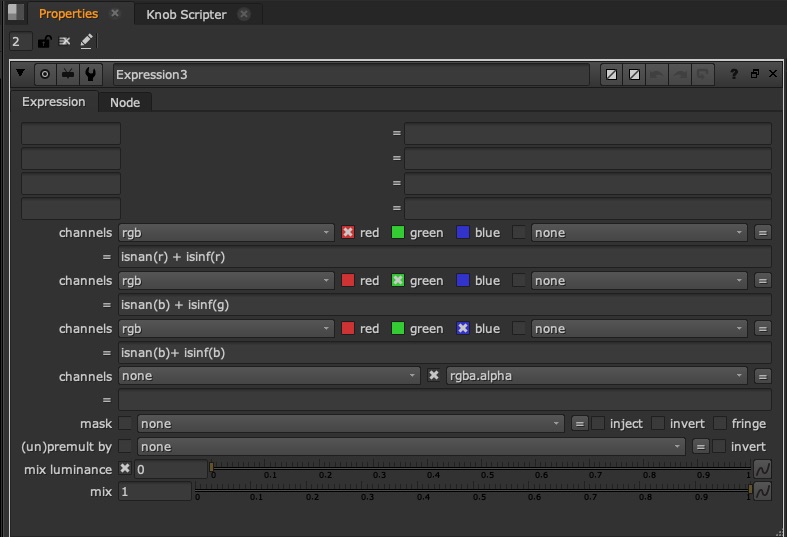
We can use another expression node to write a little tcl expression that will show 1.0 (white) for any illegal value pixels. If it’s a normal number, it will display at 0.0 or black. This can easily and visibly test if we are having “problem pixels” in our image such as nan and inf

isnan() tests for nan (not a number) pixels. You need to enter which channel you want to check inside of the parenthesis, for example isnan(g) and it will display 1.0 for nan values and 0.0 for normal values

isinf() tests for infinity value pixels. You need to enter which channel you want to check inside of the parenthesis, for example isinf(g) and it will display 1.0 for inf values and 0.0 for normal values

We can just add them together to get a full mapping of “illegal values” to warn us

isnan(r) + isinf(r)
isnan(g) + isinf(g)
isnan(b) + isinf(b)
isnan(a) + isinf(a)

So dividing by 0 in nuke can give you illegal values. Luckily, the Merge(divide) operation in the Merge node avoids these issues. It has built in protections so that 0/0 = 0 and any other number divided by 0 is bypassed, or skipped, and it does nothing. it will just show you in the A input value and not do any math at all.

There is a limitation to the Merge node however. There is only 1 operation for divide, and that is A/B

We know that when we disable nodes in nuke, it defaults to the B input. But if we switch the inputs, we do not get the same result. Meaning we are locked in to our inputs based on whatever image we need to divide by the other image.

So there is no B/A operation, we’ll need to recreate it ourselves


MergeExpression Node

We can use a MergeExpression node, which is basically a combination of a Merge node and an Expression no, in fact the properties look identical to an Expression node.

The Merge Expression has access to the same variables at the normal expression, namely the r,g,b,a variables representing the different channels:

r = red channel
g = green channel
b = green channel
a = alpha channel

But the MergeExpression also has 2 inputs, and we can choose what input we are sourcing from in our equations with capital letters A and B

A = A input
B = B input

Because we need to specify which red channel we are grabbing from, A or B red channel, we need to be more specific. Therefore:

Ar = A input red channel
Bg = B input green channel

So we specify which input first and then the channel we want.

So now we can do a simple equation of B input divided by A input:

Br/Ar
Bg/Ag
Bb/Ab
Ba/Aa

Fixing the MergeExpression

Unfortunately, the MergeExpression is pure math, and does not have the built in protections that the normal Merge node does when it comes to dividing. So if we end up dividing by 0 using the MergeExpression, we will end up with nan and inf pixel values. And that is very dangerous, because this will break the image, as you cannot do further math with those values, they get corrupted.

But it’s ok, we can implement the fix ourselves, so that we can have safe values just like the Merge node

The solution is to enter a little tcl expression into the node

Ar == 0 ? Br : Br/Ar
Ag == 0 ? Bg : Bg/Ag
Ab == 0 ? Bb : Bb/Ab
Aa == 0 ? Ba : Ba/Aa

This code basically reads as follows: 

First we need to check if the A input has 0 values, since that is what we are dividing with. and if we divide with a 0 then we get a problem.

so the first part is does the A input pixel equal 0 ? if yes, just skip, bypass, and revert to B input pixel. Don’t even do any math. If the A input pixel is not 0, then it will proceed to do the operation B/A and give the result.

This will fix the issue as all the zero pixels will be skipped. This result is identical to the Merge node set to divide

Except now it is B/A and when we disable the node, it will revert to the B stream that we want.

you can just copy/paste the code below into your nuke to get the MergeDivide that I created:


MergeExpression {
inputs 2
expr0 "Ar == 0 ? Br : Br/Ar"
expr1 "Ag == 0 ? Bg : Bg/Ag"
expr2 "Ab == 0 ? Bb : Bb/Ab"
expr3 "Aa == 0 ? Ba : Ba/Aa"
name MergeDivide
label "( B / A )"
note_font_color 0xffffffff
selected true
}

Otherwise you can download the nuke tool here and add it to your toolsets:

MergeDivide.nk


Multiply / Divide Concepts

  • Think of Multiply like combining, fusing, mixing, linking, joining, locking
  • Think of Divide like separating, splitting, unlinking, disjoining, unlocking
  • Start with the combined pass
  • Separate with division
  • Change individual component
  • Recombine with multiplication

How can we use Albedo and RAW Lighting as Compositors?

1.) The first reason to separate albedo and RAW lighting would be to make an adjustment to only the texture and not the RAW Lighting or vice versa.

  • if you desaturate the diffuse pass, you risk desaturating the lighting and the texture at the same time. but if you wanted to just desaturate the object, but keep the tinting of the lighting, you would need to separate them first

Here is an example of the Blender Room where we one side desarating the entire diffuse pas, and another where we only desaturated the albedo pass. You will notice on the right side, the light is still warmer and maintaining the warmth of the sunlight. This is what a gray object would look in that environment

left side: desaturating entire diffuse pass
right side: desaturating the albedo only

Here is the same example on the VRAY scene, where you can see the desaturation affecting the bounce lighting:

left side: desaturating entire diffuse pass
right side: desaturating the albedo only

2.)There are many non linear Color Corrections or operations that you might also specifically want to do while these passes are separated, to get better or cleaner results. 

Whether it is to remove light / shadow from a texture CC, or removing texture info so that you can adjust specific lighting. Operations such as:

  • keying
  • despilling / desaturating
  • gamma
  • ColorCorrect nodes
  • HueCorrects
  • HSV node – to pull color keys

3.) The next big reason would be to alter or change the texture in the scene and not need to go back to the CG department.

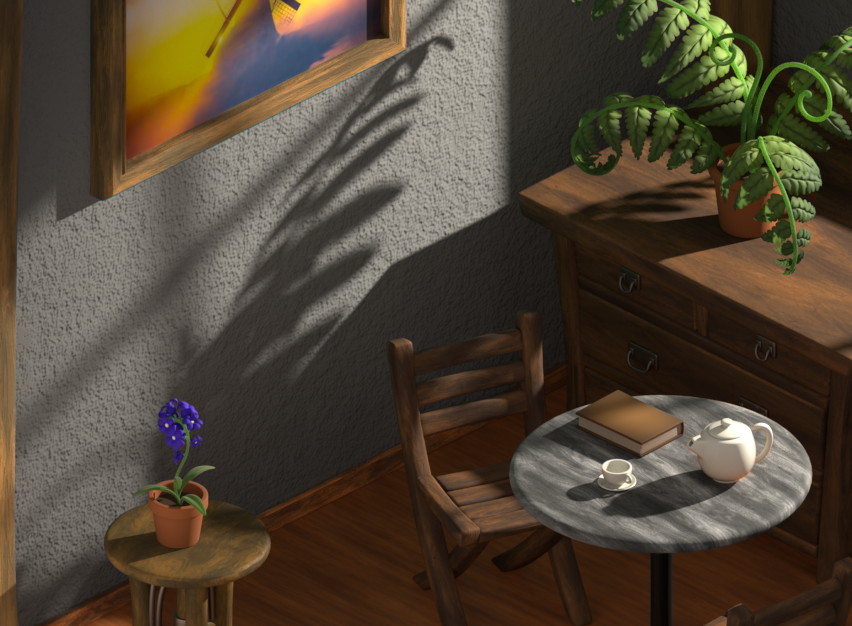
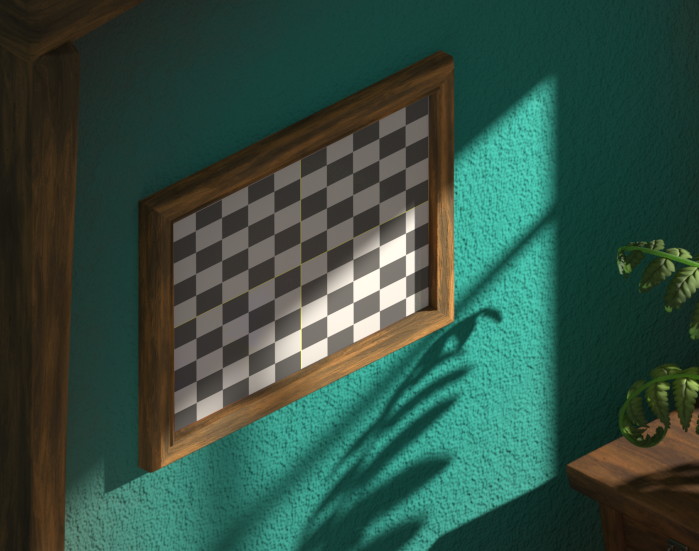
In this example we replace the picture on the wall with a checkerboard, but it still maintains the lighting of the scene. So you could add noise or blood textures, change billboard ads, etc, and they would still appear to live inside your shot.

left side: original painting
right side: replacing the albedo with another image

Different ways to rebuild AOVs at complex level

Variation 01:

Add the direct, indirect, SSS passes together first, generating your diffuse pass. then do a divide / multiply with the albedo pass afterwards at a second step.

variation 01 rebuild structure

Variation 02

We could do the albedo divide multiply on a per pass basis. so basically we are having the RAW direct and RAW indirect split out first. We could do changes to the albedo and return to normal, and then add the direct and indirect and SSS together as a second step.

variation 02 rebuild structure

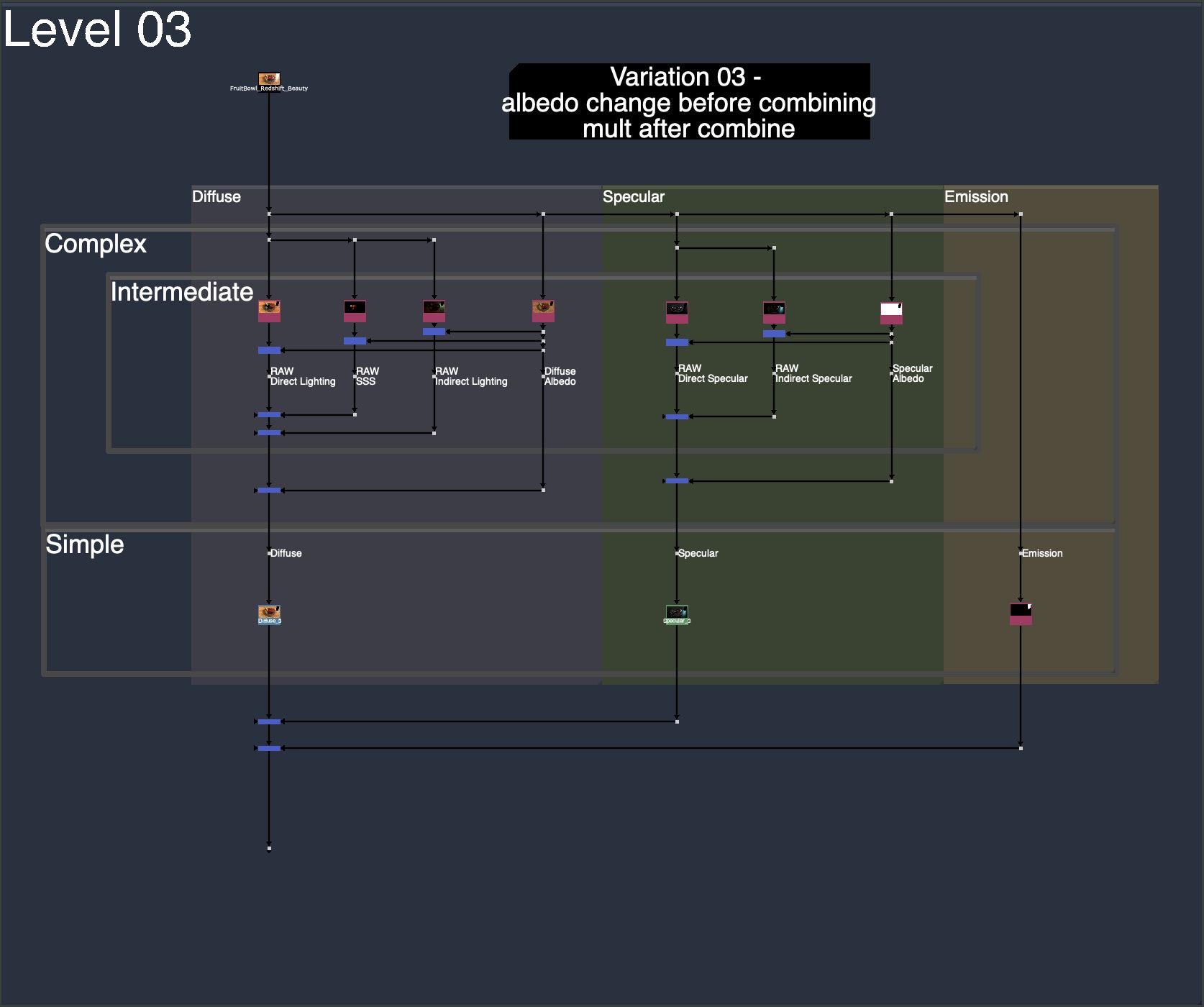
Variation 03

Similar to variation 02, we do the albedo changes on a per pass basis first. but instead of immediately reverting back to normal, and then plussing the direct, indirect and SSS together. We could instead plus them at the RAW level. The final step would just to multiply the albedo back.

Basically, variation 02 was 3 divide, 3 multiply and 2 plus

and variation 03 is 3 divide, 2 plus, and 1 multiply

variation 03 rebuild structure

Realistic Proposal for CG AOV Rebuild

The above setups are more for learning, with labels and backdrops to help break down the workflow and structure.

Below is the setup that I gravitate towards when settings up CG Templates. I try my best to apply logical flow and convenience. Maximizing organization and flexibility, while still being clean and fast. I have space for albedo / RAW Lighting change, but I keep it off by default and allow to turn it on when needed.

We see all levels of complexity being implemented:

Basic : Diffuse, Specular, Emission

Intermediate: Direct, Indirect, SubSurface Scattering

Complex: Albedo and RAW Lighting

Realistic proposal for a CG AOV Rebuild

You can find these realistic template nuke scripts of these setups for each renderer below in the downloads section. I exported the individual templates for Arnold, Redshift, Octane, and Blender.

I would recommend waiting for future videos where I will keep expanding on the template and making it more robust. But if you are eager to download and try it out, feel free to give it a try and modify it for your needs. More and better additions will come in the future posts.


Downloads:

If you haven’t downloaded the FruitBowl Renders already yet, you can do so now:

You can Choose to either download all 3 FruitBowls at once:
FruitBowl_All_Renders_Redshift_Arnold_Octane.zip (1.61 GB)

Or Each FruitBowl Render Individually for faster downloads:

FruitBowl_Redshift_Render.zip (569.1 MB)

FruitBowl_Arnold_Render.zip (562.8 MB)

FruitBowl_Octane_Render.zip (515.4 MB)

The project files and the Renders are separate downloads, so if you have already downloaded 1.1 What and Why files or the Fruitbowl Renders, there are a couple ways to combine them to work.

  1. Either add the .nk script to the previous package (in the folder above SourceImages, with the other .nk scripts)
  2. Or simply drop the Render files into the SourceImages folder of the new 1.2 project folder

Project Files for this Video:

Along with the fruitbowl renders above, here are the nuke script and project files from this video, so you can follow along:

All Nuke Project Files and template scripts:
CG_Compositing_Series_MaterialAOVs_Albedos_RAW_Lighting_nkscripts.zip (155 KB)

Individual Template scripts for specific renderers:

Realistic_AOV_Bebuild_Arnold_Template.nk

Realistic_AOV_Bebuild_Redshift_Template.nk

Realistic_AOV_Bebuild_Octane_Template.nk

Realistic_AOV_Bebuild_Blender_Template.nk


Blender Cube Room Render

Blender Cube Room Diorama zip ( ~ 70MB)

original cube diorama blender files from blender demo file site:
https://www.blender.org/download/demo-files/


VRay Room Render:

Vray Room – Can be downloaded from this website, look for “download example scene” (36.6MB):

https://www.chaos.com/blog/how-to-use-cryptomatte-render-elements-in-v-ray-for-sketchup


Since I am using Stamps in the script, all renders can be swapped out at the top of the script where the “SourceImages” Backdrop is, and the rest of the script will get populated correctly.


Slide show PDF

Here is a PDF version of my slideshow in case you would like to save for future research or review:


References

VNTANA – What Are Texture Maps And Why Do They Matter For 3D Fashion?

A23D – Difference between Albedo and Diffuse map

cgdirector – What is an Albedo Map and How to use it?

Youtube – TorQueMoD - WTF are Albedo textures and how do I make them?

Youtube – Zeracheil – Texture Maps Explained – PBR Workflow

DIGITAL COMPOSITING IN THE VFX PIPELINE – PDF

steakunderwater – FAQ/Combining 3D Passes – VFXPedia

xuan prada – RAW LIGHTING AND ALBEDO AOVS IN ARNOLD

photoshop essentials – The Overlay Blend Mode in Photoshop

Bryan Ray – Blackmagic Fusion: The Texture Node

Youtube – 3DAS – 3ds Max Export Multiple Render Passes (EXR) into Photoshop Extended

Adam Lindsey – Nuke Notes

Youtube – Hugo’s Desk – How to use the VRay AOVs in Nuke (render passes)

CG Compositing Series – 1.2 Categories of Passes


Download the project files for this video here to follow along:

1.2 Categories of Passes Files – Nuke scripts and slides only (2.8 MB)

If you haven’t downloaded the FruitBowl Renders already yet, you can do so now:

You can Choose to either download all 3 FruitBowls at once:
FruitBowl_All_Renders_Redshift_Arnold_Octane.zip (1.61 GB)

Or Each FruitBowl Render Individually for faster downloads:

FruitBowl_Redshift_Render.zip (569.1 MB)

FruitBowl_Arnold_Render.zip (562.8 MB)

FruitBowl_Octane_Render.zip (515.4 MB)

The project files and the Renders are separate downloads, so if you have already downloaded 1.1 What and Why files or the Fruitbowl Renders, there are a couple ways to combine them to work.

  1. Either add the .nk script to the previous package (in the folder above SourceImages, with the other .nk scripts)
  2. Or simply drop the Render files into the SourceImages folder of the new 1.2 project folder

This will help the Read nodes auto-reconnect to the sourceImages for you.


Often there are a lot of renders passes to sort, and it’s useful to divide them into categories based on their functions. We can divide up all the render passes by how they are used.

There are 2 Overarching Types of CG Passes:

  1. Beauty Rebuild Passes – Will recreate the Beauty Render
  2. Data Passes – Helper passes

There are 4 Main Categories of CG Render Passes

  1. Material AOVs
  2. Light Groups
  3. Utilities
  4. IDs

Material AOVs

  • Used to adjust the Material Attributes (Shader) of objects in the scene

Examples:

  • Diffuse, Specular, Reflection, Sub-Surface Scattering, Refraction, Texture/Color, Emission, Raw Lighting, etc.

The passes in this category should add up to recreate the beauty render, as demonstrated in the previous video

From now on in the series, if I only say “AOVs”, I am referring to this category here. I will try my best to say Material AOVs, but I am so used to it being in my terminology and don’t find the AOV “all render pass” definition very useful.

Material AOVs are passes related to the shader or material from the 3D application. When we use these passes, we are wanting to manipulate the material or the shader of the object

Extra Research on Materials:

Material Attributes & Properties | 3D Wombat

Textures, Shaders, and Materials | Working with Models, Materials, and Textures in Unity Game Development | InformIT

Sources for Material images:

Everyday Material Collection for C4D – Greyscalegorilla

Realistic Vray Materials I by AlexCom | 3DOcean


Light Groups

  • Used to adjust the Individual lights in the scene

Examples:

  • Key, Rim, Fill, HDRI, Light-Emitting Objects, etc.

You can separate your lights however you like. Usually you see things like the 3 point lighting set up broken out into different lights. Along with HDRI and light emitting objects separated.

We are usually adjusting light attributes such as temperature and intensity

3 point lighting reference:

Types of Film Lights (and How to Use Them)

Color temperature – Wikipedia

In the fruitbowl renders, I have just named the lights LG01, LG02, etc

References, extra reading material on lights and light groups:

Setting Up Proper AOV’s and LightGroups With Arnold – Lesterbanks

The Basics of Three Point Lighting for Portraits

Three Point Lighting – Morgan Adams Next Gen Blog


Utilities

  • Used in combination with tools to achieve various effects like defocus, motion blur, re-lighting, etc

Examples:

  • Depth, Motion Vectors, Normals, Position, Ambient Occlusion, UVs, etc

These do not add up to the Beauty Render

References:

Render Elements – V-Ray 5 for 3ds Max – Chaos Help

VRayNormals – V-Ray 5 for 3ds Max – Chaos Help


IDs

  • Used to create alphas or mattes for different areas of the render

Examples:

  • RGB IDs, Object IDs, Texture IDs, Cryptomattes, etc

The ID category could probably live under the Utilities Category, but I do think the separation of these 2 categories is useful.

ID’s sole purpose is to pull out an alpha or matte channel, whereas Utilities can have many use cases beyond just that.

Many times a texture artist working on characters will make custom texture matte passes that can be rendered out as Texture RGB IDs to help isolate those important parts of the texture for adjustment in comp.

These also do not add up to the Beauty Render


Nuke Script: Breaking out Categories of the Renderers

Nuke script is a node graph representation of the slides table we looked at and I’ve broken out the passes in the categories for each of the 3 render engines.

In order for the LayerContactSheet node to display just the passes for each category, I am removing all layers from the other categories.

Useful Unlimited Remove tool:
K_Remove – Nicolas Gauthier
http://www.nukepedia.com/gizmos/channel/k_remove

I’ve also broken out all of the Category’s Layers into shuffles when a text of the layer name into a contact sheet. The main difference would be that this contact sheet would be renderable, and the UI text on the layerContactSheet is not.

In the Beauty Rebuild Passes Section, underneath we have a Material AOV rebuild and a Light Group Rebuild, showing that these passes add up to equal the Beauty.

Please look through the different categories and different Render Engines to familiarise yourself.


Tips and Tricks for making contact sheets

Split Layers

Here are some links to some various Split out layers / shuffle layers python scripts found on nukepedia:

http://www.nukepedia.com/python/misc/split-layers
http://www.nukepedia.com/python/nodegraph/shufflechannels
http://www.nukepedia.com/python/nodegraph/multichannelsplit_v03

Display Postage Stamps in node Graph

You can turn on the Shuffle Node’s postage stamp in the node graph with
alt + P for a more visual overview

Make a Text node auto display a Shuffle’s layer name

If you use a Text Node, you can display the layer name of the Shuffle it is connected to by entering the following:

For Old Shuffle Nodes:

[value input.in]

For New Shuffle Nodes:

[value input.in1]

Multi-Paste to Selection

Paste to Selection python script by Frank Rueter on Nukepedia:
http://www.nukepedia.com/python/nodegraph/pastetoselected

W_Hotbox by Wouter Gilsing – which also contains paste to selection button:
http://www.nukepedia.com/python/ui/w_hotbox

Nicer Contact Sheet

ContactSheetAuto tool by Tony Lyons on Nukepedia:
http://www.nukepedia.com/gizmos/merge/contactsheetauto

Multi-connect inputs

To multi-connect inputs on the contactSheetAuto node:

  1. Select the contactSheetAuto node first
  2. Next select the inputs in exactly which order you want the inputs to appear
  3. click the Y key and nuke will connect the inputs

Also works on a Merge node, or any node in nuke.

CG Compositing Series – 1.1 What And Why


Download the project files here to follow along:

1.1 What and Why Project Files – Nuke scripts and slides only (1.2 MB)

You can Choose to either download all 3 FruitBowls at once:
FruitBowl_All_Renders_Redshift_Arnold_Octane.zip (1.61 GB)

Or Each FruitBowl Render Individually for faster downloads:

FruitBowl_Redshift_Render.zip (569.1 MB)

FruitBowl_Arnold_Render.zip (562.8 MB)

FruitBowl_Octane_Render.zip (515.4 MB)

Place the FruitBowl renders files into the /SourceImages/ folder of the project files and nuke will reconnect the read nodes.


What is a CG multi-pass Render?

A CG Render with multiple extra layers or passes that are to be used to recreate the Beauty Render and to aid in further manipulation while Compositing.

Why do we need it?

  • Renders are Expensive, and Changes are often necessary.  It can take too long to make tweaks and hit notes if you have to re-render the image.  
  • Sometimes it’s faster to find the “look” you are going for in Comp, rather than waiting for the Render results. 
  • Some effects are better achieved in Comp and need additional passes to help achieve the effect in Compositing.

Terms and Definitions

Here are some useful Terms and Definitions that I will be using in this series. They are commonly used in the industry, but sometimes they can be confusing or interchangeable, so I will try and define them for us to help while discussing CG Compositing

  1. Render – The output image or final result of the export calculation from the CG software.
  2. Renderer – The Render Engine or algorithm used to produce the render.
  3. Render Passes – A general term for additional layers exported by the CG renderer meant to be used alongside the main render. These might come contained within a multi-pass EXR or be rendered as separate images.

SourceImages and Stamps

  • All of the read nodes and source images in the nuke scripts will be located at the top of each nuke script under a “Source Images” Backdrop
  • You will need to re-link the files in this area if you are following along

We will be using Adrian Pueyo’s “Stamps” add-on to nuke in order to populate our nuke script with the files in the source image folder.

You can download Adrian Pueyo’s Stamps from Nukepedia:
https://www.nukepedia.com/gizmos/other/stamps

or from GitHub:
https://github.com/adrianpueyo/Stamps

Here is a direct link to the Stamps Online Documentation:
http://www.adrianpueyo.com/Stamps_v1.0.pdf


Different Types of Renderers

Common Renderers

  1. Arnold
  2. Redshift
  3. Octane
  4. V-Ray
  5. Cycles/Eevee
  6. Mantra
  7. Renderman
  8. Maxwell

Reference Websites

Websites:
Tool Farm | In Depth: Which 3D Renderer is best?
https://www.toolfarm.com/tutorial/in_depth_3d_renderers/

Render Pool | 10 Best Rendering Software by Price
https://renderpool.net/blog/best-rendering-software/

Blender Guru | Render Engine Comparison: Cycles vs The Rest
https://www.blenderguru.com/articles/render-engine-comparison-cycles-vs-giants

ActionVFX | Which 3D Render Engine Should I Use for VFX?
https://www.actionvfx.com/blog/which-3d-render-engine-should-i-use-for-vfx

Radar Render | Redshift vs Octane Comparison
https://radarrender.com/redshift-vs-octane-comparison/

Ace5 Studios | Render engine comparison – Redshift, Arnold, Octane, Cycles 4D
https://ace5studios.com/render-engine/

Thesis Paper:
Konstantin Holl | A Comparison of Render Engines in Nuke – Thesis
https://www.hdm-stuttgart.de/vfx/alumni/bamathesis/Holl

Videos:
Art Cafe | Grant Warwick about Bias and Differences of 3D Rendering Engines – Youtube
https://youtu.be/UwjVbRYoDZ0

Andrey Lebrov | About RENDER ENGINES – Youtube
https://youtu.be/fAKCwAwIPMg

Default Application Renderers

  1. AutoDesk Maya – Arnold
  2. Cinema4D – Redshift
  3. Blender – Cycles / Eevee
  4. Houdini – Mantra

Third party plugins

  1. Octane
  2. V-Ray
  3. Renderman
  4. Maxwell

Most Common Renderers in 2021

  1. Arnold
  2. Redshift
  3. Octane
  4. V-Ray
  5. Cycles / Eevee

Renderers used and provided in this series

Rendered from Cinema4D

  1. Arnold
  2. Redshift
  3. Octane

Credits and Inspiration

Inspiration for FruitBowl render:

El Profesor | Research: Blender 2.83 CYCLES vs Maya 2020.2 ARNOLD
https://youtu.be/jyqTAvfC7GI

The still life scene was originally set up in Blender 2.79 with photogrammetry models by Oliver Harries:

ArtStation – Oliver Harries
https://www.artstation.com/olyandros

Oliver Harries Portfolio
https://oliverharries.myportfolio.com/

GumRoad | Free FruitBowl Photogrammetry Model Collection
https://oliver-harries.gumroad.com/l/CZNAS

Chase Bickel provided us with our Fruitbowl Render Scene and AOV renders for Redshift, Arnold, and Octane

Chase Bickel’s Portfolio
https://www.chasebickel.com/


Additional Downloadable Renders

  1. V-Ray Architectural Scene:

Chaos Group | Cryptomattes post with render
https://www.chaosgroup.com/blog/how-to-use-cryptomatte-render-elements-in-v-ray-for-sketchup

Download link:
https://static.chaosgroup.com/documents/assets/000/000/152/original/Cryptomatte.zip?1581515323

  1. The Foundry Toolset Examples – Renderman Example Render

Link to the 2GB download package for nukes toolsets content, there you can find the Renderman Example file
http://thefoundry.s3.amazonaws.com/products/nuke/toolsets/toolset_examples.zip


Ways to View Render Passes

LayerContactSheet node

  • Shows a grid of all the layers in the input
  • LayerContactSheet is the easiest, fastest, and most convenient way to get a visual overview of all the passes contained in your render.
  • Turn on Show Layer Names to get UI labels of each pass name. This is only a GUI overlay, so you cannot render it out, it’s just for viewing purposes, but it’s great for identifying the pass names we are looking at

The Viewer

  • The Viewer shows an alphabetical dropdown list of channels of the stream where the viewer is plugged into.
  • Remember to set the viewer back to RBGA when you are done viewing that layer
  • You can use the PageUp PageDown hotkeys to cycle through layers in the Viewer
  • Along the bottom left of the viewer, it also lists all the channels separated by commas. It’s good to occasionally look at this part of the viewer to keep track of if you’ve lost your layers from the stream, or you are accidentally carrying layers that you do not need anymore in the stream.

Shuffle node

  • The Old Shuffle node will show a list of all layers in the stream which it is plugged into if you use the “in 1” dropdown
  • Good way to quickly check what layers are in your stream, but not as visual as layerContactSheet

ShuffleCycleLayers python script:

I wrote a tool called “ShuffleCycleLayers” which you can use hotkeys like Page Up, Page Down or + , – to cycle through the layers of the selected shuffle node, just like the viewer layer cycler. Maybe some people will find this handy if they don’t like to changed the viewer channel dropdown and would prefer to cycle through Shuffle node layers

http://www.nukepedia.com/python/nodegraph/shufflecyclelayers

Difference between Old Shuffle and New Shuffle:

  1. Old shuffle only displays list of layers within the stream the input is plugged into
  2. New shuffle displays list of every layer in the nuke script

If you’d like to exclusively use the old shuffle node instead of the new shuffle node, you can add this line of code to your menu.py in your User/.nuke/ folder
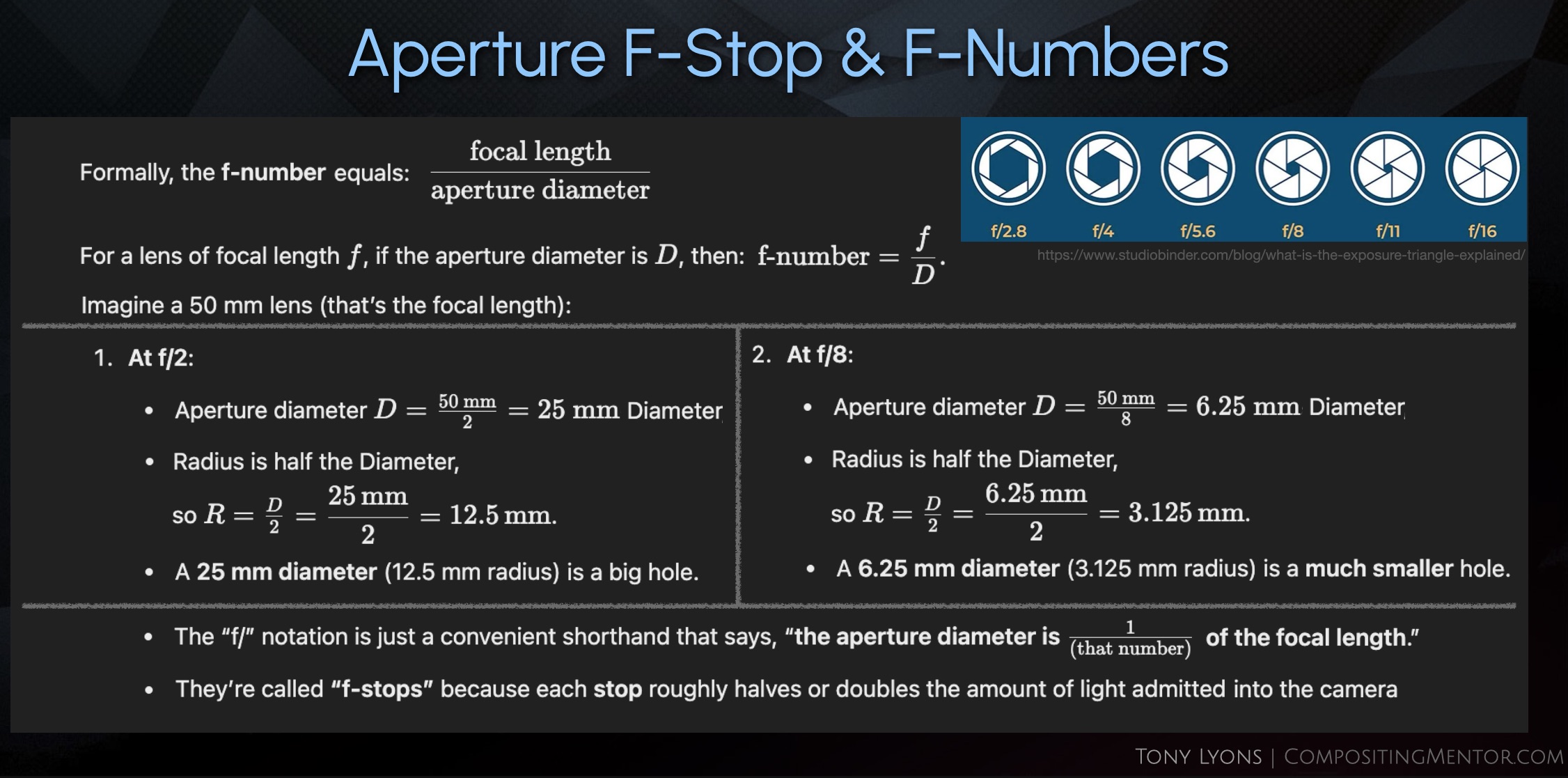
nuke.toolbar(‘Nodes’).addCommand(‘Channel/Shuffle’, ‘nuke.createNode(“Shuffle”)’, icon=‘Shuffle.png’)

Or, simply type X in the nodegraph and type

Shuffle

hit enter to get the old shuffle

Splitting or Shuffling out Layers

  • Split Layers is a python script that shuffles out all available layers from a selected node
  • This will make 1 shuffle per layer all connected to the source.
  • You can then just view and toggle between all the layers in the nodegraph
  • selecting all and hitting the hotkey alt + p will toggle on the postage stamp feature in all the shuffles, and if you visual thumbnails for all the passes. This can be useful for grouping and organising the passes.

Here are some links to some various Split out layers / shuffle layers python scripts found on nukepedia:

http://www.nukepedia.com/python/misc/split-layers
http://www.nukepedia.com/python/nodegraph/shufflechannels
http://www.nukepedia.com/python/nodegraph/multichannelsplit_v03


Layers vs Channels

  • Channels are the individual pieces that make up a Layer, or Channel Set. The most common example is red, green, blue and alpha, channels that make up the rgba layer
  • A layer must contain at least 1 channel, but often has multiple channels.
  • Nuke prefers layers to have a maximum of 4 Channels per layer, any more and it has difficulty displaying them in the GUI interface
  • It becomes significantly more difficult to see the channels beyond 4 that are in 1 layer. Nuke’s interface is built around displaying 4 channels.
  • An individual channel in nuke is written as LayerName.ChannelName, to let you know what layer it belongs to
  • Depth.Z for example, in which Depth is the LayerName, and Z is the ChannelName
  • Whenever there is only 1 Channel, this displays in the viewer as the red channel, since it’s the first channel visible in rgba
  • There are also many cases where someone will just refer to it as “The Depth Channel”, where they are recalling referring to the Layer, but since it commonly has only 1 Channel, they are talking about the same thing.
  • Some nodes in nuke deal with layers and channel differently, or prefer to deal with one vs the other
  • A shuffle dropdown displays LayerNames for example whereas a Copy node displays Channels, and therefore the list is much bigger since it is displaying the individual pieces of the layer
  • Blur node “channels” dropdown actually lists layers, and then you can toggle the channels of that layer on/off
  • Basically any node with a mask input is dealing with channels since it only needs 1 channel to function
  • The first 4 channels of a layer are mapped to, and will display as Red, Green, Blue, and Alpha in the viewer, regardless the actual name of the layer. Any more than 4 channels in a layer and nuke has a hard time displaying them
  • A motion pass for example, is describing motion in XY directions. Left-Right and Up-Down. So only 2 channels are needed in the Layer and they display as Red and Green
  • A position pass, for example, is usually describing XYZ – 3D space coordinates, and sometimes the channels are actually named x, y, and z. So Position.x, Position.y, Position.z
  • Since X, Y, and Z are taking up the first 3 channels in this layer, they will display as red, green, blue

AOVs

  • AOVs stand for Arbitrary Output Variables
  • Arbitrary output variables (AOVs) allow data from a shader or renderer to be output during render calculations to provide additional options during compositing. This is usually data that is being calculated as part of the beauty pass, so comes with very little extra processing cost.

https://learn.foundry.com/katana/3.6/Content/ug/rendering_scene/define_aov_output.html

  • They can be considered ”checkpoints” or “steps” in the rendering process. The render engine splits up many calculations while making the final image (Beauty) and is exporting these smaller steps out to disk so we can combine them and manipulate them in Comp.
  • The important thing to take away is the renderer takes these “pieces, these AOVs, and combines them together to form the final Beauty render. We are essentially trying to recreate this process with our CG rebuild, while retaining control over the individual pieces.
  • One of the best things about AOVs is we get them “for free” since the renderer was going to calculate them anyway.
  • AOVs can sometimes be just a “catch all term” for all layers/passes you will render out
  • “What AOVs are you exporting” is a common question, and many 3D applications will use the term AOVs to define any render passes (even though some of them require extra work to get, like ID’s or custom passes)

Differences in the Render AOVs

  • All the renderers are essentially doing the same thing. They are crunching the numbers, using different algorithms, and coming up with the math needed to produce the final renders.
  • Since all the renders are basically doing the same steps / calculations, you just have to get used to what that renderer chooses to name these AOVs or lighting passes. All the passes will combine together and add up to the final Beauty output.
  • There are certain similarities or patterns between all the renderers.
  • Sometimes we’ll be looking at 1 renderer while explaining concepts, but they often translate over to the other renderers in some way. So keep an eye out for the patterns described and apply what is being taught to your renderer’s output.
  • Our renders have differences in amount of AOVs exported and differences in naming conventions for the AOVs

Rebuild Equations per Renderer

  1. Arnold AOV Rebuild:
Beauty = diffuse_direct, diffuse_indirect, specular_direct, specular_indirect, coat, sheen, sss, transmission, emission

https://docs.arnoldrenderer.com/display/A5AFMUG/AOVs#AOVs-AOVs

  1. Redshift AOV Rebuild:
Beauty = DiffuseLighting, GI, SpecularLighting, Reflections, SSS, Refractions, Emission

https://docs.redshift3d.com/display/RSDOCS/AOV+Tutorial?product=cinema4d#AOVTutorial-HowtheAOVsshouldberecombined

  1. Octane AOV Rebuild:
Beauty = Diffuse_direct, Diffuse_indirect, Reflection_direct, Reflection_indirect, Subsurface_scattering, Refraction, Emitters

CG Compositing Series – 1.0 Introduction

For a long time I wanted to release a CG compositing series. Many things stopped me in the past:

  1. Time constraints
  2. Access to good Render examples to work with
  3. Not thinking I had too much to contribute to the subject matter

This series will be focused on answering the following question

How do I best rebuild my CG passes, for the most flexibility as a Compositor?


Download the FruitBowl Renders for the Series

My Friend and fellow artist, Chase Bickel, has kindly provided us with some high quality renders of a FruitBowl to download for free and play around with.


Download the FruitBowl renders now, or I will always post the links at the top of each video and blog post for you to download later:

You can Choose to either download all 3 FruitBowls at once:
FruitBowl_All_Renders_Redshift_Arnold_Octane.zip (1.61 GB)

Or Each FruitBowl Render Individually for faster downloads:

FruitBowl_Redshift_Render.zip (569.1 MB)

FruitBowl_Arnold_Render.zip (562.8 MB)

FruitBowl_Octane_Render.zip (515.4 MB)

You can place the FruitBowl renders files into the /SourceImages/ folder of the project files folder accompanying each video and nuke will reconnect the read nodes.
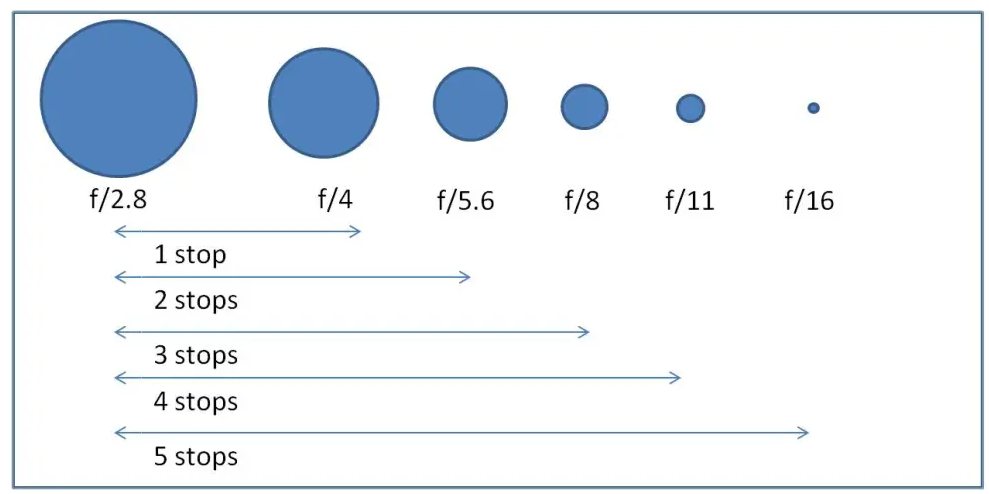
For Example:


These Renders are full of common passes you would find in production, including:

  1. AOVs
  2. Lightgroups
  3. IDs
  4. Utility

Gameplan

Start with the Basics –> Build our way to more advanced topics –> End with a proposed template for your CG Rebuild


I will go through different types of AOV passes you would typically find at a studio, what they are, how they are used, and how should think about them in relationship to one another. We will categorise and group different AOVs in order to define them better, and help us find the commonality and patterns between renderers.

This series aims to be useful no matter what renderer your CG comes from, as the principles are the same.
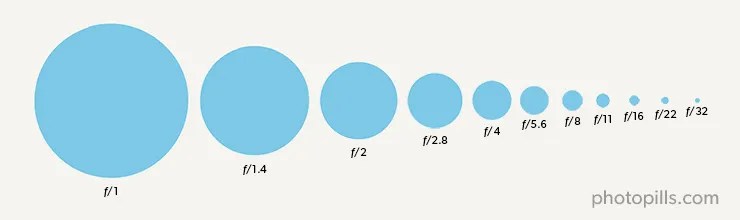
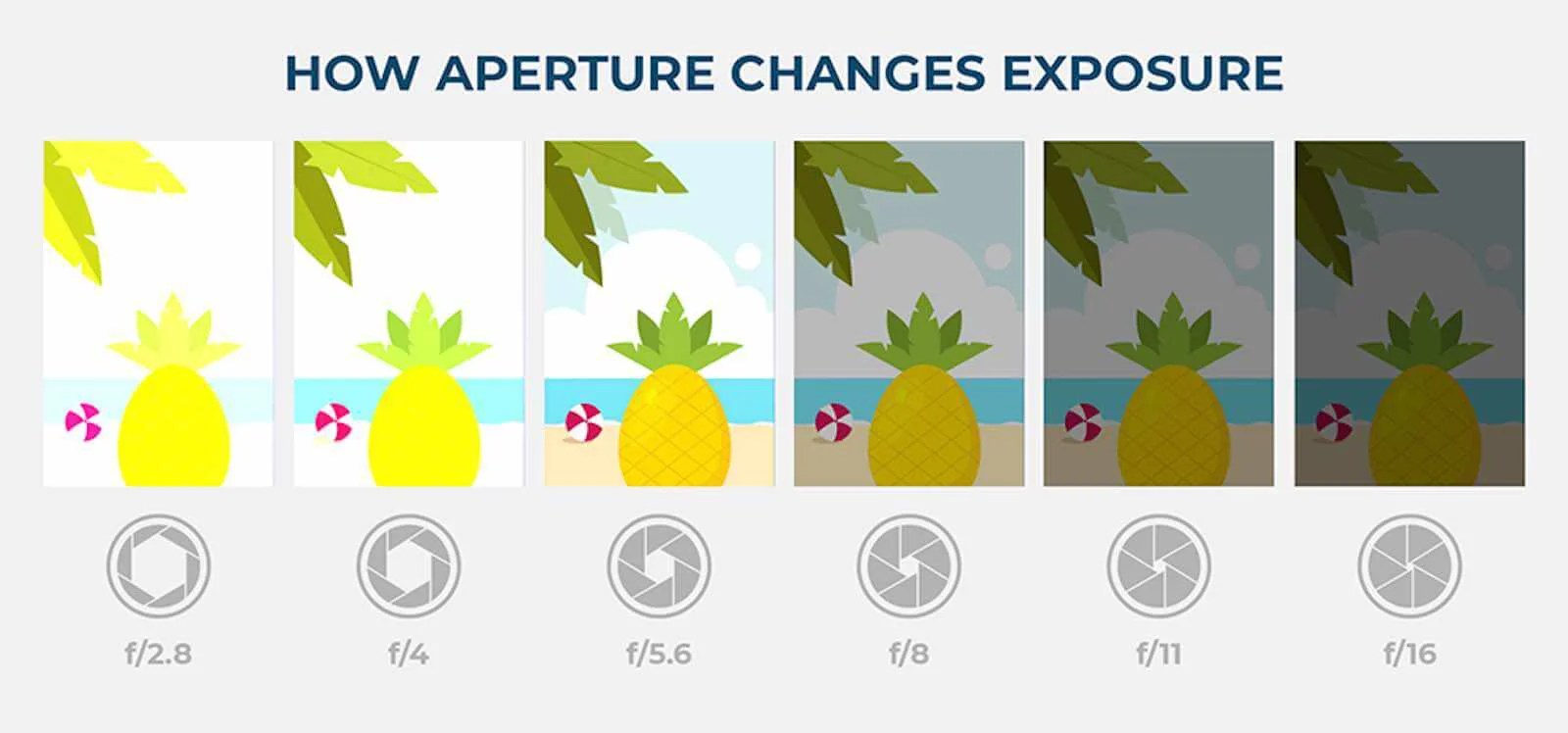
Topics Covered

  1. Differences between Additive and Subtractive Workflows, and the pros and cons of both
  2. Explaining the difference between Material AOVs and LightGroups and how to work with them together seamlessly
  3. This includes an elegant solution to the infamous AOV – Lightgroup paradox
  4. I will cover the importance of making Mattes and alphas, to help us isolate, and automate our CG manipulation. We will go over common utility passes and IDs and show how to do some cool things with them

Using Full CG Render

  • Will not cover how to integrate CG renders into a live-action plate
  • Will focus on the CG rebuild and various methods of manipulation to get the most out of your CG renders

Something for everyone

  • Juniors, Mids, Seniors, TDs, Comp Supervisors
  • There will be knowledge to be learned across all levels
  • Perhaps this will one day be a pre-requisite for a full CG Compositing into live-action plate course

This series will take some time to release all episodes, so please have patience

Thank you!

Tony

BinaryAlpha

BinaryAlpha_SplashPage_v01.jpg

Binary Alpha is a very simple, yet super convenient expression that I use all the time, and decided to turn into a quick gizmo.

It analyzes a choice of the RGB, RGBA, or Alpha input and outputs an Alpha Channel (or RGBA result) that is Binary, 0 or 1.  Any Pixels that are not 0 will be turned into 1 (negative numbers also), and 0 will remain 0.  

This is perfect for those “blur, unpremult, set alpha, blur” for tricks extending colors, or if you need a quick matte for finding any rgb color above or below 0, in a CG render passes for example.

The good ol’ blur/unpremult/blur ❤ :

BinaryAlphaExample_v03_copy_2.gif

Basic properties:

binaryAlphaSettings_jpg.jpg

The literal tcl expression is just:

r!=0 || g!=0 || b!=0 || a! = 0 ? 1 : 0

Which in english, translates to something like: 
“if red is not 0, or green is not 0, or blue is not 0, or alpha is not 0, then be 1, or else, be 0”
So it will include negative pixels as an output as 1 as well.

Super simple but hopefully a time saver if you are like me and hate remembering expressions.

Find the tool on nukepedia here:
http://www.nukepedia.com/gizmos/channel/binaryalpha

You can also download this tool at my github, where you’ll find all my public tools in one place:
https://github.com/CreativeLyons/Lyons_Tools_Public/blob/master/04_Channel/BinaryAlpha.nk

Enjoy

Advanced Keying Breakdown: DESPILL 2.1 Initial Concepts

0:00 intro
0:40 what is despill?
3:40 Separating the Despill process from the Alpha process
7:33 Core Despill and Edge Despill

Hey guys,

I’m going over the first section of Despilling.  I talk about what despill is, why you need to remove it,  how it should be separated from the alpha process, and combining core and edge despills.

The 2 main goals of despilling are:

1.) Removing any spill while still maintaining the original colors in the plate
2.) Blending the subjects edges with a BG colors

http://nukestation.com/vkeyer-tutorial/

Here is the link to a great despill tutorial which goes over blending BG colors using the difference matte of a despilled plate –> to the original plate.   If you are new to the concept of blending your despill with the background then you are really going to like this video.  He talks about flame in the beginning of the video and switches to nuke later.

Thanks for watching, next I’ll go over how to achieve and control the despill to get what you need.

– Tony

Advanced Keying Breakdown – ALPHA 1.1: pre-processing the GS


Here is the first part in the advanced keying series.  I’ve started with the ALPHA section, and made a custom slide for just ALPHA, where you can see the many topics I plan on covering in future videos, but for now I am just covering 1.1 Pre-processing the Green Screen.  Here is the slide for ALPHA:

Advanced Keying Breakdown_ALPHA_detail_v01

It’s a long video, but it’s full of useful tips and techniques.  I recommend watching the whole thing if you get a chance, but if you’re in a rush and want to skip to certain sections here are the Timecodes for you:

0:00 Intro

1:12   Denoising

5:56  Colorspaces

13:11 White Balancing

21:28 Saturation

25:33 Evening out the GS

35:21 Outro Recap

here is the Neat Video plugin website I mentioned for reducing noise on an image:

http://neatvideo.com/

here is the link to some keying tutorials from nuke station for you guys to look through if you need them, most all of them are excellent:

http://nukestation.com/category/keying/

Please guys, I know I covered a lot but if you have any questions, or if you would like me to do a written recap on all the sections here in this blog post, please just let me know and I’d be happy to write it up for you.   Leave a comment with any questions, or if you think I messed something up, or if you’d like to contribute to the conversation and have anything to add to this tutorial.  I enjoyed putting this together and look forward to the rest of the keying tutorials I plan on putting together.  Please share if you learned something =)

Cheers,

Tony